
Managing Producer Profiles
Managing Producer Profiles
As an agency admin, you may need to manage producer profiles to review and update key details such as personal and contact information, background questions, employment history, and state assignments. Follow the steps below to access and manage a producer's profile in InsureTrek.
Steps to Access a Producer Profile
- Log in to your InsureTrek account.
- Go to Producers > Manage Producers.
- Find and click on the producer's name to open their profile.
From a producer's profile page, you can manage their personal information, NIPR contact details, background questions, employment history, licenses, carrier appointments, and state & territory assignments.
- Only agency admins have permission to update producer profiles from the agency account. Additionally, producers can login to their own account to update the details.
- Ensure that all updates comply with regulatory and licensing requirements.
Personal Information
As an agency admin, you can update the personal information such as SSN and gender of a producer from the producer's profile.
- Once on the producer's profile page, click on the Edit button to update the producer's personal information.
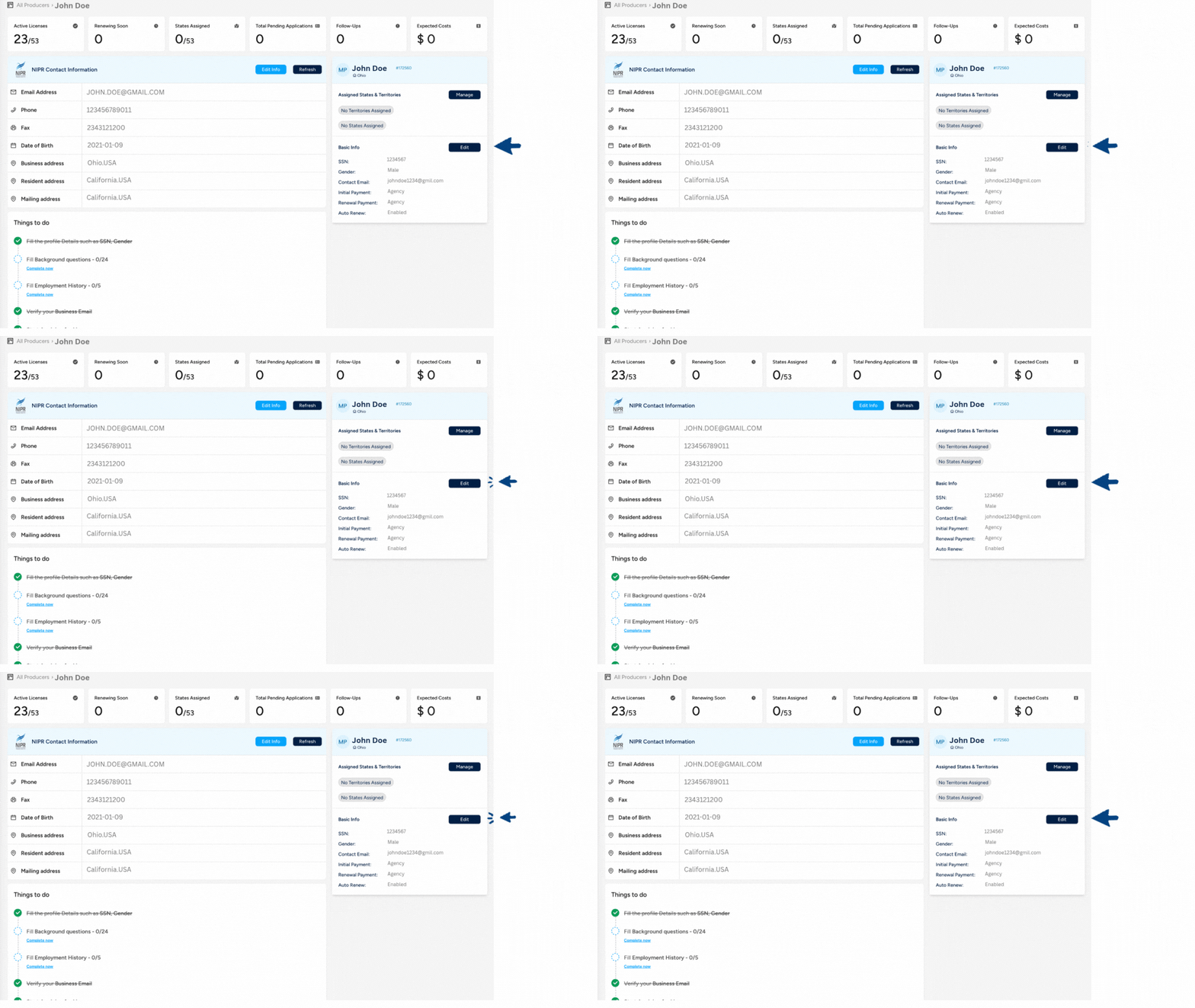
- The following options are available for you to edit:
- Edit Initial Payment
- Edit Renewal Payment
- Enable or disable Auto-Renew
- Update SSN (Social Security Number)
- Modify Gender information
- Edit FINRA CRD number
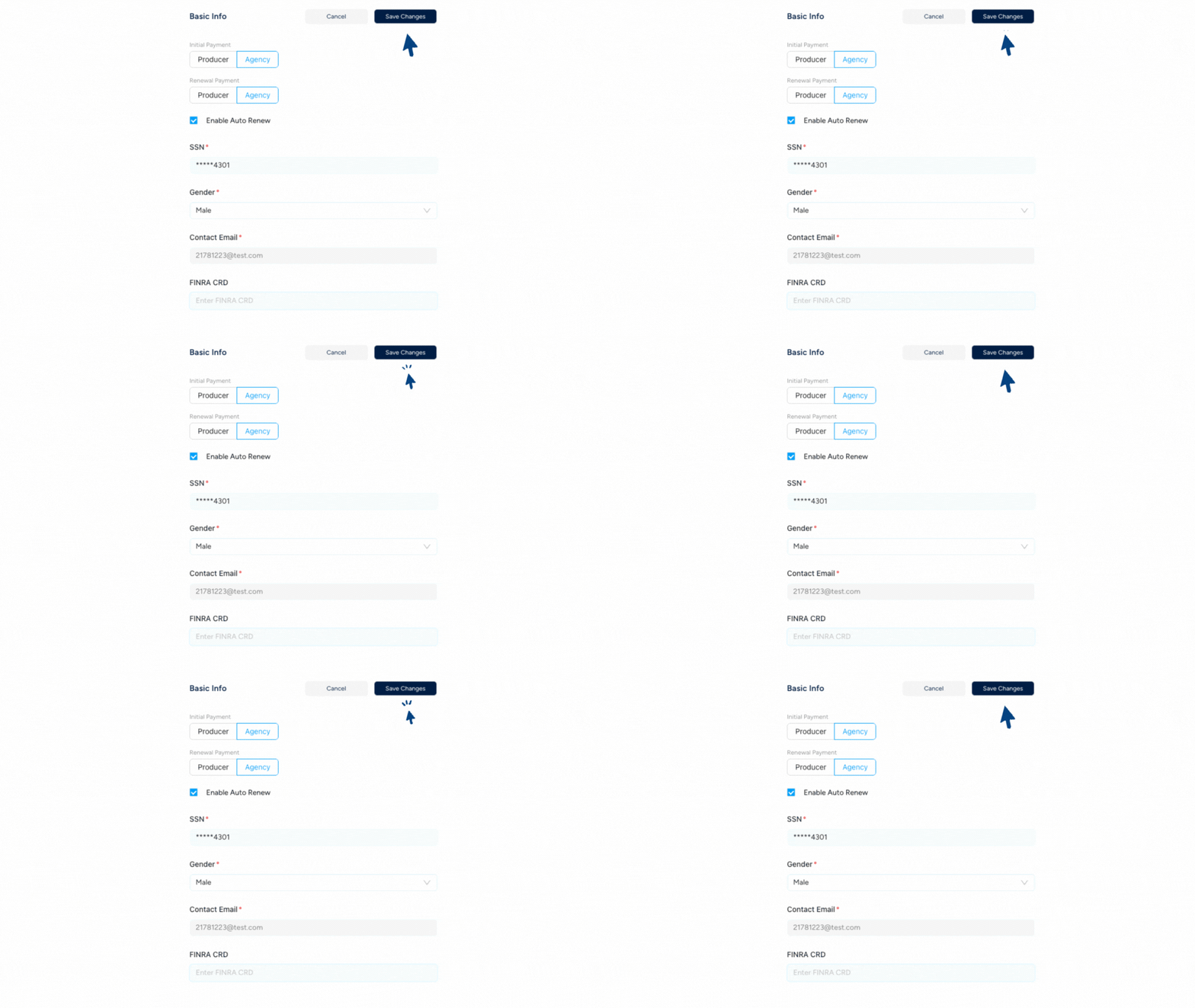
- After making your changes, click Save Changes to update the information.
NIPR Contact Information
As an agency admin, you can update the contact information such as email address and phone number of a producer from the producer's profile.
- Once on the producer's profile page, click on the Edit Info button to update the producer's contact information.
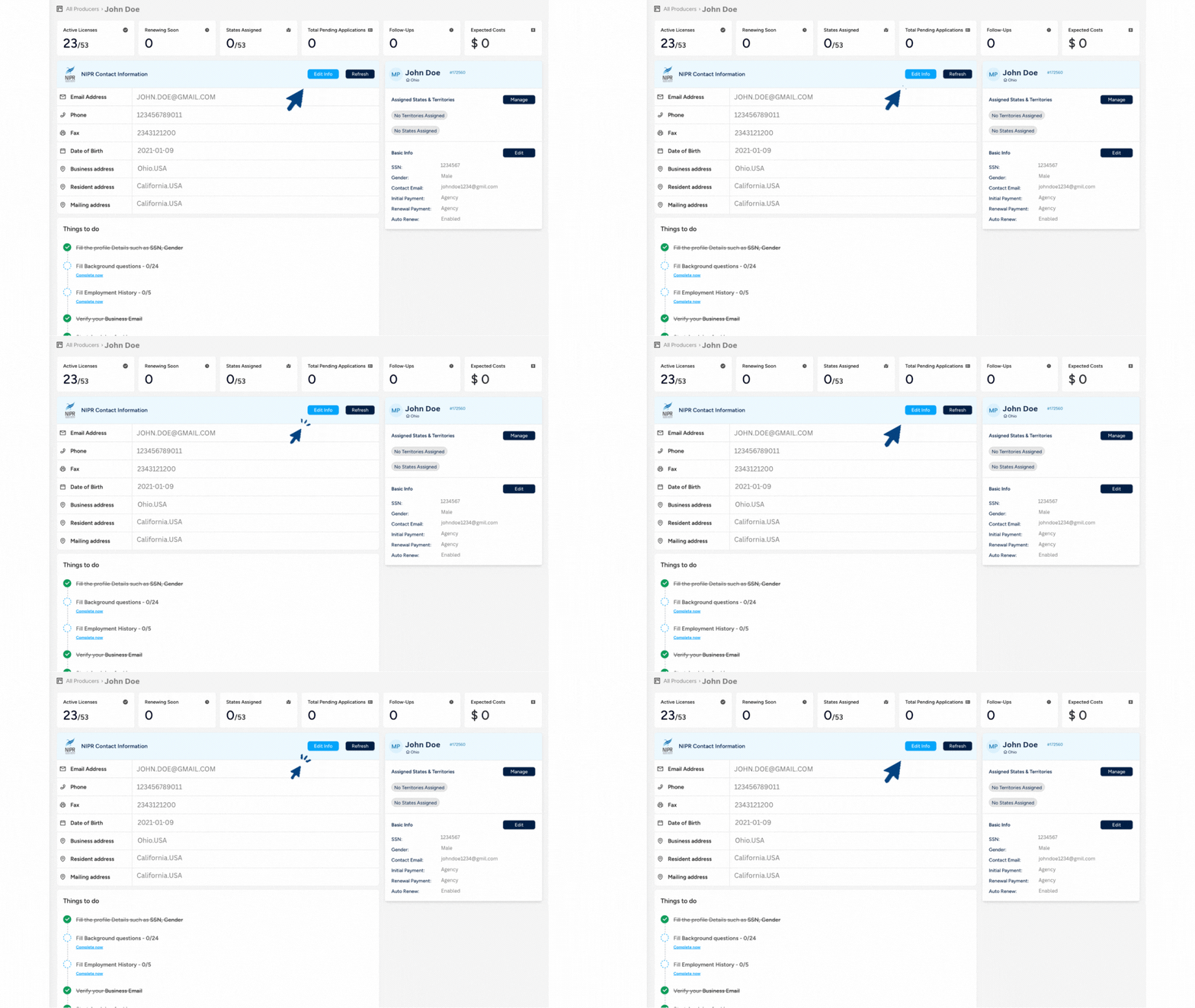
- The following options are available for you to edit:
- Phone Number
- Business Email Address
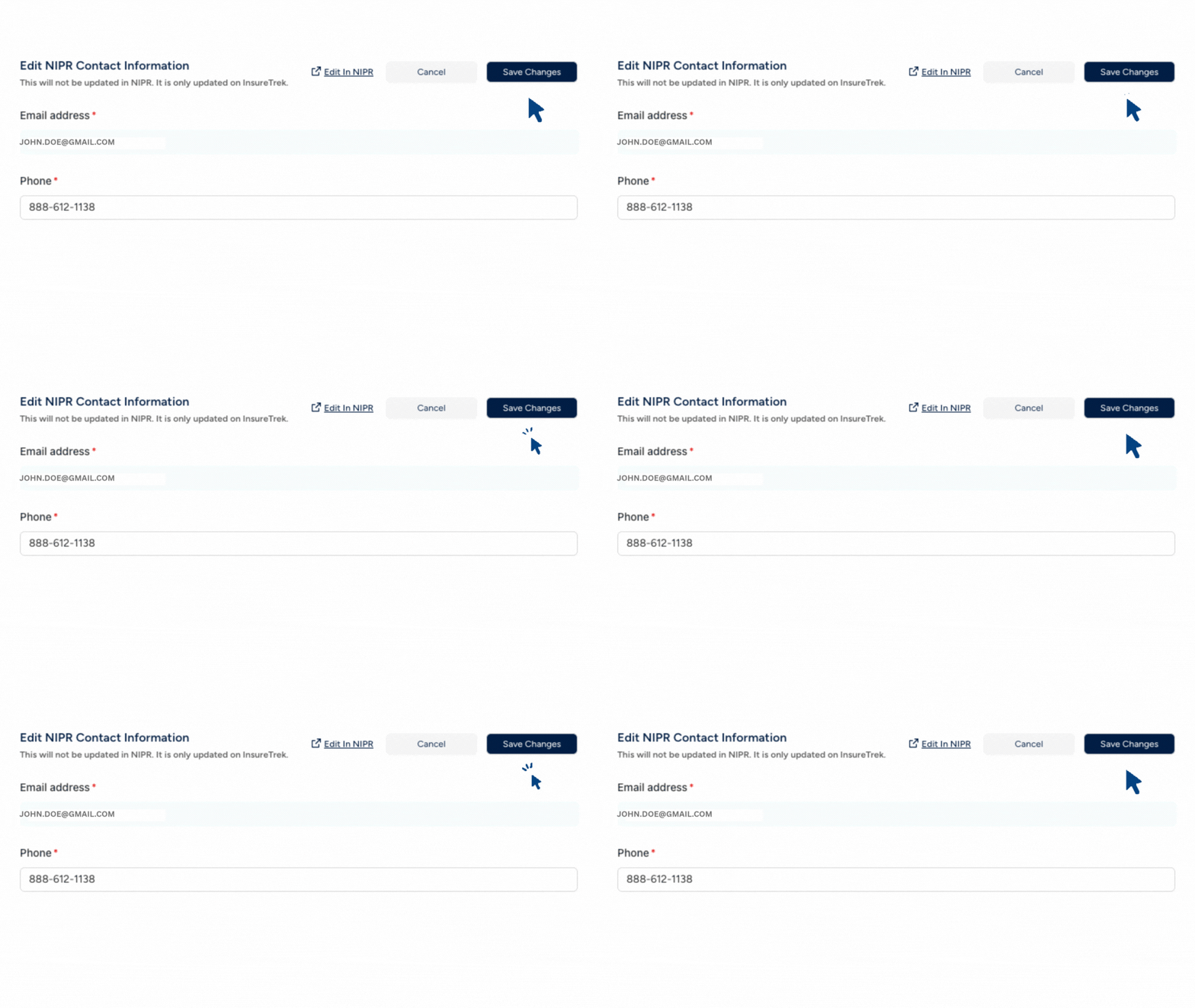
- After making your changes, click Save Changes to update the information.
Background Questions
As an agency admin, you can review and update the responses to background questions of a producer from the producer's profile.
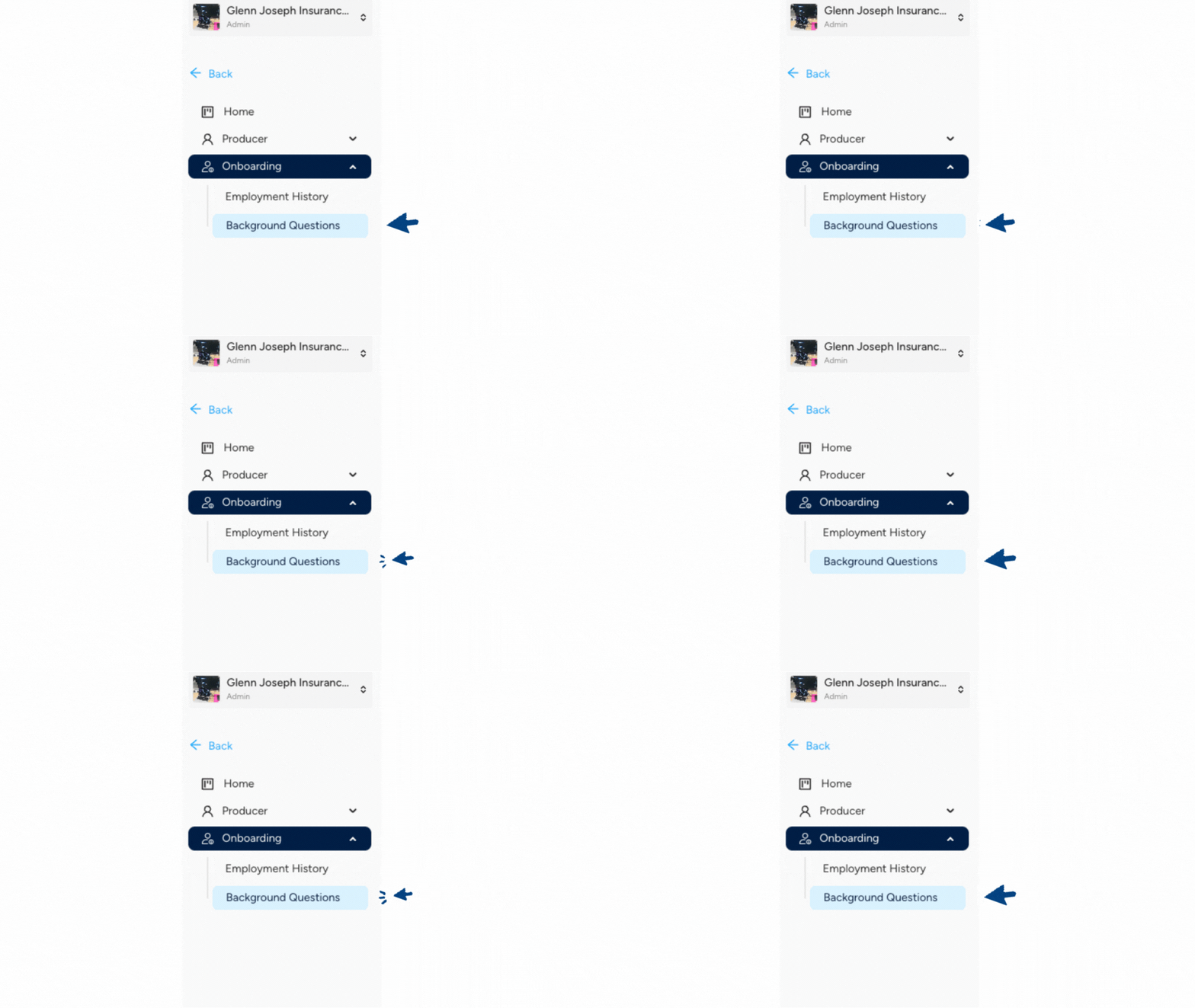
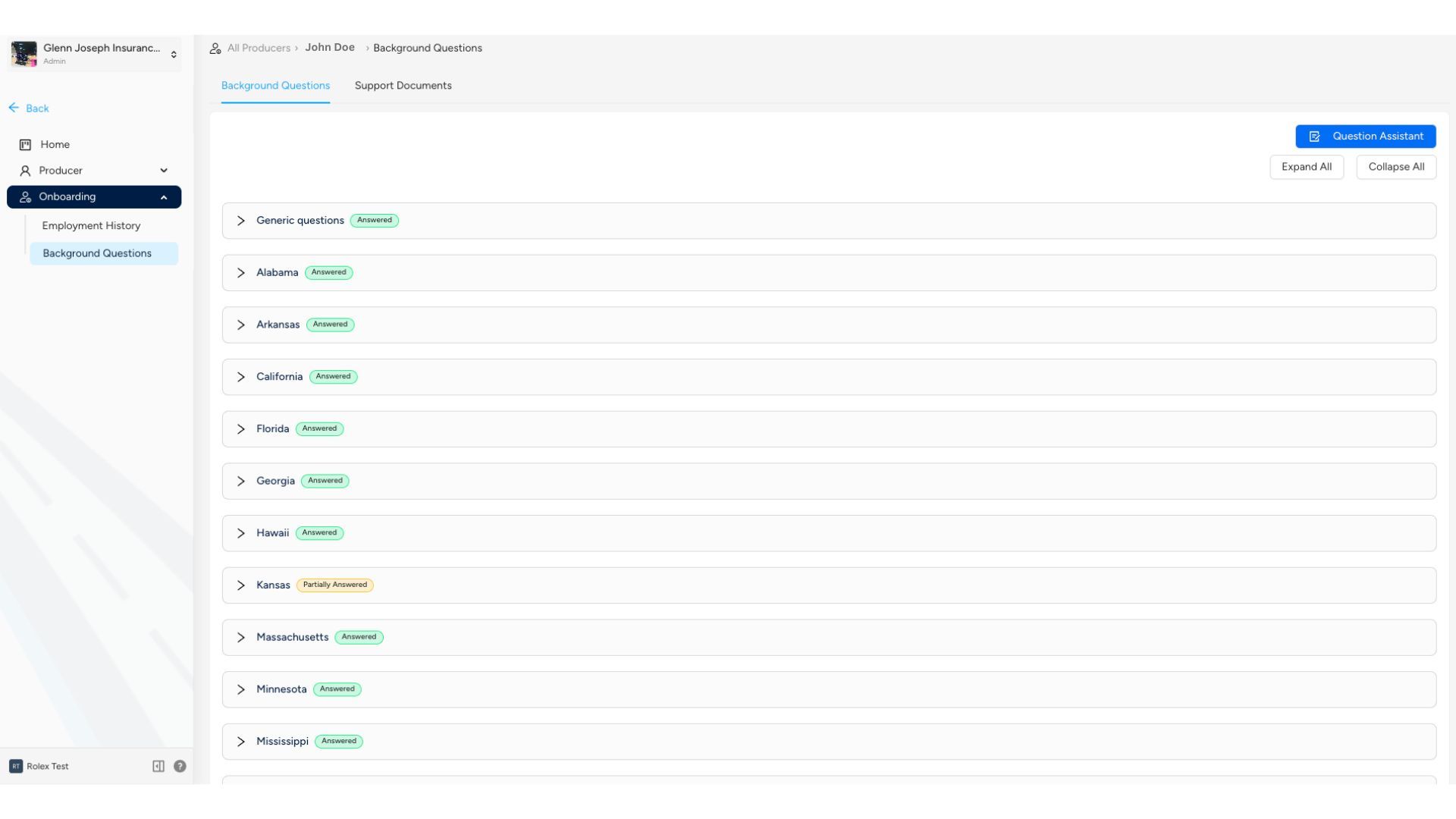
- Once on the producer's profile page, navigate to Onboarding > Background Questions to review and update the responses to standard compliance and regulatory questions.
- You'll see a screen displaying all the states along with their specific background questions.
- Answer them based on the requirements of the state license application.
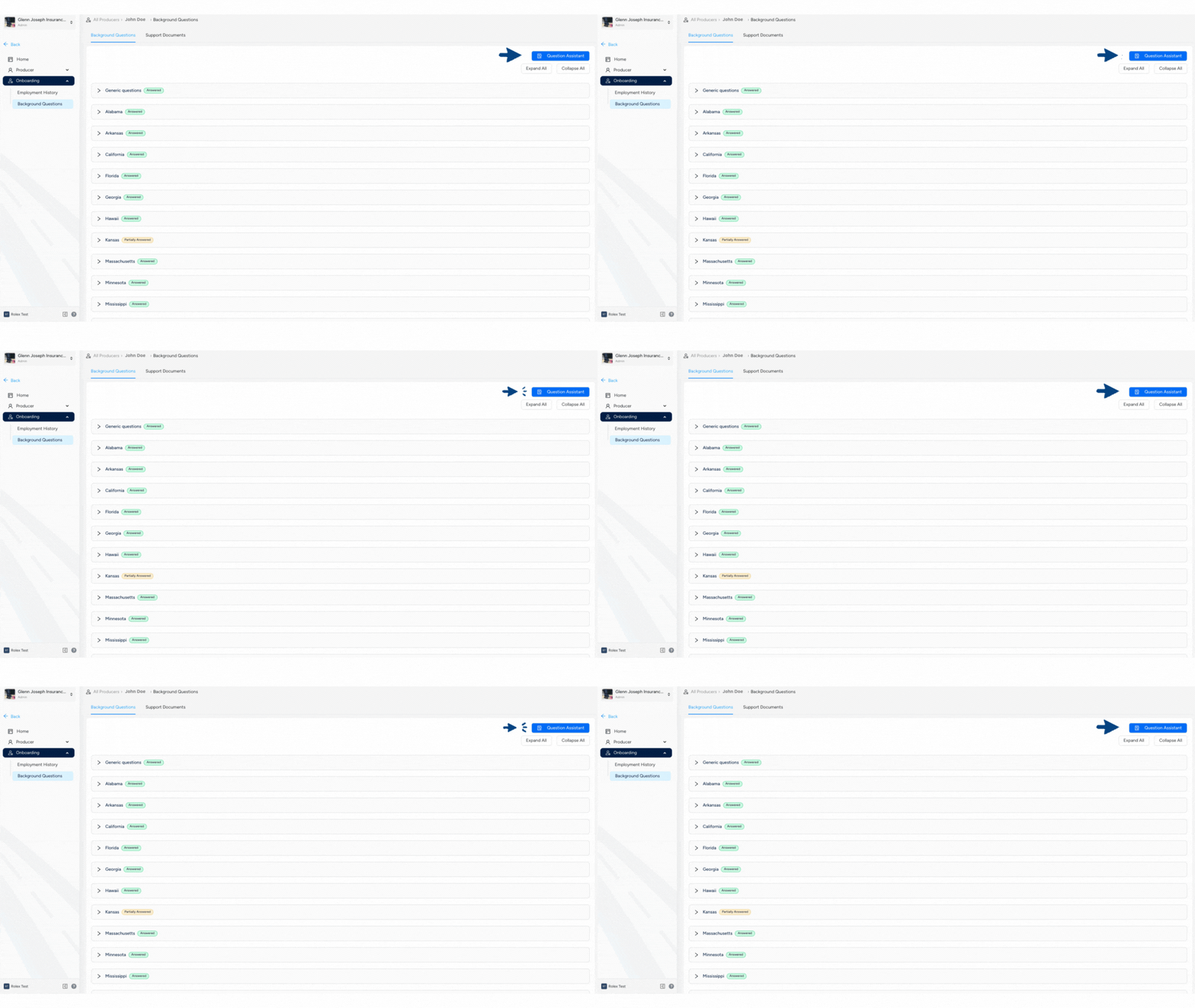
- You can answer all the 53 questions or use the Questions Assistant feature to answer all the 53 questions by answering only 6 questions.
- Question Assistant is a set of initial questions designed to gather basic information, allowing the system to automatically pre-fill background questions based on the user's responses.
- You'll see a list of 6 questions that need to be answered.
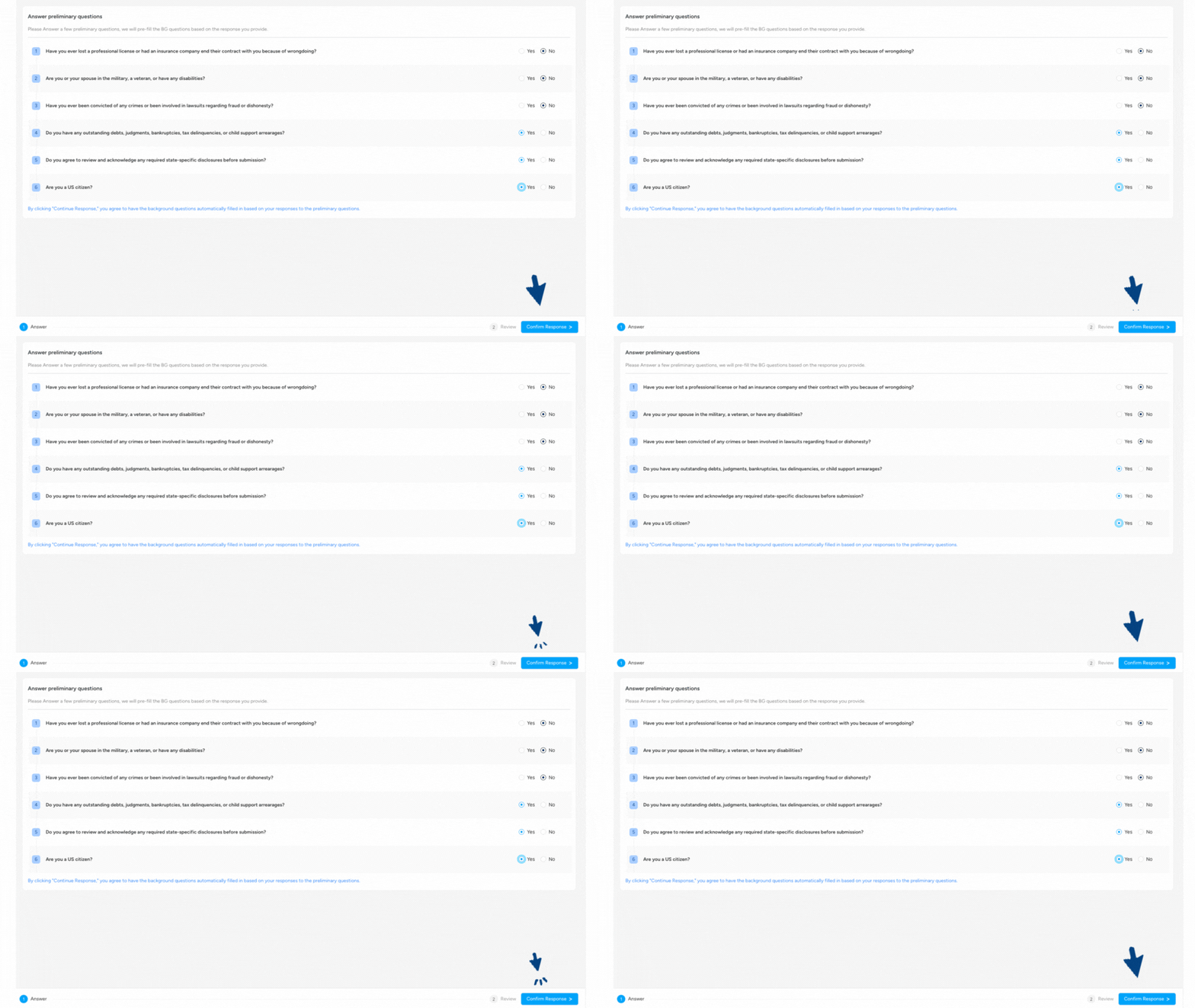
- By clicking Continue Response after answering, you consent to have the background questions automatically populated based on your preliminary responses.
- All the background questions will be answered and you'll be redirected to review your answers.
- You can update answer to any questions in the review screen (if needed).
Employment History
As an agency admin, you can review and update past and current employment records of a producer from the producer's profile.
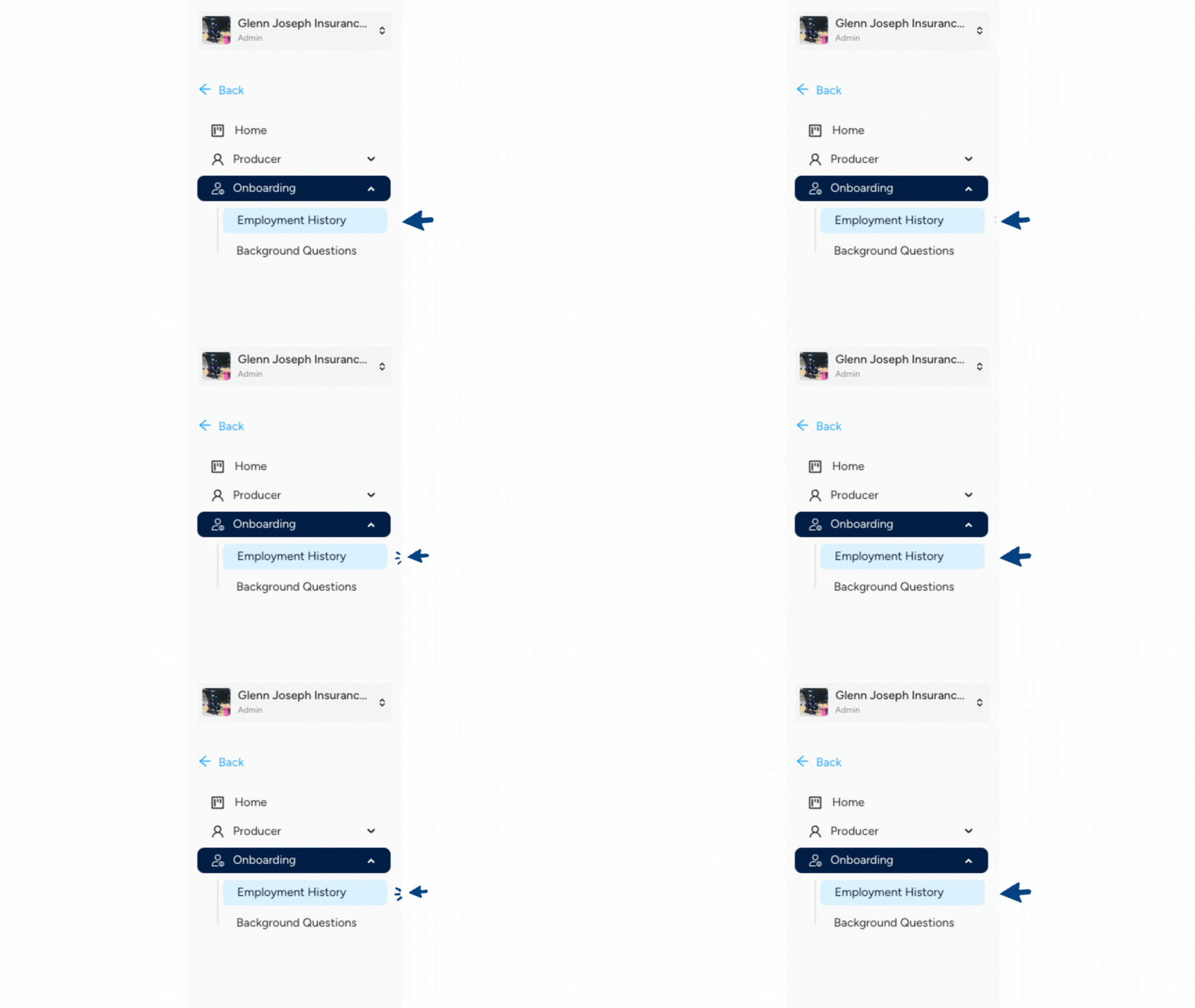
- Once on the producer's profile page, navigate to Onboarding > Employment History to review and update the add, edit, or remove past and current employment records associated with the producer.
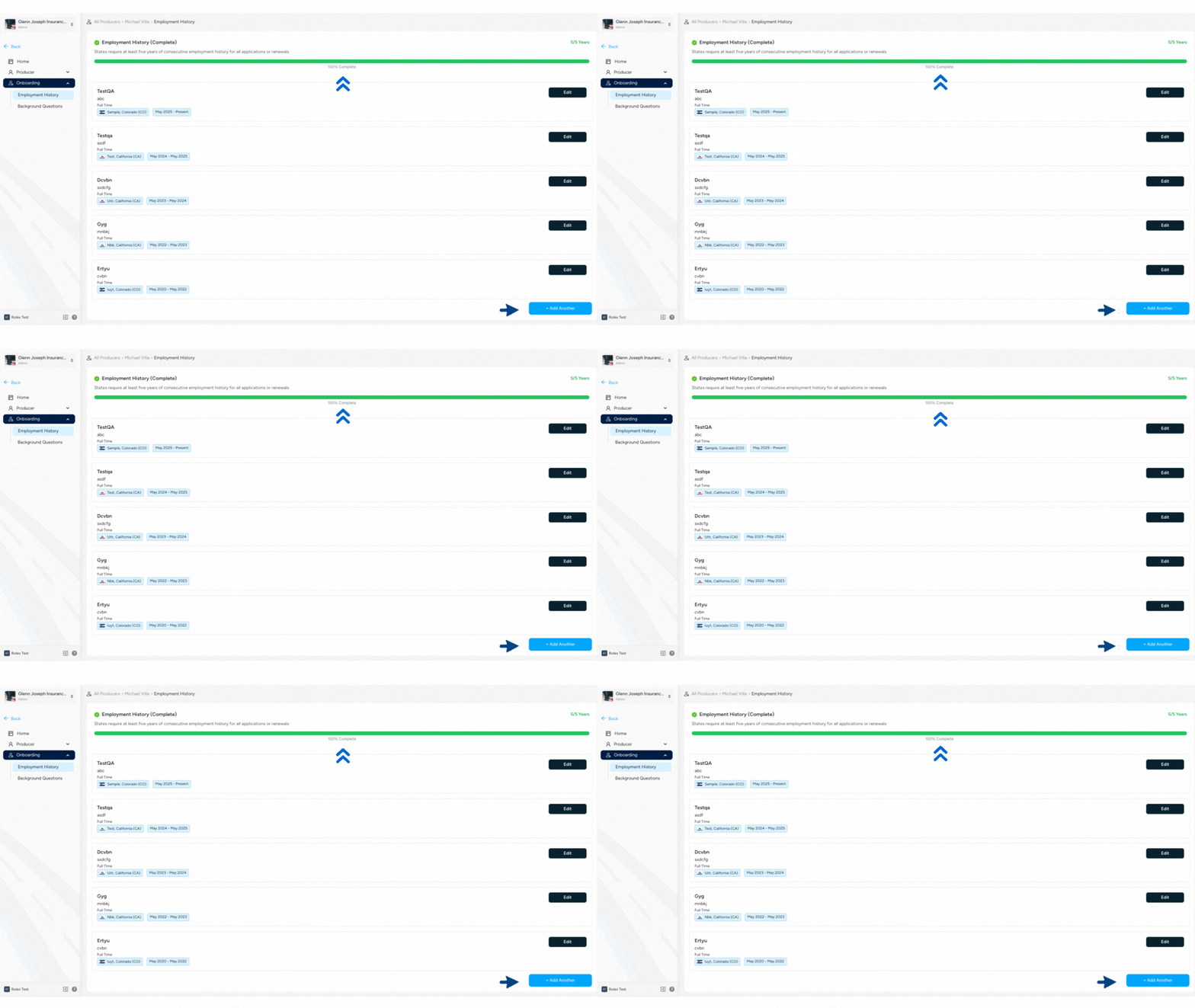
- You'll see a screen where you can add or edit at least five consecutive years of employment history, which is required for all new license applications or renewals.
- You can add multiple previous agency experiences of a producer.
- Fill the following details for every experience added:
- Job Title - Enter the title or role of your job.
- Company Name - Enter the name of the company.
- Employment Type - Select the employment type whether it is full time or part time.
- City - Select the city in which you've worked.
- State - Select the state in which you've worked.
- Start Date - Add the start date of the experience.
- End Date - Add the end date of the experience. If you are currently working in this same role and company then check-in the "I am currently working in this role" checkbox.
- Description (optional) - Add more details about the role or job. This is an optional field.
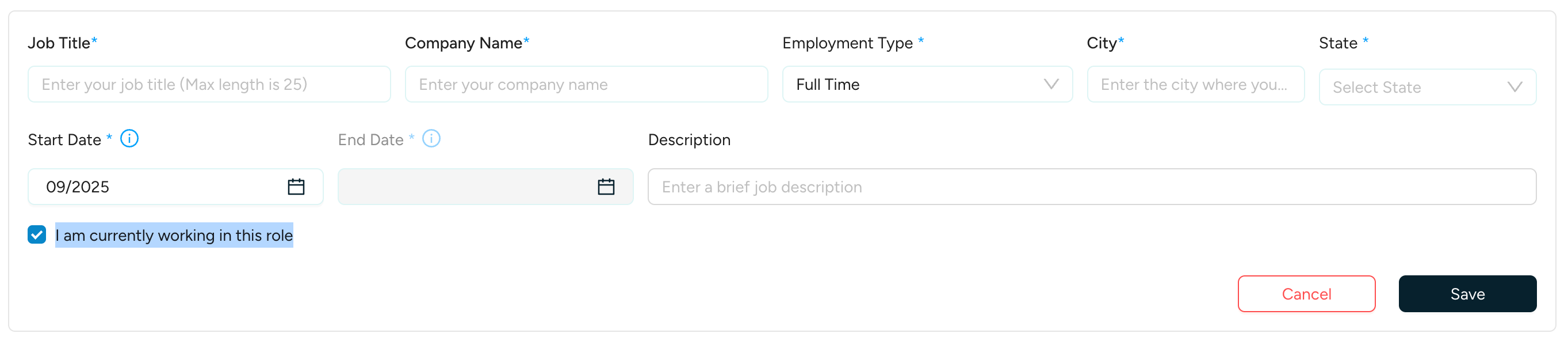
- Click Save to save the experience.
- The employment history must cover a full 5 consecutive years and should display 100% completion, as shown in the image.
Manage Licenses
As an agency admin, you can apply, renew or amend licenses of a producer from the producer's profile.
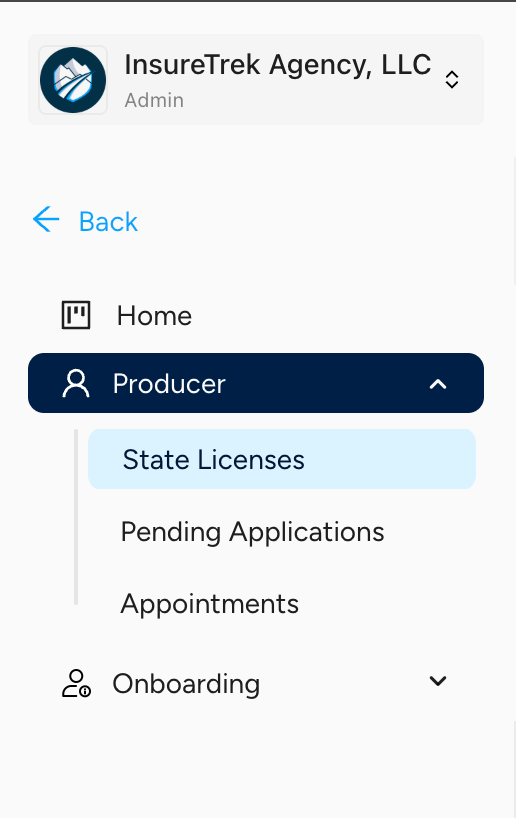
- Once on the producer's profile page, navigate to Producer > State Licenses to view and manage the licenses of a producer.
- You can perform actions such as:
- Applying for a new license
- Renewing an existing license
- Adding another LOA to an existing license
- On the State licenses screen, the following license views are available:
- All Licenses - Displays every license that is assigned to the producer be it active, ready for renewal, amend or applying for new license.
- Active - Displays all licenses that are currently in active status.
- Needs Attention - Lists licenses that require additional actions or prerequisites to be completed before they can be submitted to NIPR. This view includes:
- A list of pending tasks
- The status of each task (e.g., Completed, Pending)
- Any blocking items that must be resolved before submission
- Upcoming Renewals - Shows licenses that are due for renewal soon. Enables proactive action to ensure timely renewal and avoid license expiration.
- The State licenses screen consists of the following details in all the above 4 views:
- State and Status: Displays the name of the state and status of the application.
- License Number: Displays the license number.
- License Class and LOAs: Displays the list of license classes and LOAs associated with the state license.
- Expiration Date: Displays the expiration date of the license.
- Assignment Status: Represents whether the state is assigned to the producer or not.
- Fee: Displays the estimated fees for the license application.
- Status Graph: The Status Graph contains 4 indicators that validate the profile readiness of a producer. Here's what each light represents:
- Profile: The producer's basic information is filled out and verified.
- Employment History: A consecutive 5-year or most recent employment history is required and is currently missing.
- Background Questions: The producer has not answered the mandatory background questions.
- Resident License: Confirms that the producer holds an active resident license.
All 4 indicators must be Green in order to proceed. Only then will the Apply, Renew or Amend button be enabled.
Carrier Appointments
As an agency admin, you can view the carrier appointments associated with the producer from the producer's profile.
- Once on the producer's profile page, navigate to Producers > Appointment to view the carrier appointments associated with the producer.
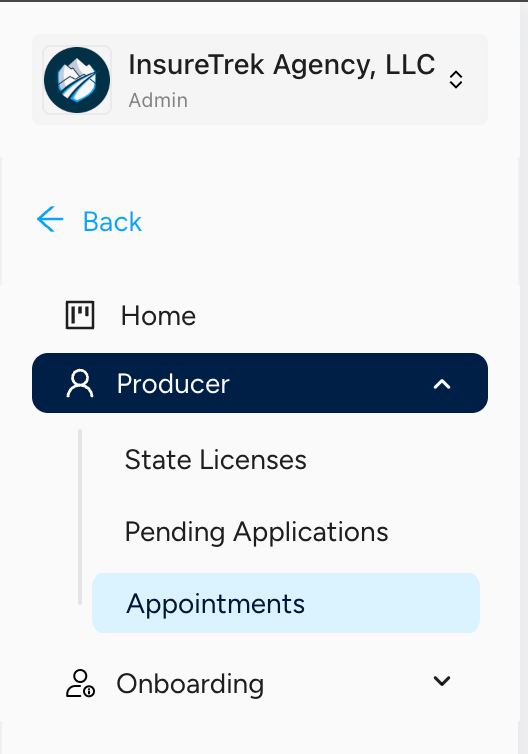
- You will be able to view the carrier appointments which are grouped by states.
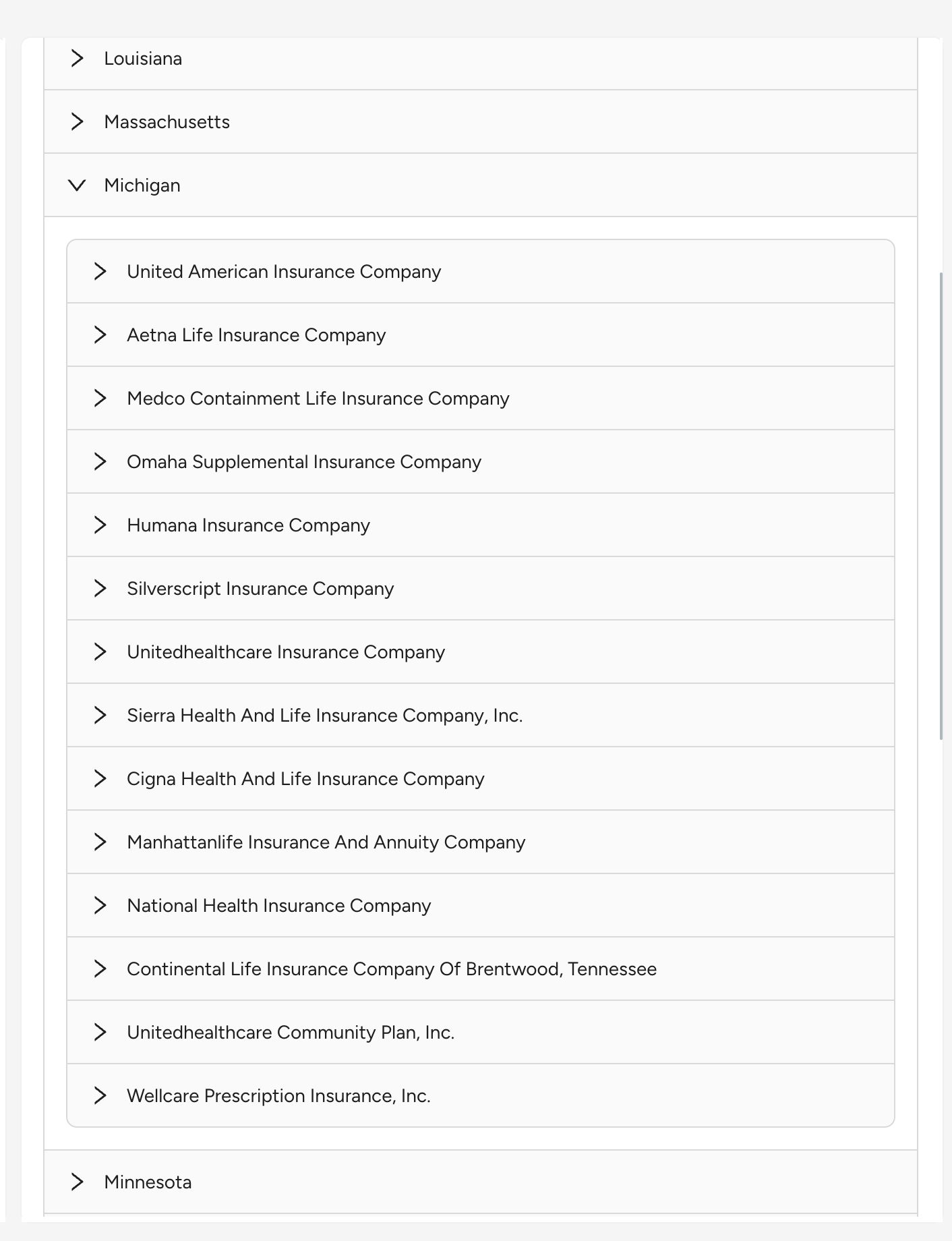
- Expand any carrier to view the following details:
- License Class
- Line of Authority
- Status Date
- Appointment Renewal Date
State & Territory Assignment
As an agency admin, you can manage the states and territories assigned to the producer from the producer's profile.
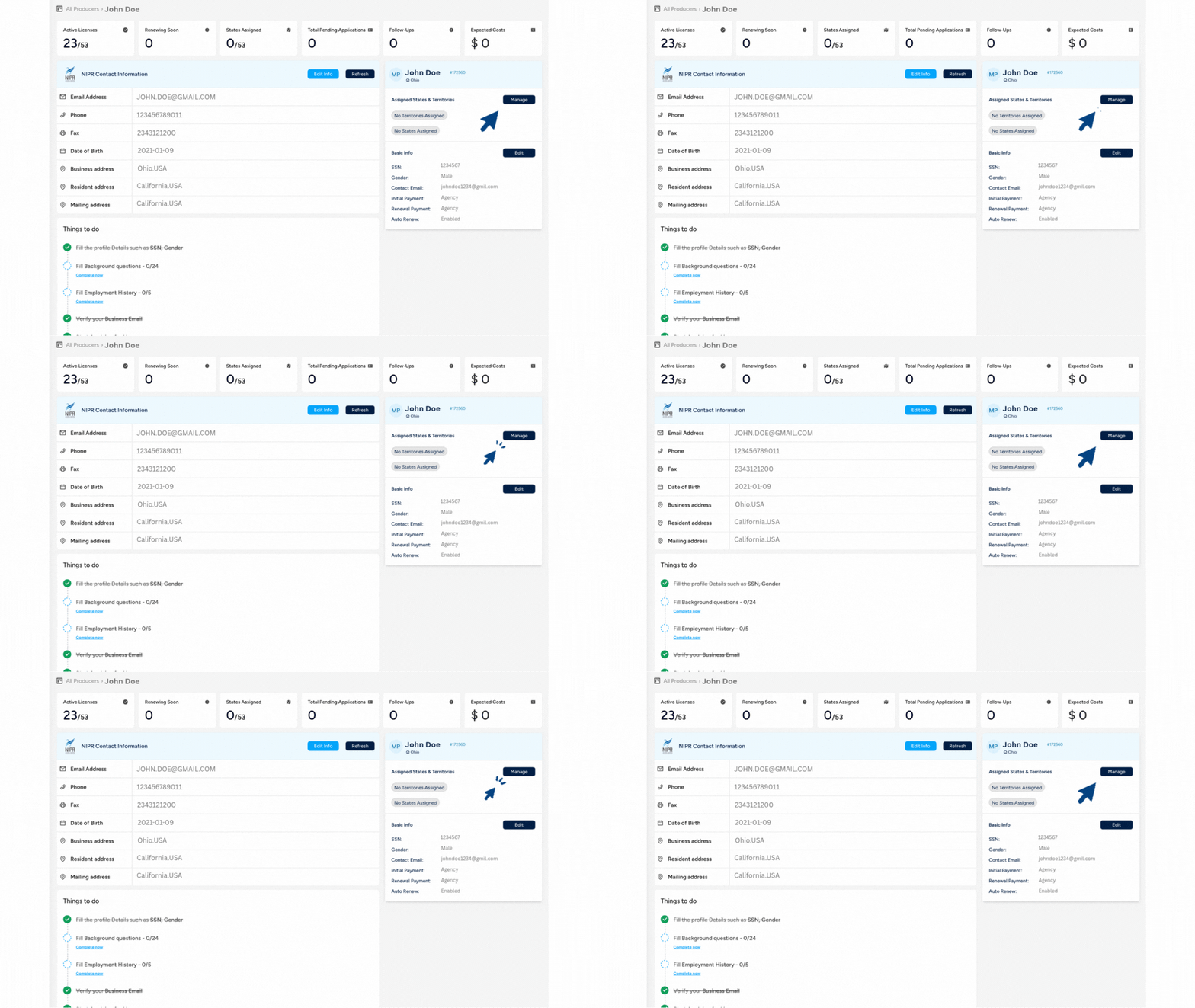
- Once on the producer's profile page, click on Manage to assign or un-assign states & territories where the producer is authorized or will be applying for licenses.
- You will be redirected to the states & territories wizard where you can assign:
- A predefined territories (or)
- Individual states (or)
- A combination of both
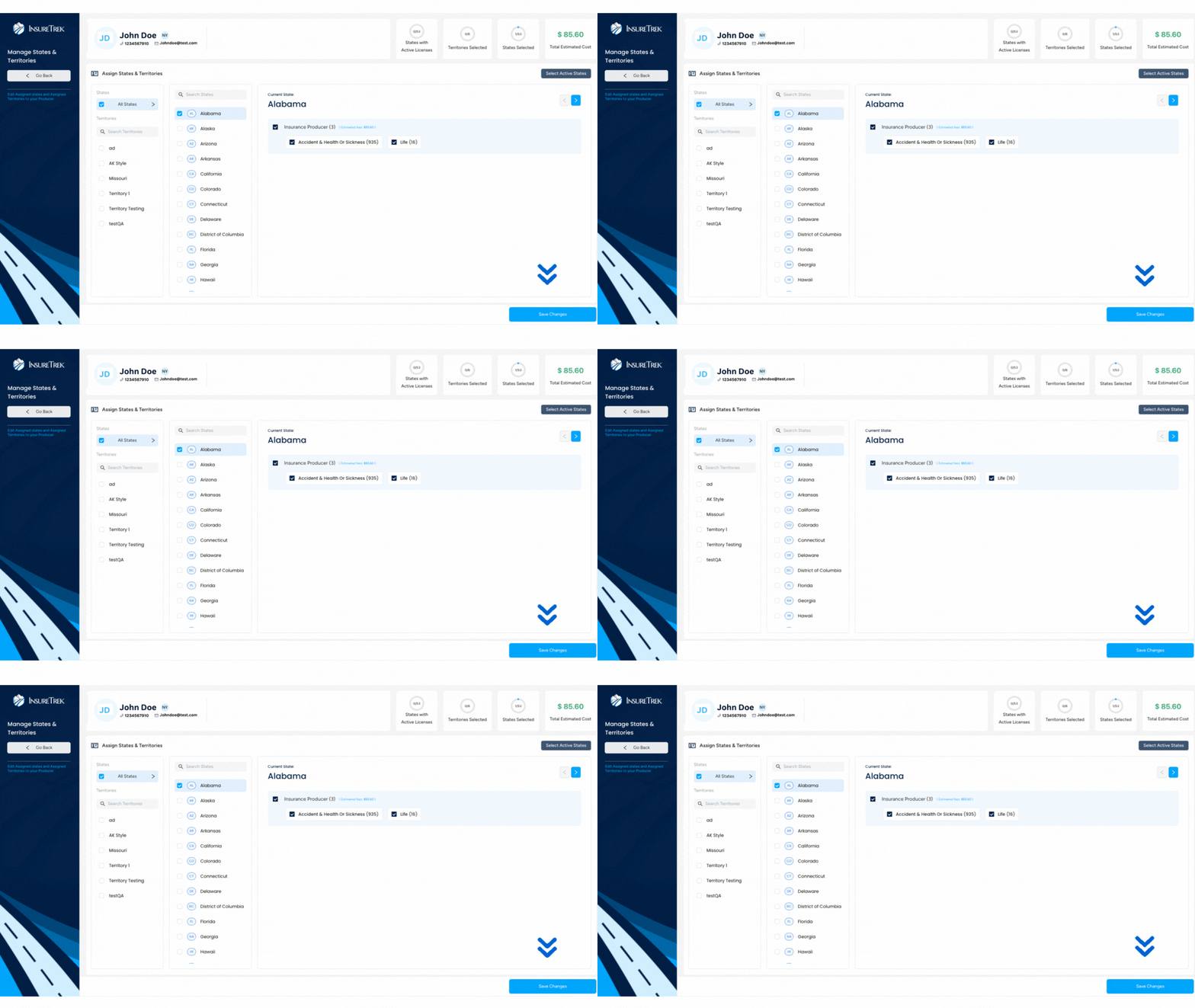
- If you are adding states then you can select one or multiple states at a time.
- For each selected state, select the relevant Lines of Authority (LOAs).
- LOAs vary by state, so review them carefully.
- For each selected state, select the relevant Lines of Authority (LOAs).
- If you are adding territories then just select one or multiple territories.
- After making your selections, click Save Changes.
- You will be redirected to the Home Page, where the selected state/territory code will appear under Assigned States & Territories.
Adding SSN
Follow the steps below to update a producer's SSN within the platform.
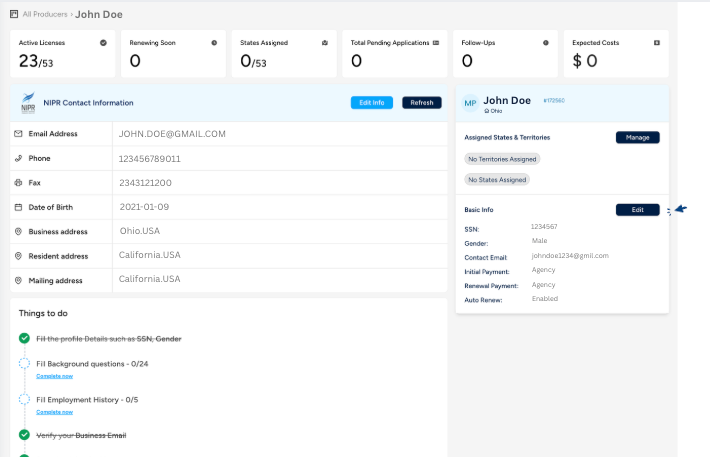
- Go to the Producer's Profile home page by selecting Producers under Manage Producers, then search for the producer's name and open their profile.
- On the profile home page, find the Basic Info section. Click the Edit button to open the details panel.
- A panel will slide out from the right side of the screen. Locate the SSN field, enter the correct Social Security Number, and click Save Changes.
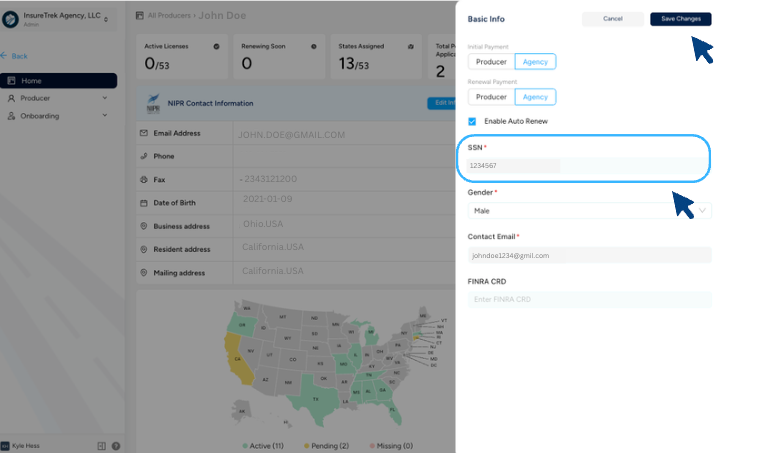
- Once the SSN is saved, return to the application and retry the submission.
Adding FINRA CRD
For certain states, providing the FINRA CRD number is mandatory when submitting license applications or making amendments related to variable products.
- Navigate to the Producer's Profile page from the dashboard or search results.
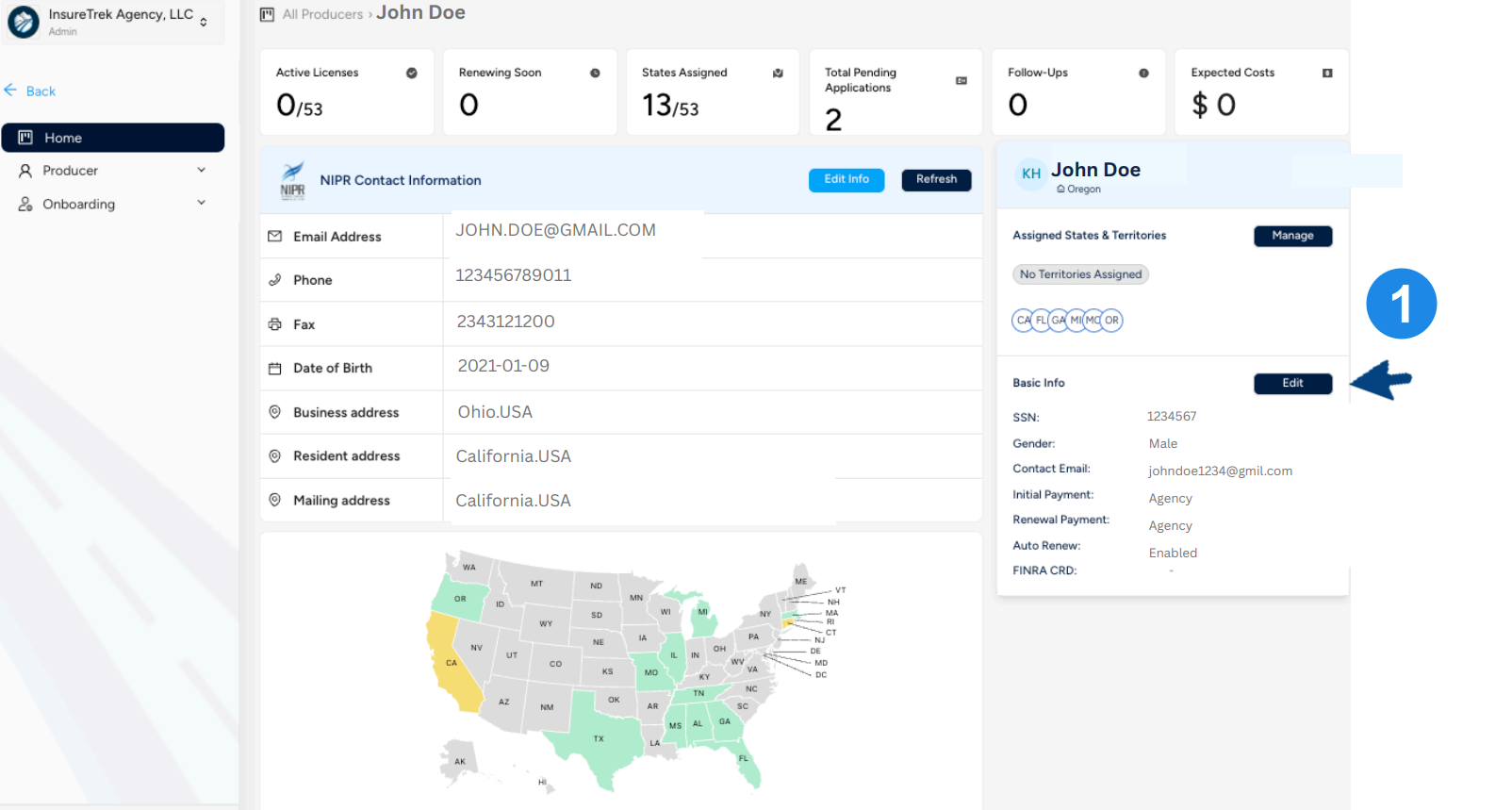
- On the profile's home page, locate the Contact Card section. Click the Edit button to open the editable details panel.
- A panel will slide out from the right side of the screen. Locate the FINRA CRD field, enter the correct number, and click Save Changes.
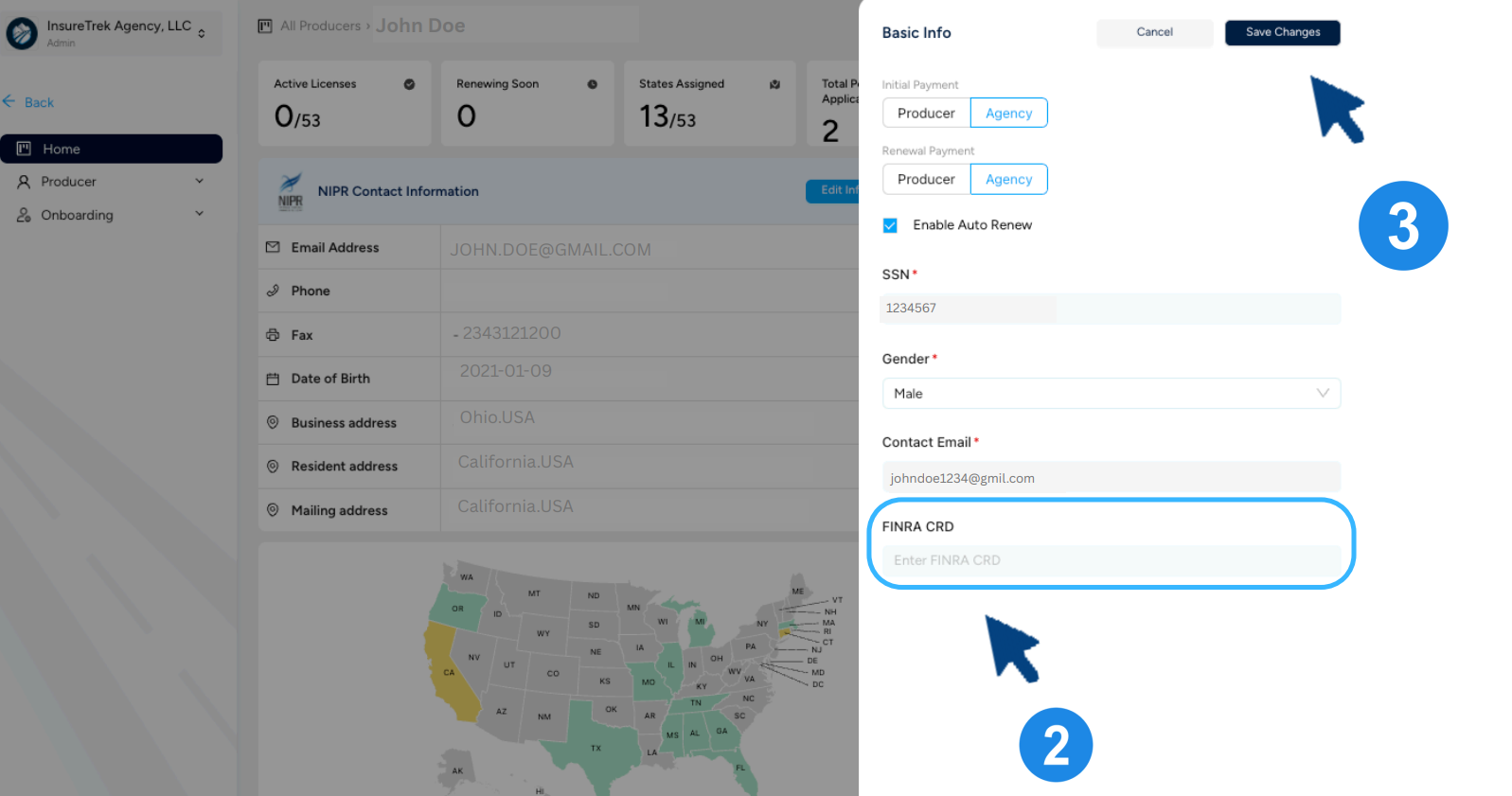
- After the FINRA CRD number is saved, go back to the application and retry the submission.