
Managing Agency Licenses
Viewing Licenses
As an agency admin, you can view licenses of your agency on InsureTrek.
Steps to View Agency Licenses
- Log in to your InsureTrek account.
- Navigate to Agency > Licenses.
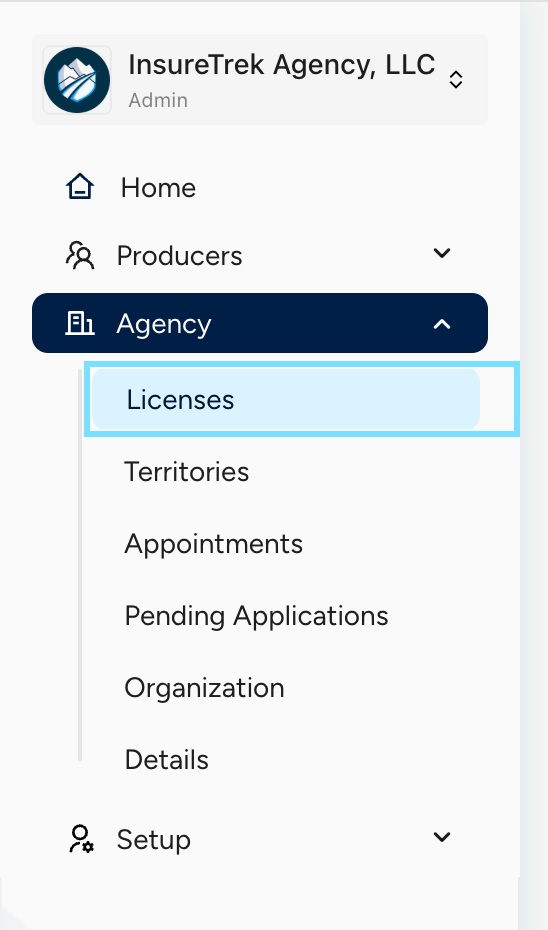
- The licenses screen displays the list of agency licenses. Licenses are grouped under the following categories:
- All -- Displays licenses that are assigned to the agency be it active, ready for renewal, applying for new license or adding another LOA.
- Active -- Displays active licenses of the agency.
- Needs Attention -- Lists licenses that require additional actions or prerequisites to be completed before they can be submitted to NIPR.
- Upcoming Renewals -- Shows licenses that are due for renewal soon. Enables proactive action to ensure timely renewal and avoid license expiration.
- The State licenses screen consists of the following details in all the above 4 views:
- State and Status: Displays the name of the state and status of the application.
- DRLP / Affiliate: Displays the name of the Designated Responsible License Provider (DRLP) or affiliates associated with the agency for that state.
- License Number: Displays the license number.
- License Class and LOAs: Displays the list of license classes and LOAs associated with the state license.
- BG Questions: Represents whether the background questions are completed or not.
- Expiration Date: Displays the expiration date of the license.
- Fee: Displays the estimated fees for the license application.
- You can use the search bar at the top of the license table to quickly find specific licenses by:
- State
- Line of Authority (LOA)
- License Class
- License Number
These filters make it easier to manage and locate licenses.
Best Practices
- Regularly check the "Needs Attention" section to ensure no license is blocked from submission.
- Check the "Upcoming Renewals" tab frequently to stay ahead on license renewals.
- Use available filters or search functionality to find specific licenses quickly.
Applying for New Licenses
As an agency admin, you can apply for new state licenses for your agency on InsureTrek.
Pre-Requisites
- Ensure that the state with relevant lines of authority (LOAs) is added to the agency on InsureTrek.
- You can follow the Managing Assignments section below to add states & territories to producers.
- Always ensure the Designated Responsible Licensed Producer (DRLP) has a valid and active license in the selected state(s) before applying.
- Valid Designated Responsible Licensed Producer (DRLP) should be added to the state.
Steps to Apply New Licenses for Agency
- Log in to your InsureTrek account.
- Go to Agency > Licenses
- You'll be navigated to the page listing all the licenses of your agency.
- Locate and click on the desired state.
- Use filter options or the search bar to locate the desired state.
- Ensure that the Background Questions and Ownership Details are updated for the agency.
- If they are not updated, then update them at Agency > Details > Background Questions/Ownership Details.
- If the background questions are answered then the BG Questions column will have a green tick mark or else it will have a red cross mark.
- Click the Apply button to submit the new license application.
- Once the application is submitted successfully, you can view the status of the application in Pending Applications screen.
Adding Lines of Authority
As an agency admin, you can add new Lines of Authority (LOA) to existing agency state licenses on InsureTrek.
Pre-Requisites
- Ensure that the state with relevant lines of authority (LOAs) is added to the agency on InsureTrek.
- You can follow the Managing Assignments section below to add states & territories to producers.
- Always ensure the Designated Responsible Licensed Producer (DRLP) has a valid and active license in the selected state(s) before applying.
- Valid Designated Responsible Licensed Producer (DRLP) should be added to the state.
Steps to Add LOA to Agency Licenses
- Log in to your InsureTrek account.
- Go to Agency > Licenses
- You'll be navigated to the page listing all the licenses of your agency.
- Locate and click on the desired state.
- Use filter options or the search bar to locate the desired state.
- Ensure that the Background Questions and Ownership Details are updated for the agency.
- If they are not updated, then update them at Agency > Details > Background Questions/Ownership Details.
- If the background questions are answered then the BG Questions column will have a green tick mark or else it will have a red cross mark.
- Click the Amend button to submit the LOA addition license application.
- Once the application is submitted successfully, you can view the status of the application in Pending Applications screen.
Renewing Licenses
As an agency admin, you can renew state licenses of your agency on InsureTrek.
Pre-Requisites
- Ensure that the state with relevant lines of authority (LOAs) is added to the agency on InsureTrek.
- You can follow the Managing Assignments section below to add states & territories to producers.
- Always ensure the Designated Responsible Licensed Producer (DRLP) has a valid and active license in the selected state(s) before applying.
- Valid Designated Responsible Licensed Producer (DRLP) should be added to the state.
Steps to Renew Agency State Licenses
- Log in to your InsureTrek account.
- Go to Agency > Licenses
- You'll be navigated to the page listing all the licenses of your agency.
- Locate and click on the desired state.
- Use filter options or the search bar to locate the desired state.
- Ensure that the Background Questions and Ownership Details are updated for the agency.
- If they are not updated, then update them at Agency > Details > Background Questions/Ownership Details.
- If the background questions are answered then the BG Questions column will have a green tick mark or else it will have a red cross mark.
- Click the Renew button to submit the renewal license application.
- Once the application is submitted successfully, you can view the status of the application in Pending Applications screen.
Adding a DRLP
As an agency admin, you can add DRLP (Designated Responsible Licensed Producer) to a state so that you can apply/renew/amend agency state licenses on InsureTrek.
Steps to Add DRLP
- Log in to your InsureTrek account.
- Go to Agency > Licenses
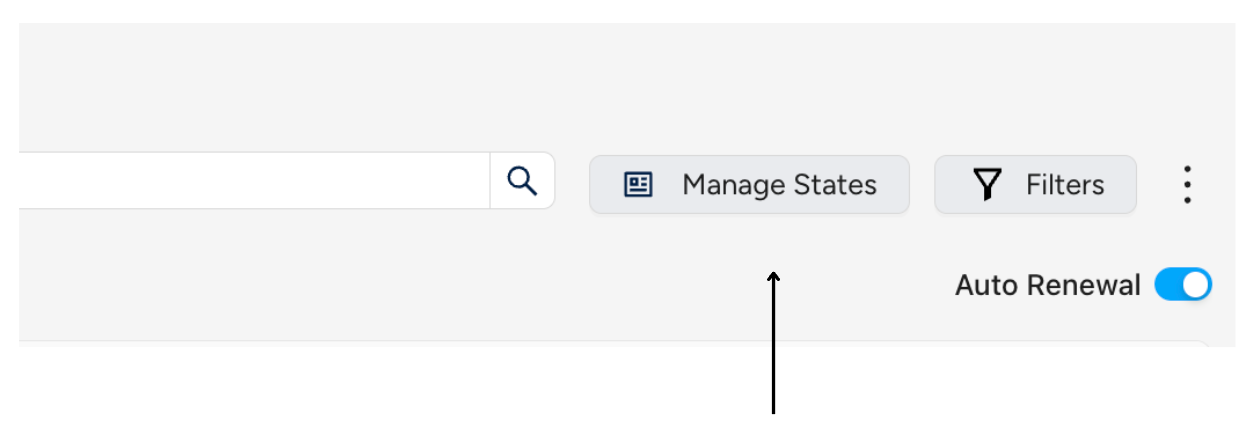
- Click on Manage States.
- Select the state to which you want to add the DRLP and click Next.
- Example: When assigning a DRLP for Minnesota state, select Minnesota (or the relevant state for your case) and click Next.
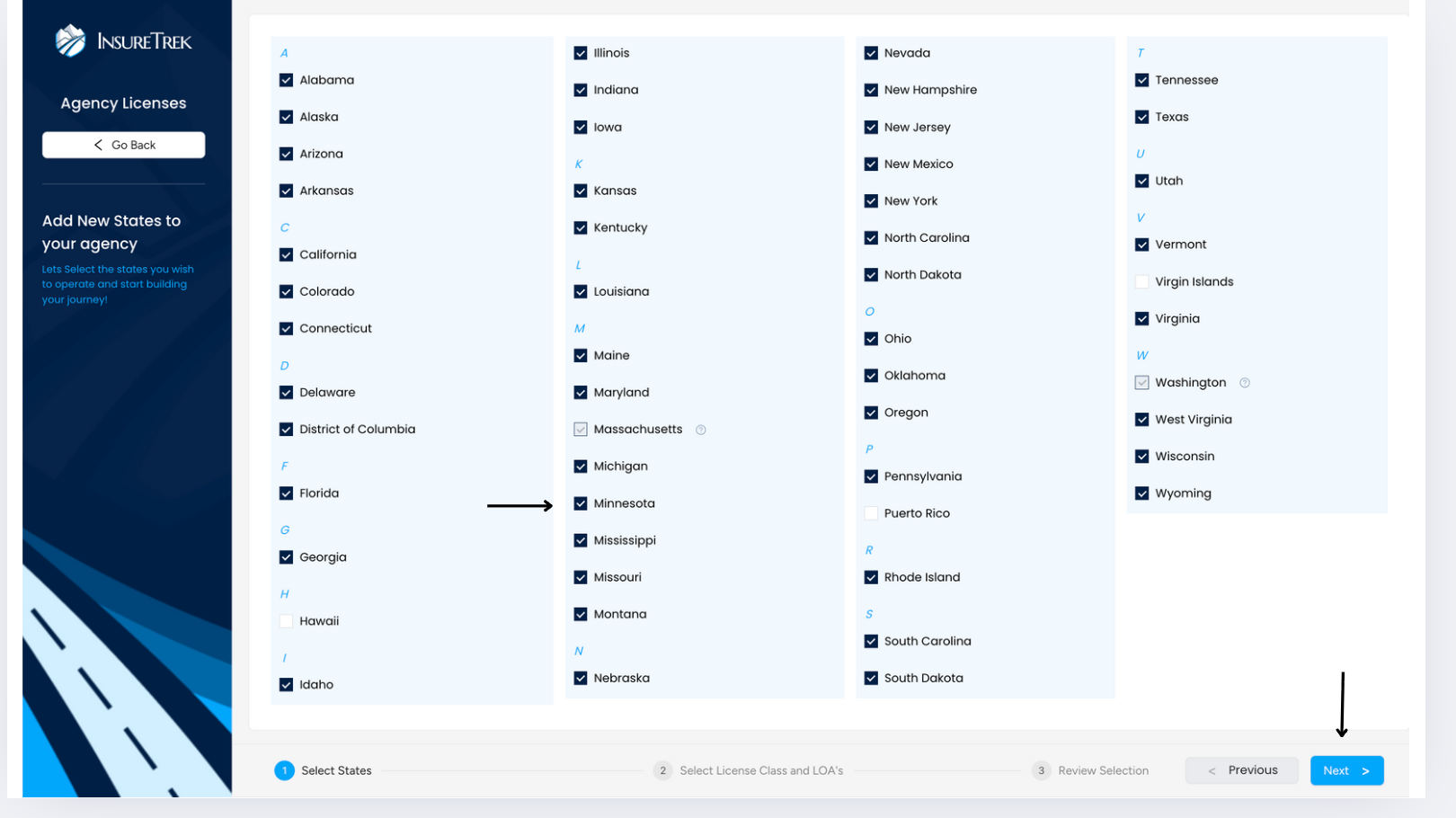
- Example: When assigning a DRLP for Minnesota state, select Minnesota (or the relevant state for your case) and click Next.
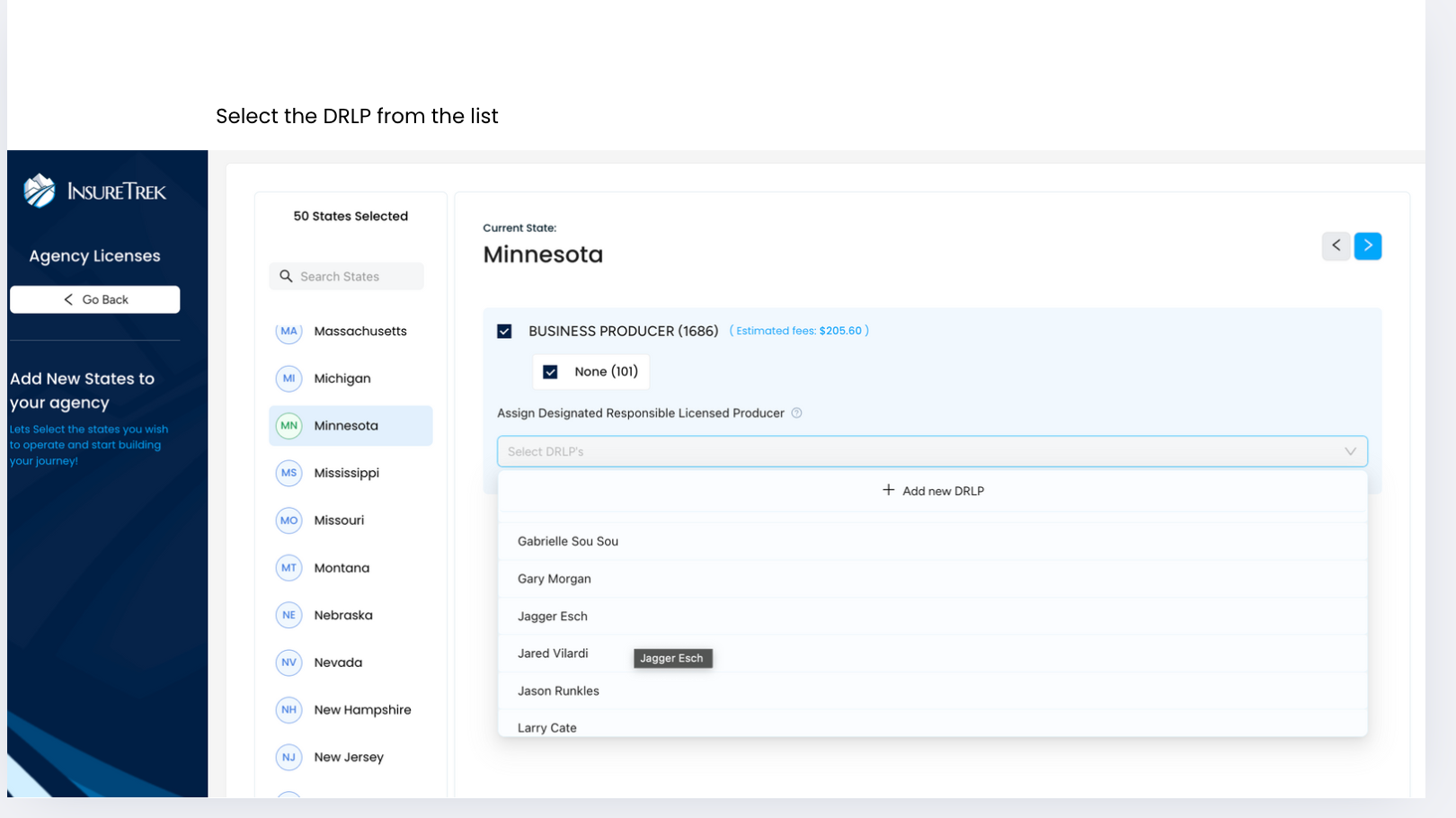
- Select the desired state, license class and line of authority. Add DRLP either by selecting one from the list or click "Add new DRLP" to add someone who is not in the list.
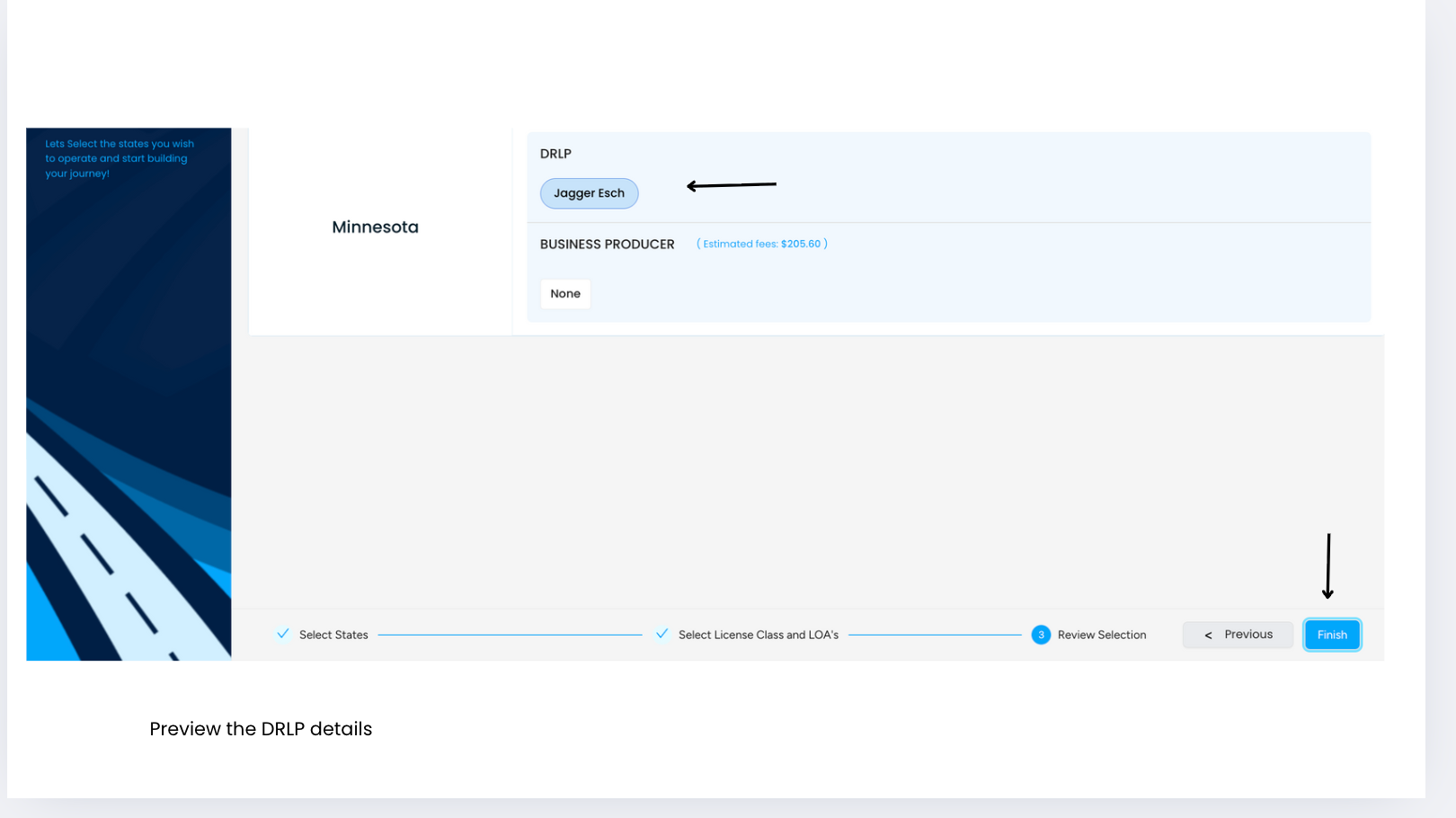
- Upon adding the DRLPs, click next to preview the selected details.
- If everything's correct then click Finish to save your changes.
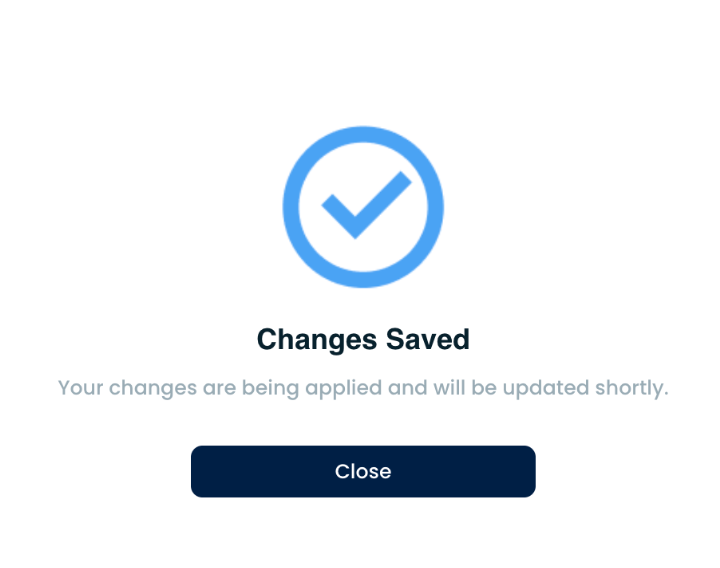
- The DRLP has now been added to the selected state. You can proceed with applying for or renewing licenses in that state.
Managing Assignments
As an agency admin, you will be able to manage the state assignments for your agency in InsureTrek.
What is Agency Assignments?
Agency Assignments configure essential presets like license class and lines of authority (LOA) that allow an agency to apply or renew or amendment licenses through NIPR for specific states. During this process, you select relevant states and their corresponding LOAs to ensure streamlined license applications. This helps your agency focus only on the states and LOAs that matter to your business.
The agency assignment is a 3-step process which includes the following steps:
- Select states
- Select license class, lines of authority (LOAs) and DRLP for the selected states
- Review the selection
Steps to Assign States to an Agency
- Log in to your InsureTrek account.
- Go to Agency > Licenses.
- Click on the Manage States button on the top right corner.
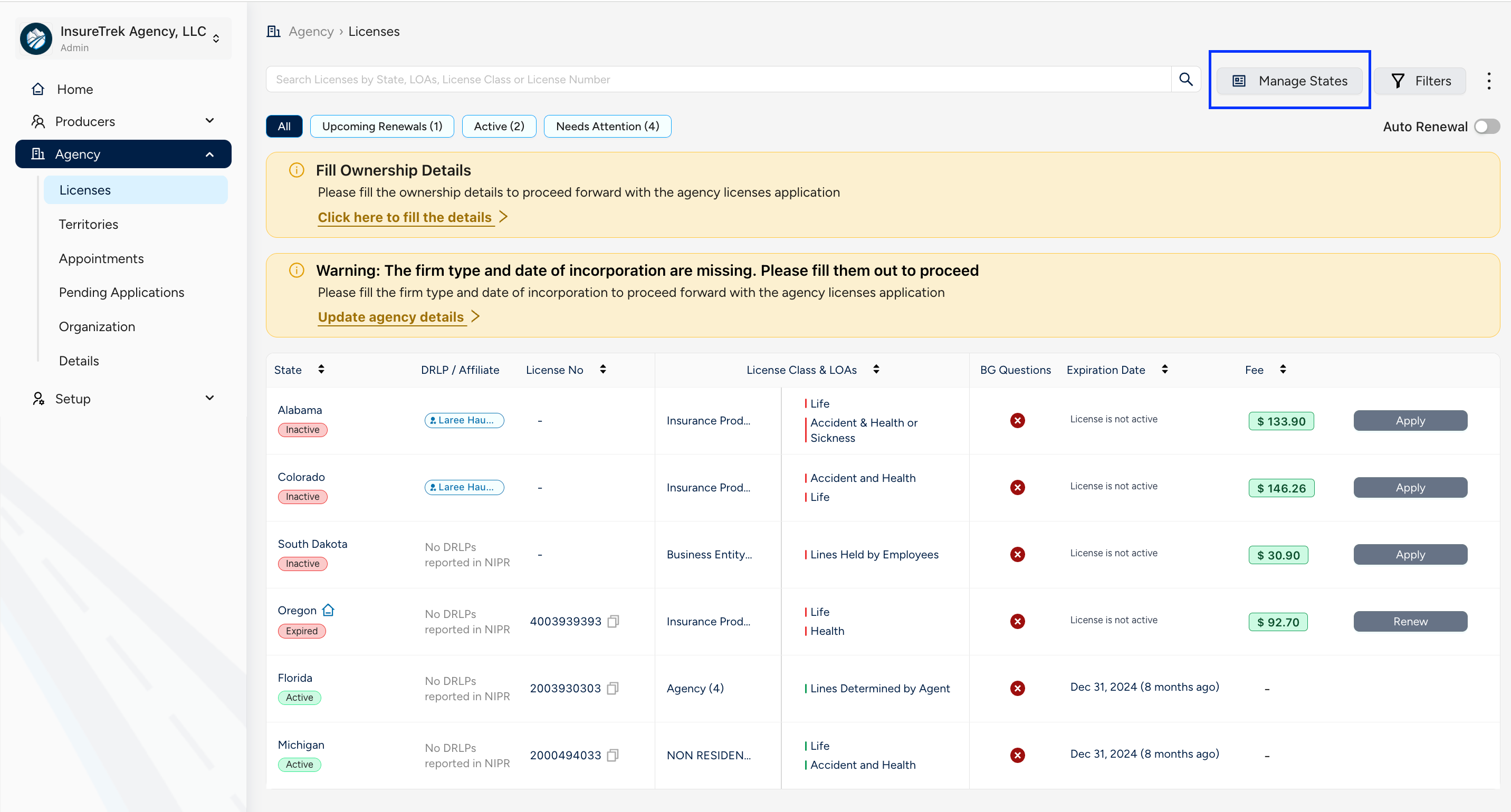
- You'll be redirected to the Agency Licenses wizard where you'll need to select the states first. Multiple selections can be made at once, depending on the licensing requirements.
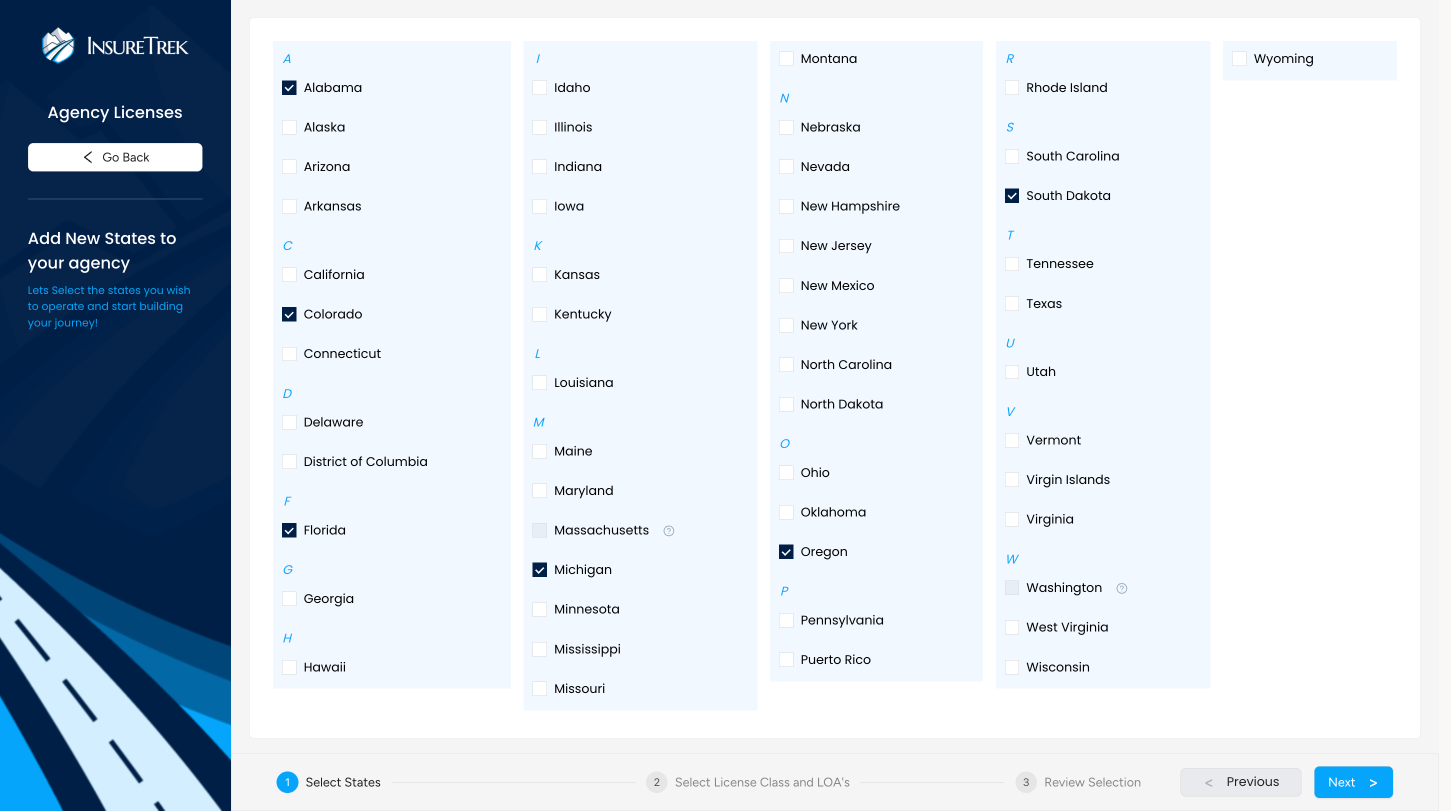
- After selecting the required states, click Next to select license class and lines of authority (LOA) for each selected state.
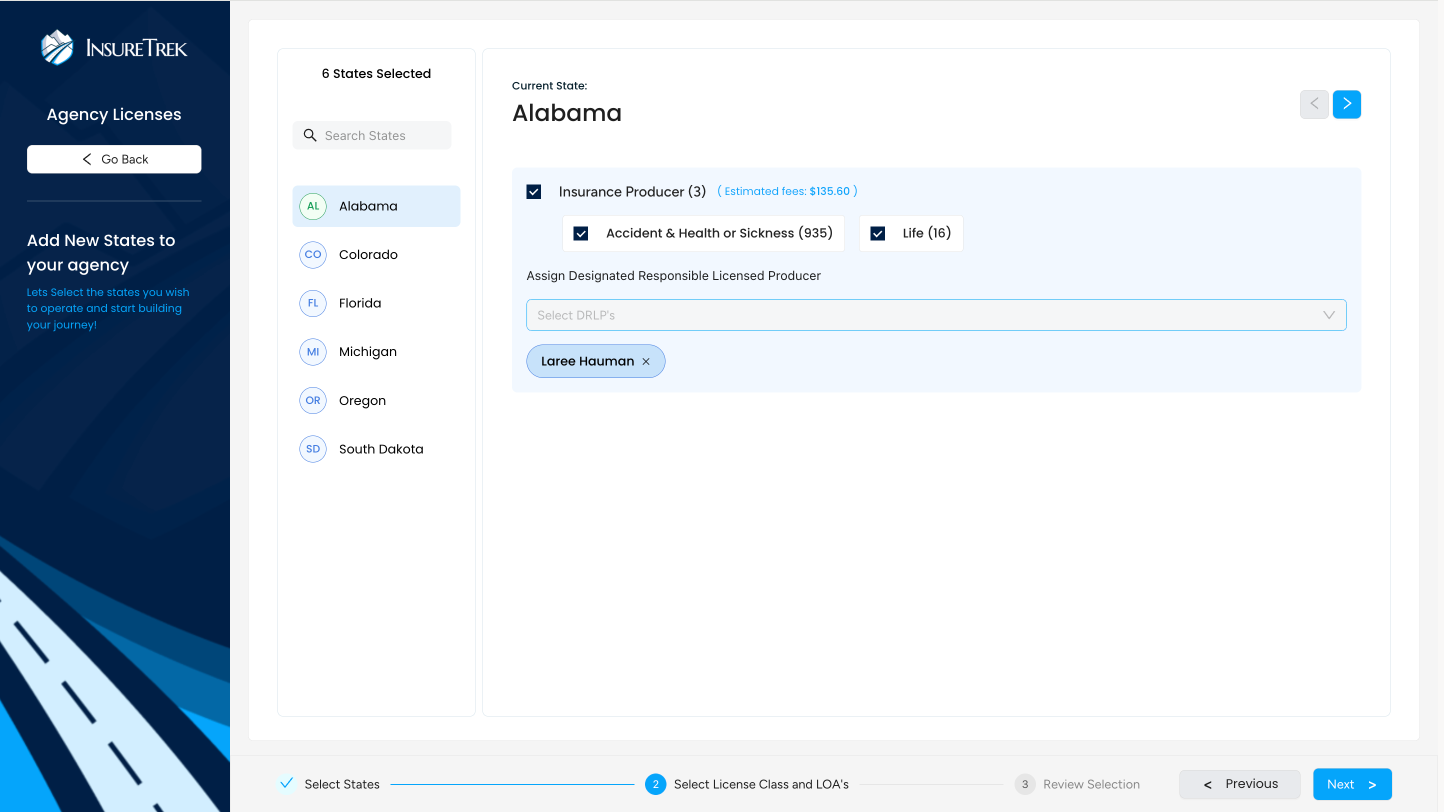
- After selecting the license class and lines of authority (LOA), select the Designated Responsible Licensed Producer (DRLP) who is representing your agency in that state.
- Repeat step 6 for all the selected states and click Next button to review the selections made.
- Upon review, click Finish button to complete the assignments.
- The assigned states will appear on the Agency > Licenses screen.
- Then you can proceed with the required action items, such as applying, renewing, or making amendments.