
Add & Remove Producers
Add a Single Producer
As an agency admin, you can add producers to your agency in InsureTrek to efficiently manage their licenses. Follow the steps below to onboard a producer individually.
- Log in to your InsureTrek account.
- Go to Producers > Manage Producers.
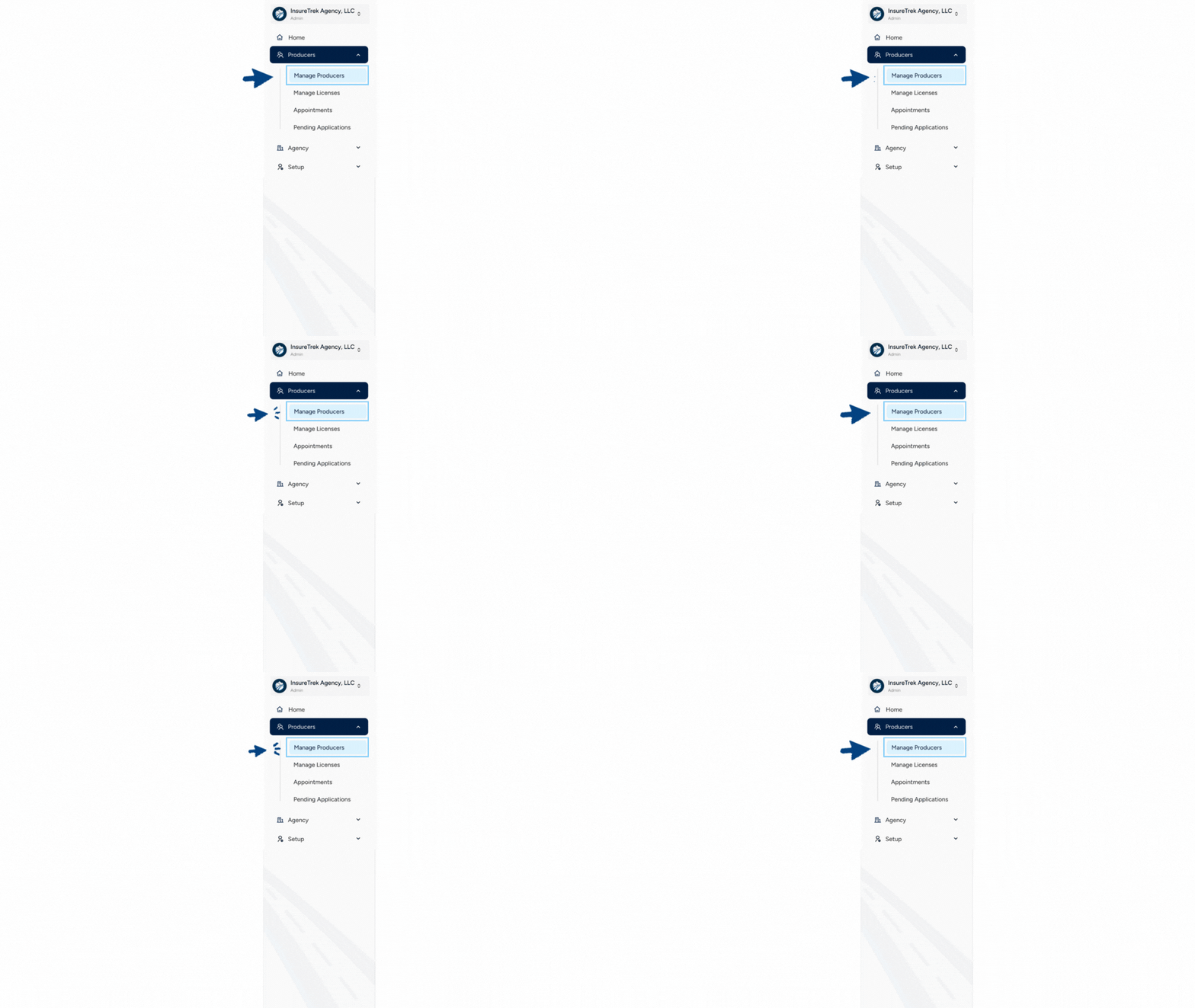
- Click the + Add button (top right corner).
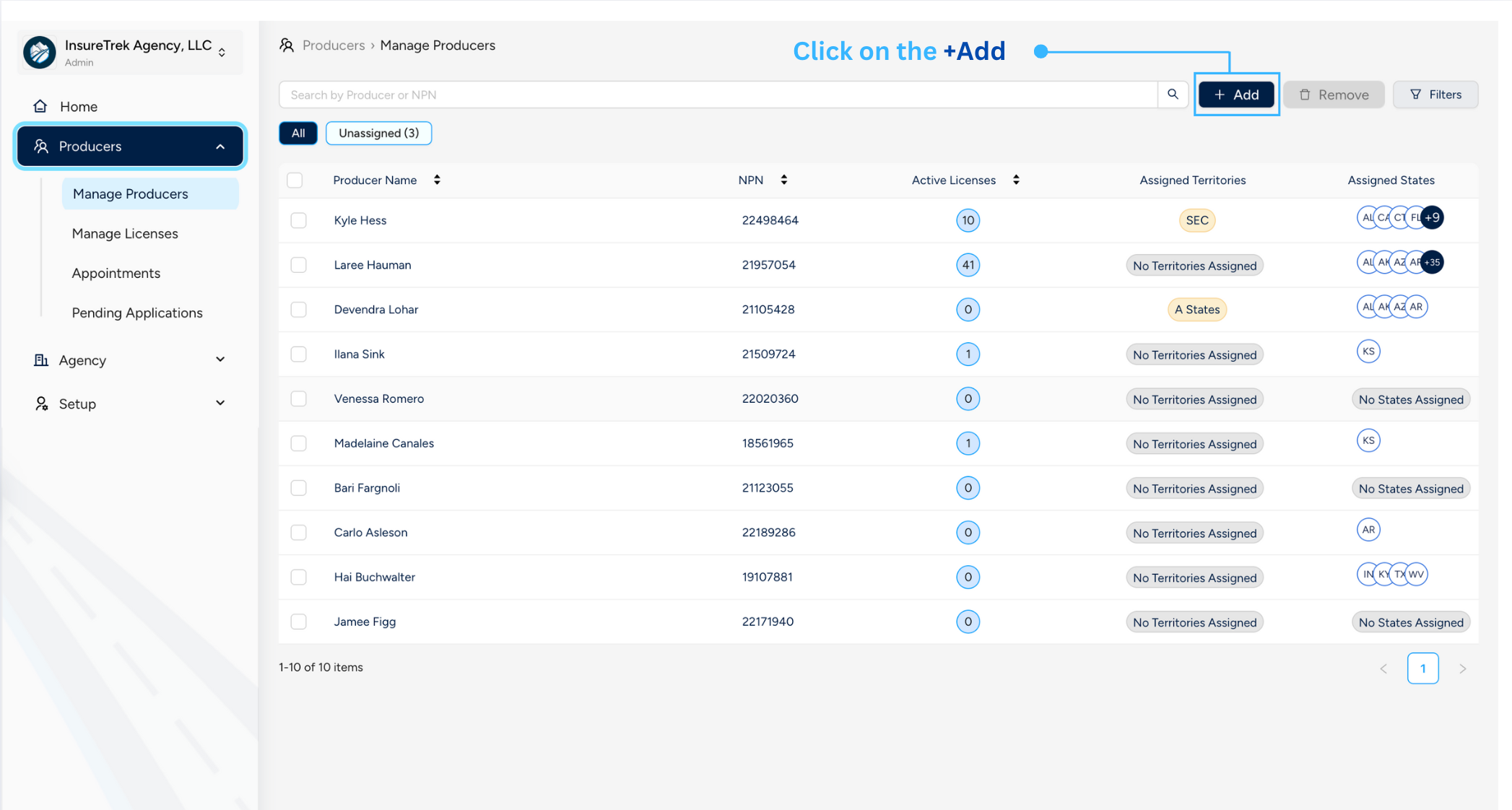
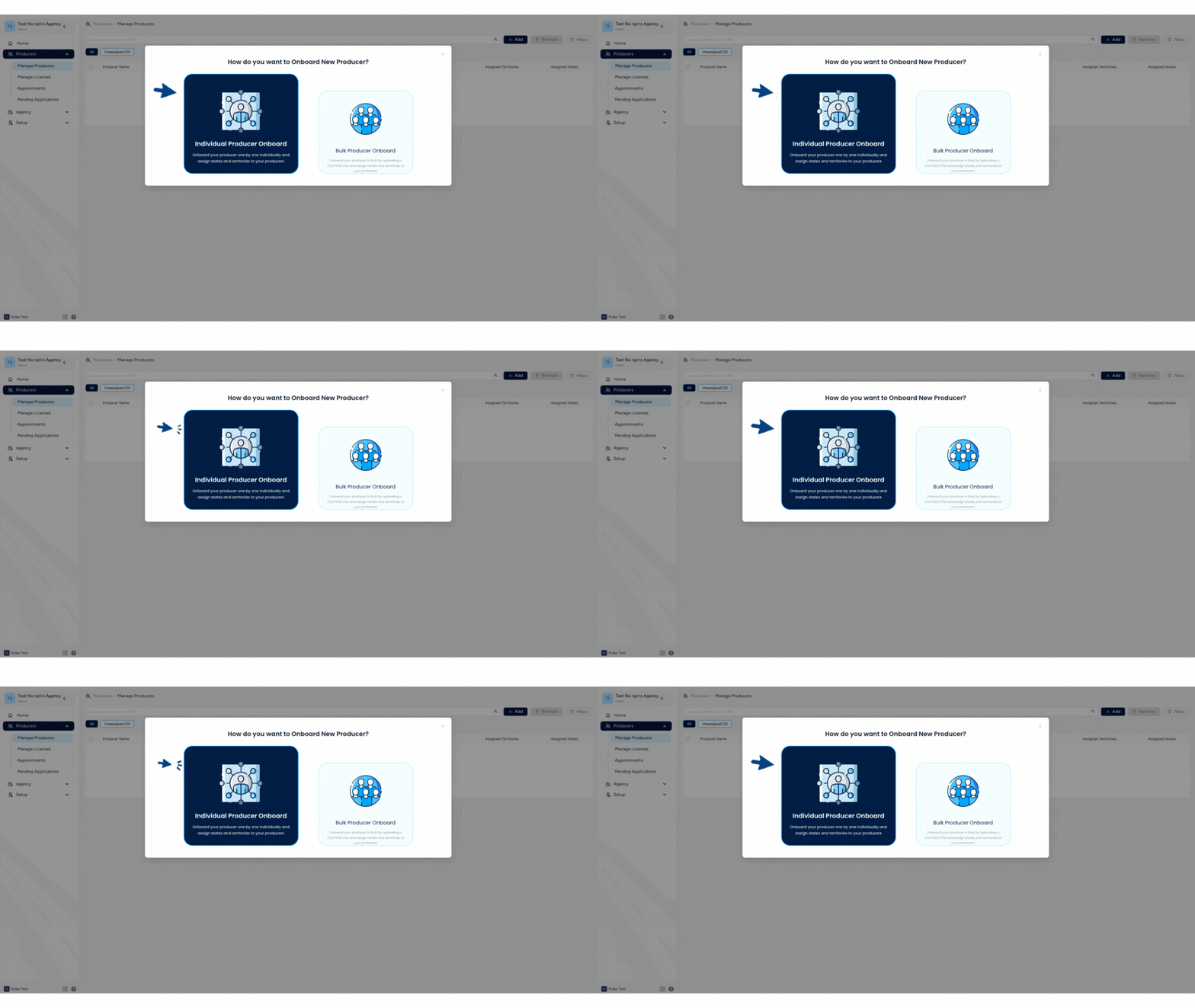
- Select Individual Producer Onboard from the pop-up.
- You can onboard the producers either using SSN, NPN or license number. Choose one of the three options and ensure the details entered are correct:
- SSN: Enter Social Security Number (SSN), last name, and email address of the producer
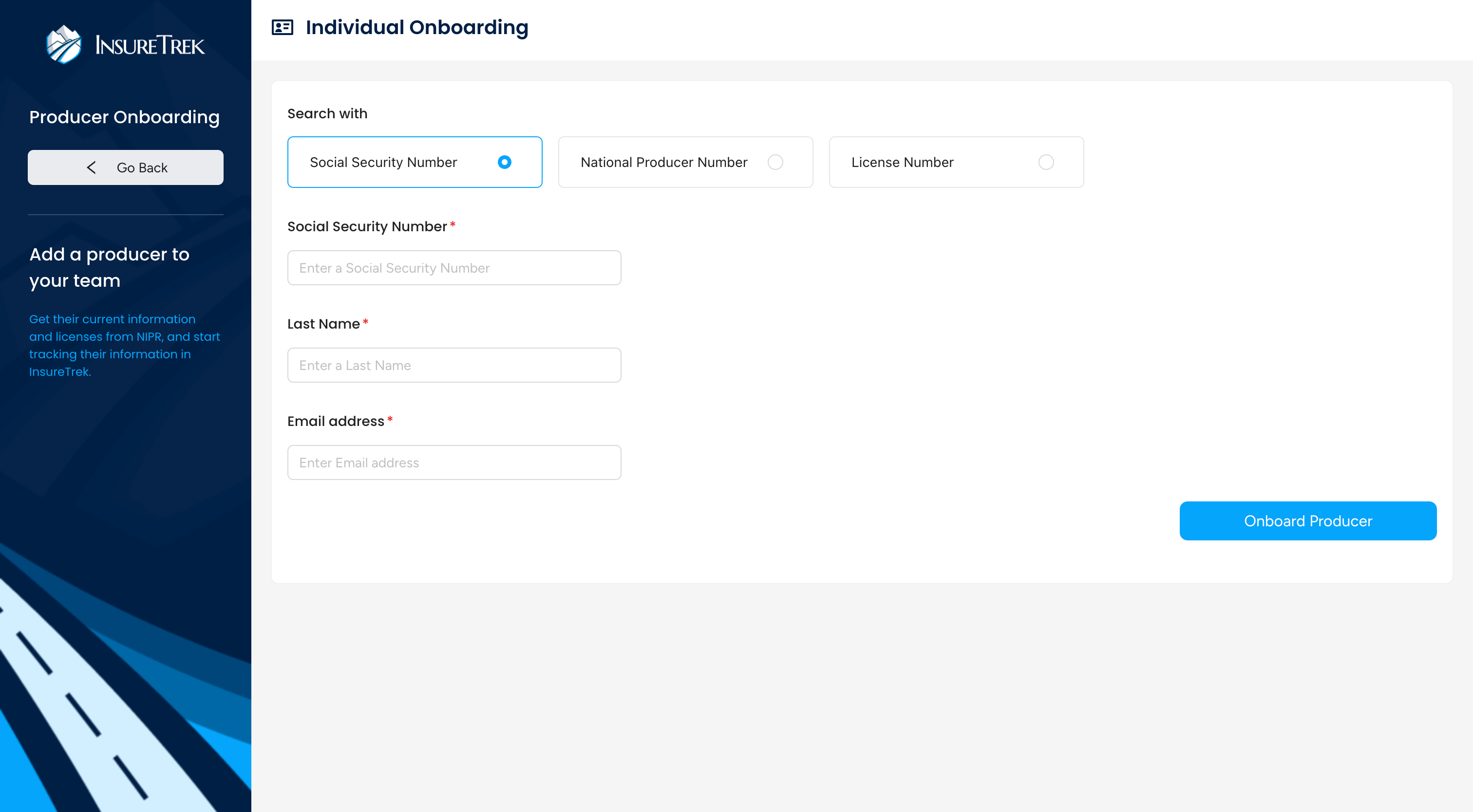
- NPN: Enter National Producer Number (NPN) and email address of the producer
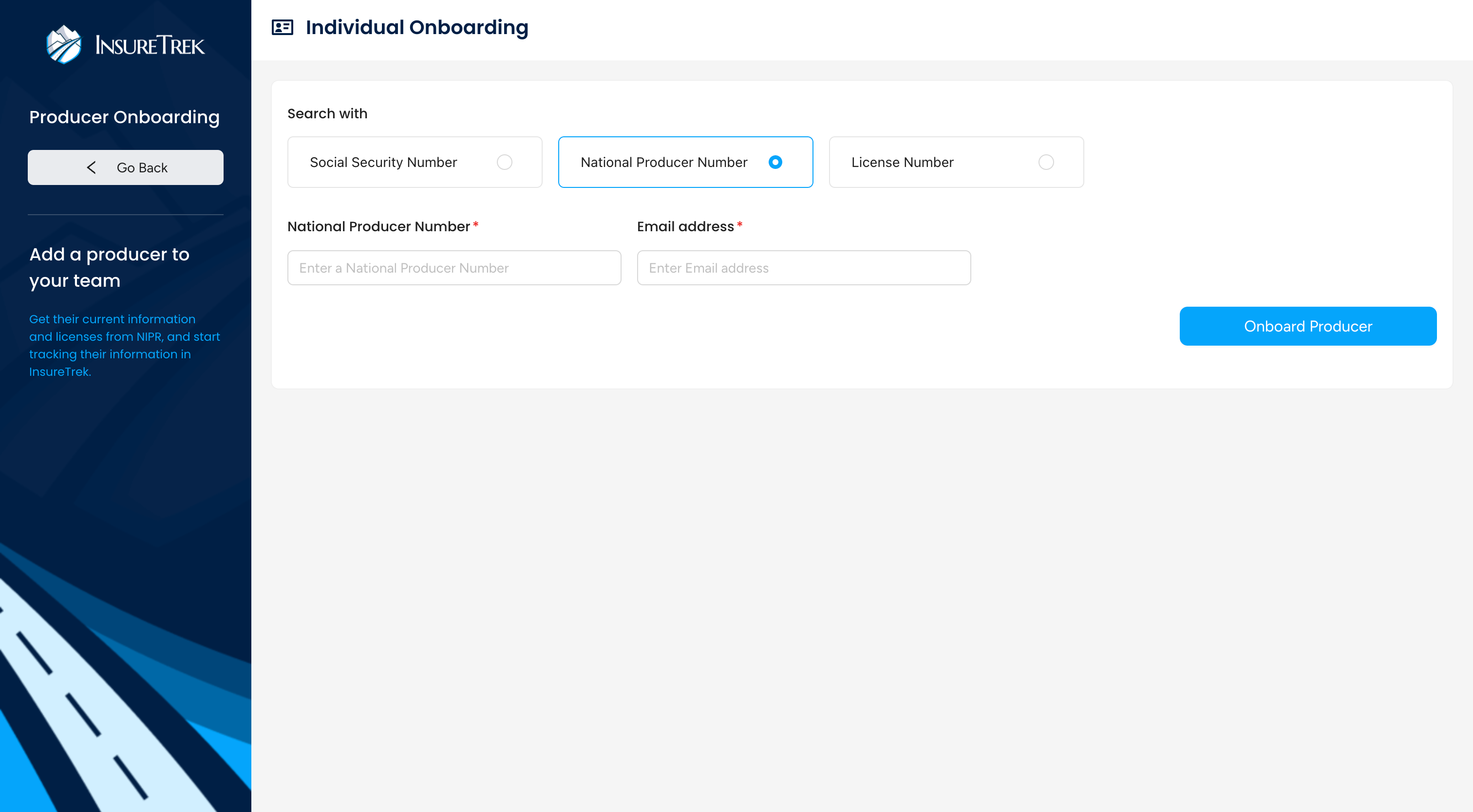
- License Number: Enter license number, select state, and email address of the producer
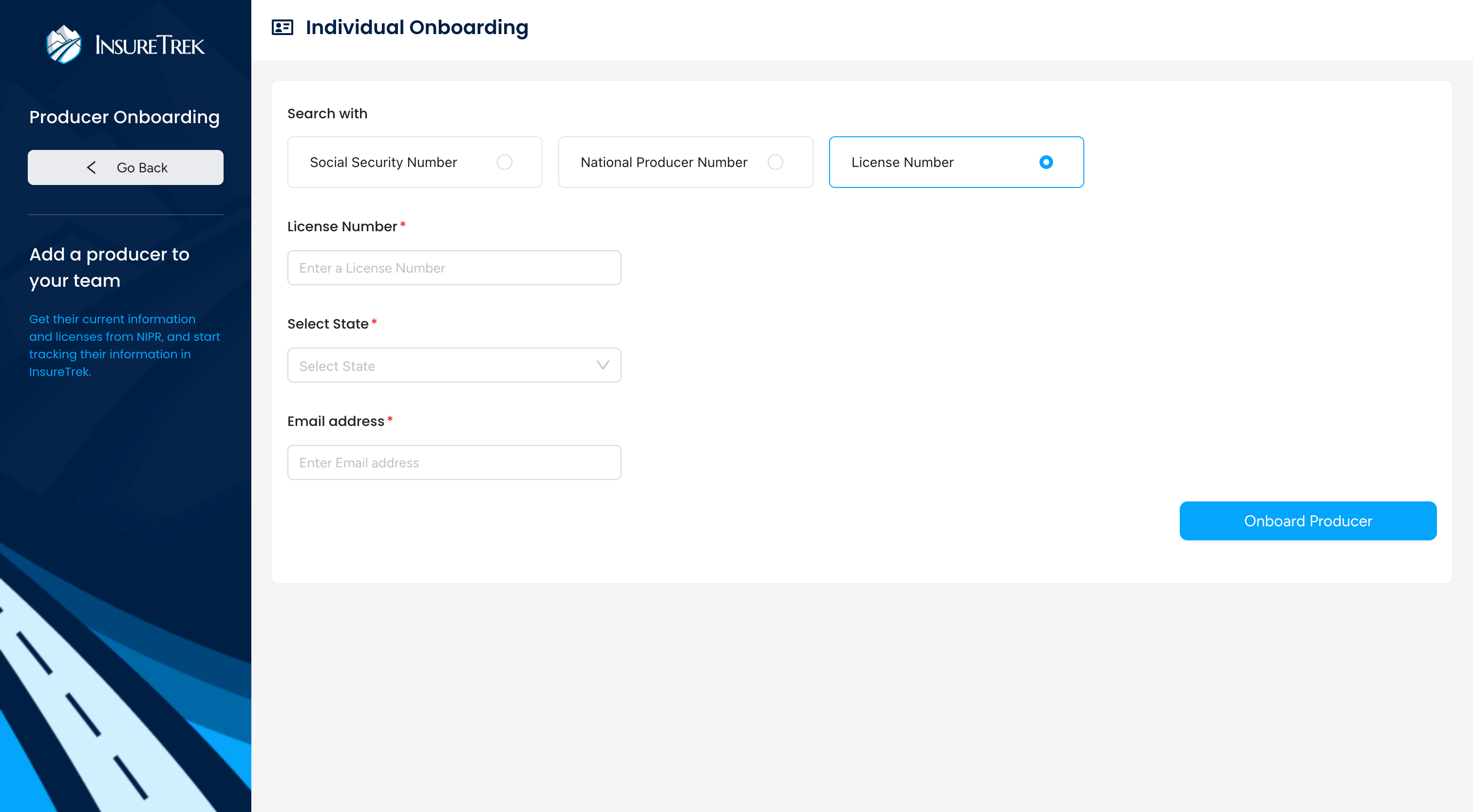
- SSN: Enter Social Security Number (SSN), last name, and email address of the producer
- Click Onboard Producer to add them to your agency.
- You'll be redirected to the Producer Onboarding wizard.
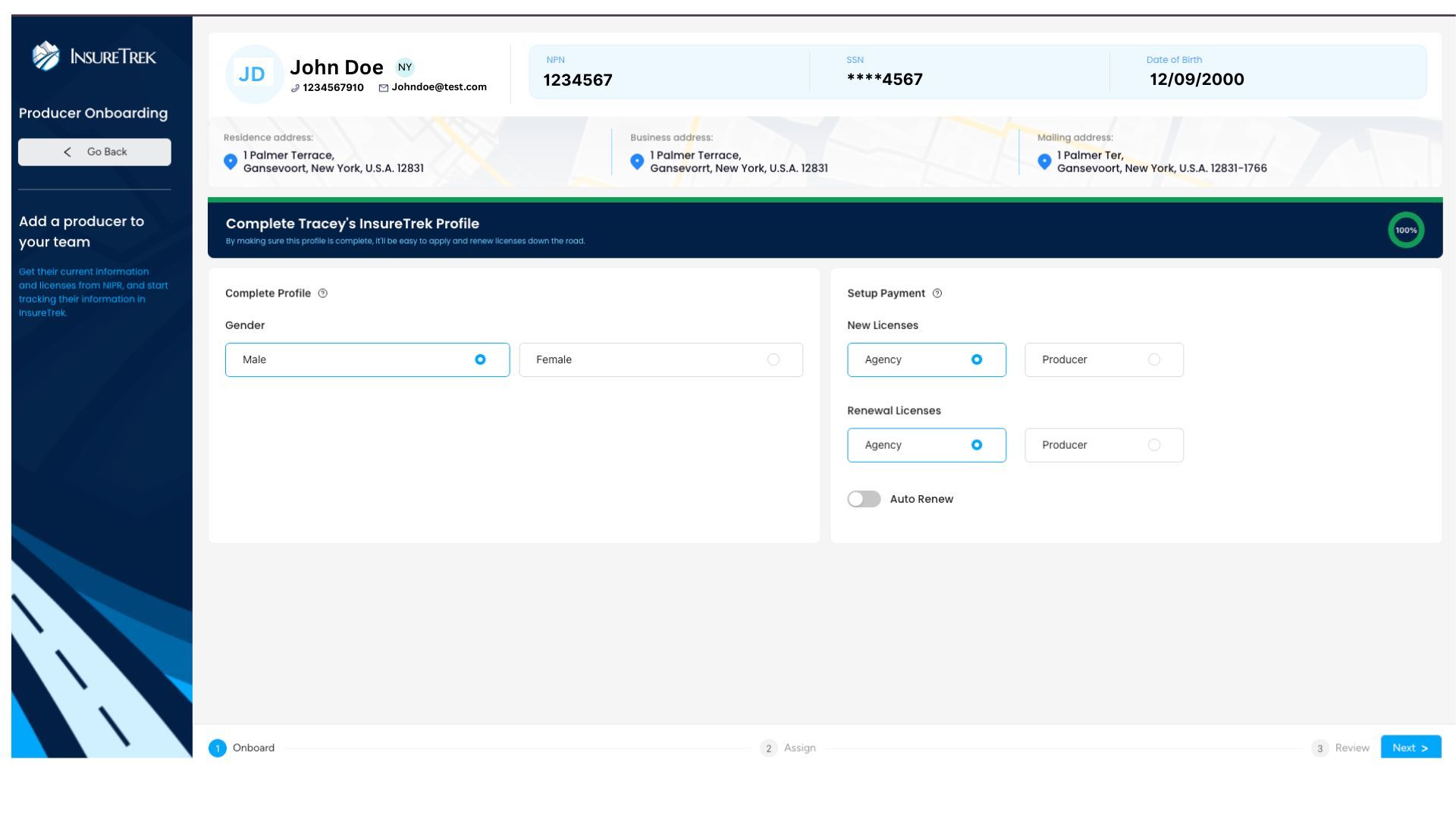
- Review the details of the producer and update the producer's details.
- Configure Payment Setup for your producer:
- New license (via Agency or Producer): If agency will pay for the new licenses then select agency or if producer does then select producer.
- Renewal license (via Agency or Producer): If agency will pay for the renewing licenses then select agency or if producer does then select producer.
- Enable the Auto-Renewal toggle if you'd like your producer's license to renew automatically.
- Configure Payment Setup for your producer:
- Once all required details are accurately entered, click the Next button to continue to assign states and territories to the producer.
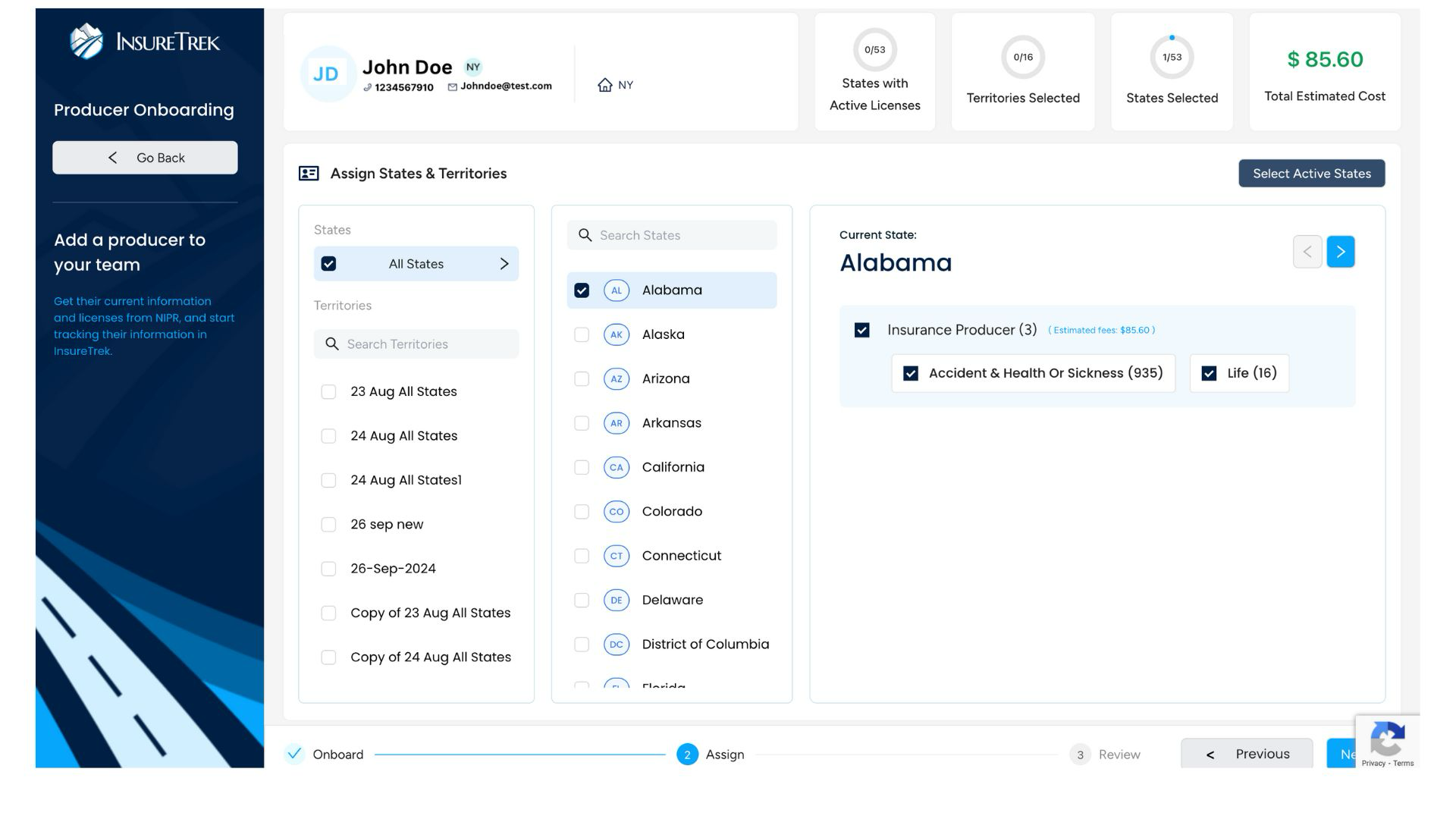
- Assign States & Territories to the producer.
- You can select one or multiple states at a time.
- For each selected state, choose the corresponding Lines of Authority (LOAs) — note that each state has its own specific set of LOAs.
- After making your selections, the estimated cost for the selected states and LOAs will be displayed in the top right corner of the screen.
- Once all selections are complete, clicking on the Next to review the assigned states and territories.
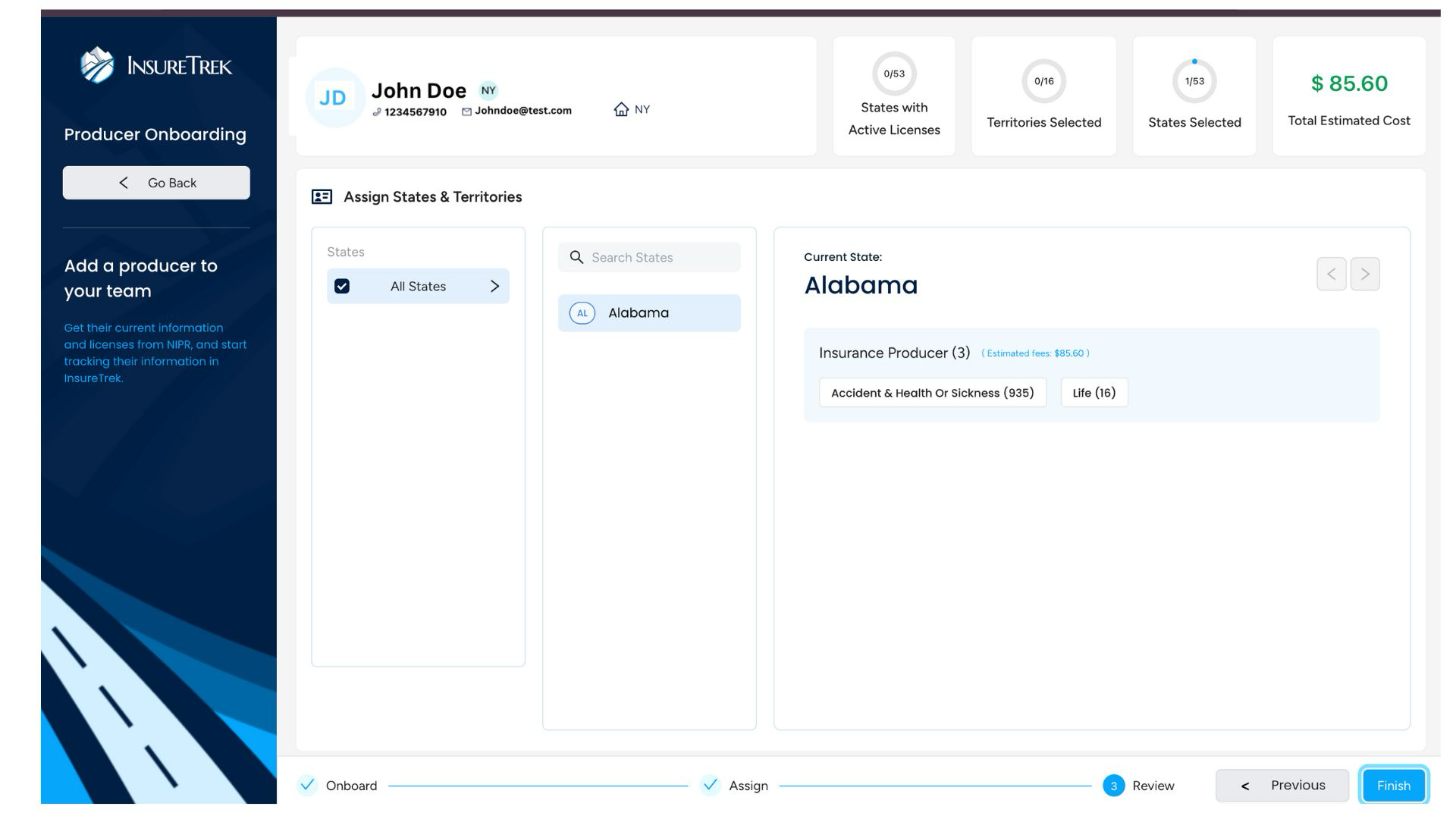
- Review the assigned states and territories, then click Finish.
- You can either add another producer or go to the producer profile.
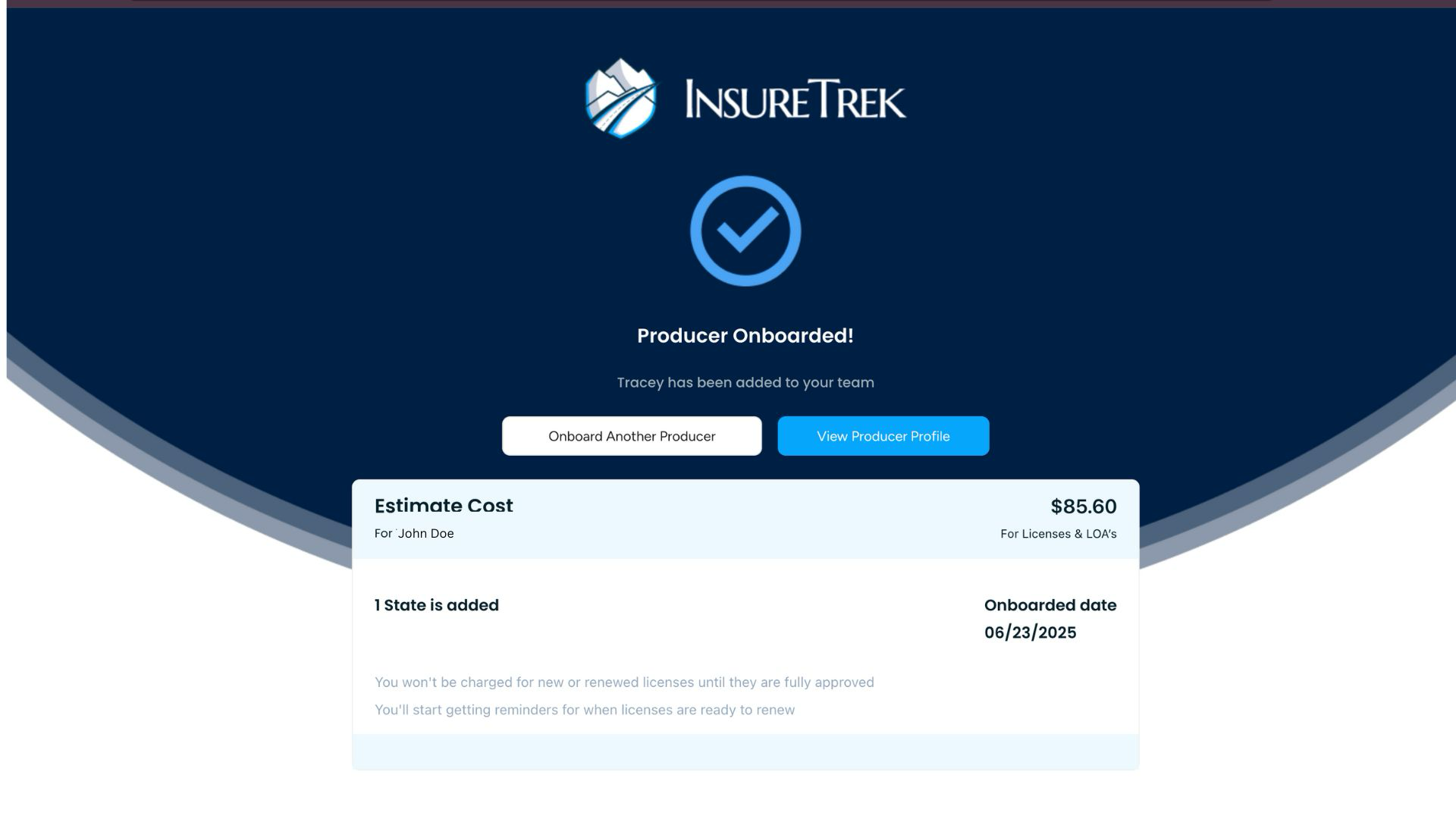
- Steps 7-10 can be completed immediately or later via the Manage Producers screen.
- Ensure all details are accurate to avoid processing delays.
Add Producers in Bulk
As an agency admin, you can onboard multiple producers at once by uploading a data file.
Prerequisites
- Download the sample file from the application and keep it updated with producer details.
- Ensure required fields like Last Name, NPN, Email, SSN, and Gender are filled correctly.
Steps
- Prepare the Data File
- Prepare a CSV/XLSX file with producer details. You can download a sample file from the Bulk Onboarding screen.
- Fill the following producer details in that file:
- Last Name
- NPN (National Producer Number)
- SSN (Social Security Number)
- Gender
- Access the Bulk Onboarding Screen
- Navigate to Producers > Manage Producers
- Click the Add button at the top-right corner.
- In the pop-up, choose Bulk Producer Onboard to open the bulk onboarding screen.
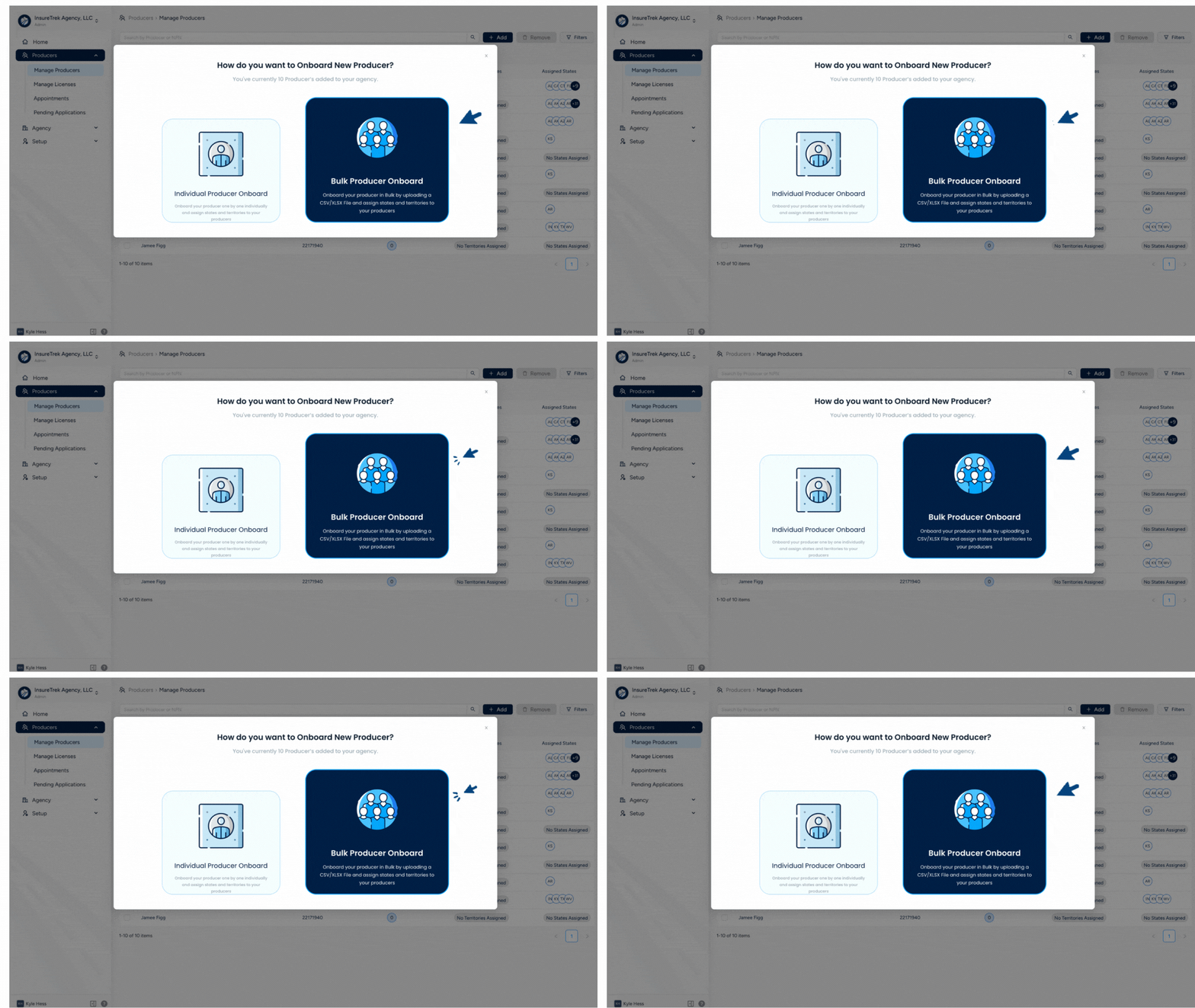
- Navigate to Producers > Manage Producers
- Upload Producer File
- Click Download Sample File (if not already done) then fill in details such as last name, NPN, email, SSN, and gender.
- Upload the file by clicking Choose a CSV/XLSX file.
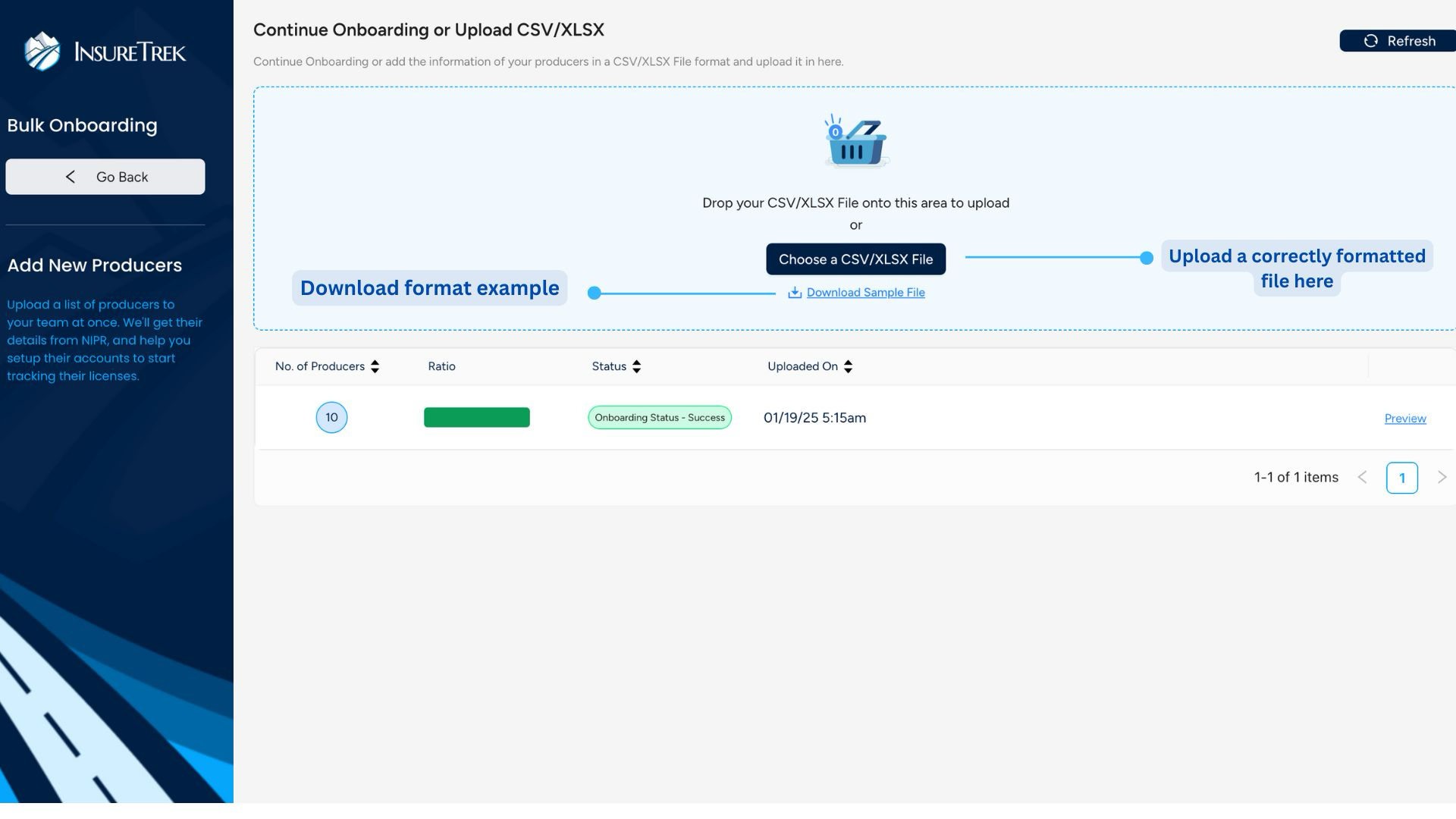
- Once uploaded, click Confirm Upload.
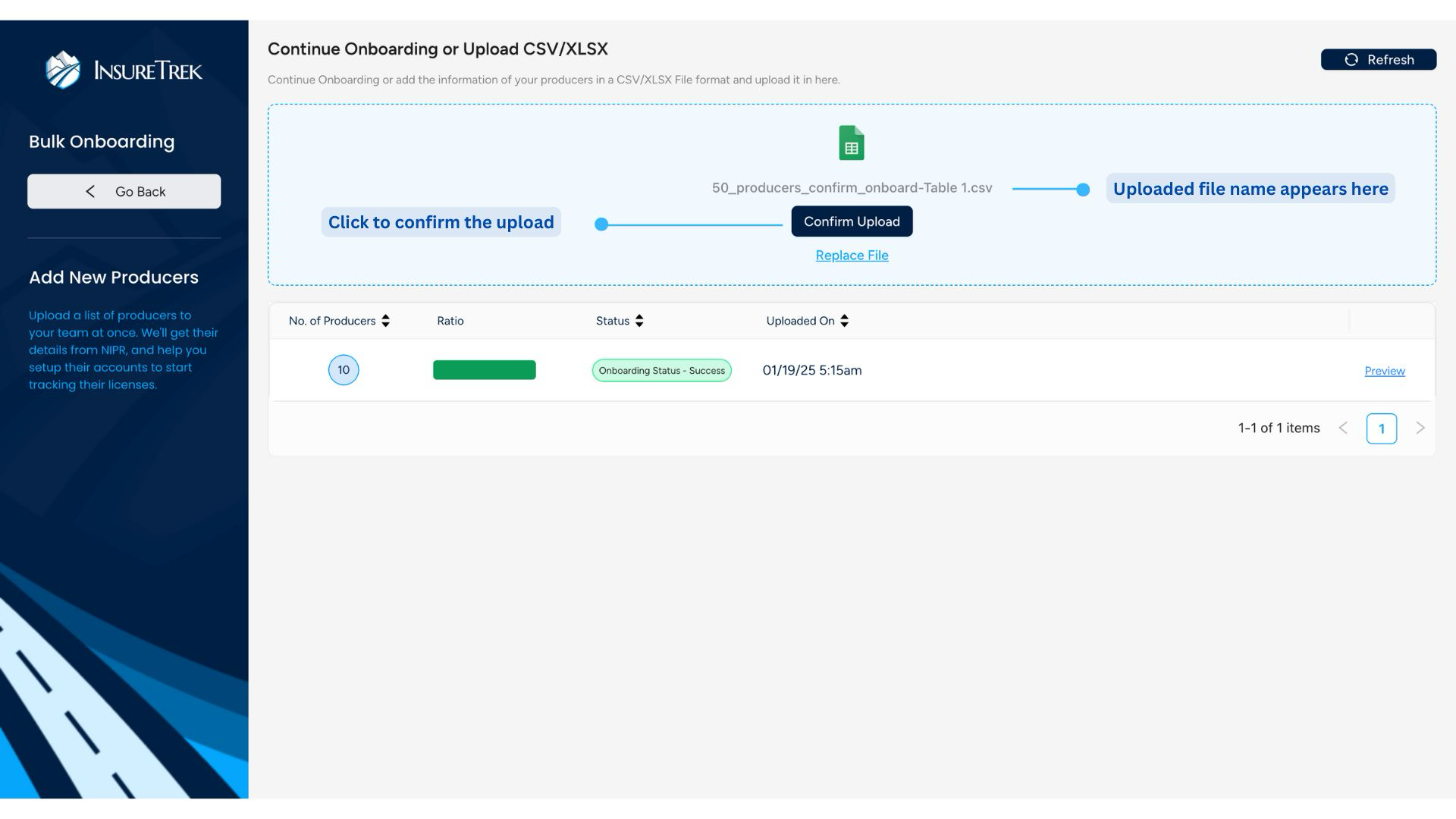
- You can replace the file if you selected the wrong one.
- Click Confirm Upload and wait on the Retrieving Report screen as the system processes the data.
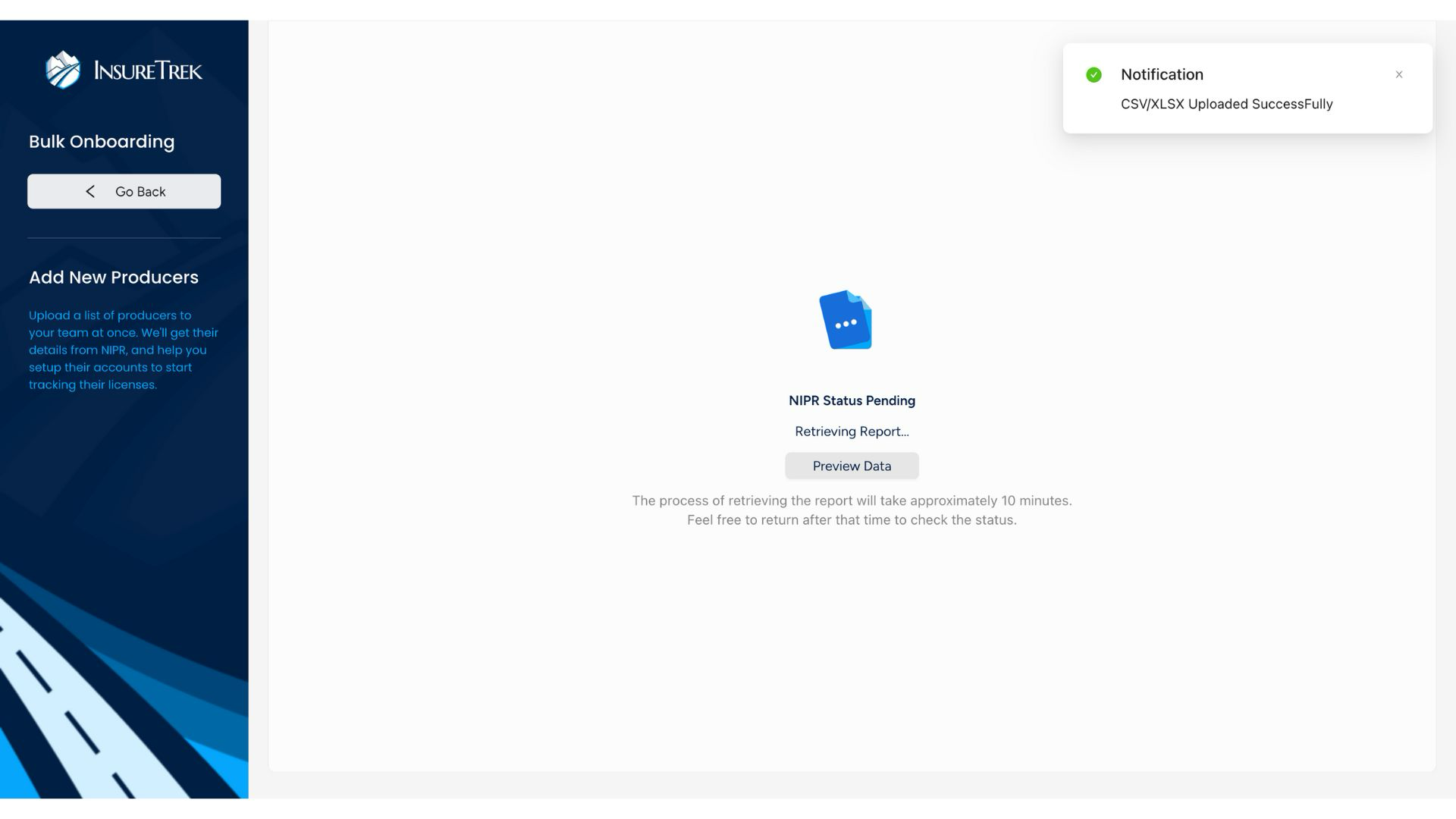 If the screen doesn't automatically update, refresh the page to continue.
- Review and Proceed
- Once processed, select the uploaded file.
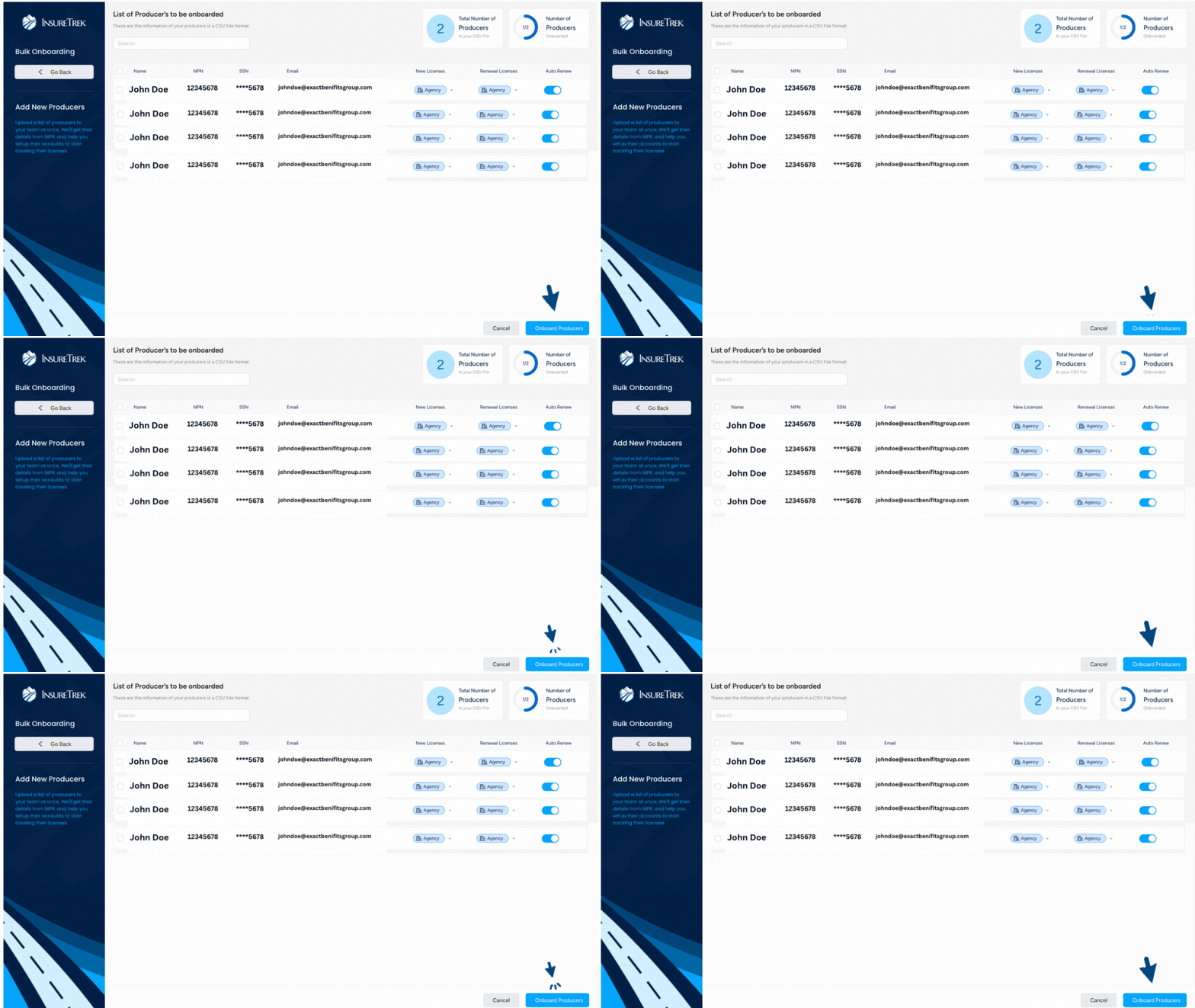
- After the file is processed, you'll see a screen displaying the list of producers ready for onboarding. Review the details, then click Onboard Producers to proceed.
- Update payment details for all listed producers and click Onboard Producer to initiate onboarding.
- Track Onboarding Progress
- You'll be redirected to the Producer Onboard in Progress screen.
- Once the onboarding is completed, you will receive an email notification confirming the status.
- Always validate your data before uploading to avoid rejections.
- Use consistent formats (e.g., email, SSN) to avoid parsing errors.
- If onboarding fails for a few entries, you can reprocess only those entries without re-uploading the full file.
- Keep your system screen updated or refreshed if stuck on any loading screens.
Remove Producers
As an agency admin, you may need to remove producers from your agency when they are no longer working with your agency. Follow the steps below to remove one or more producers from your agency account.
- Log in to your InsureTrek account.
- Navigate to Producers > Manage Producers.
- Locate the producer(s) you want to remove.
- Select them by clicking the checkbox next to their names.
- Click the Remove button located at the top right.
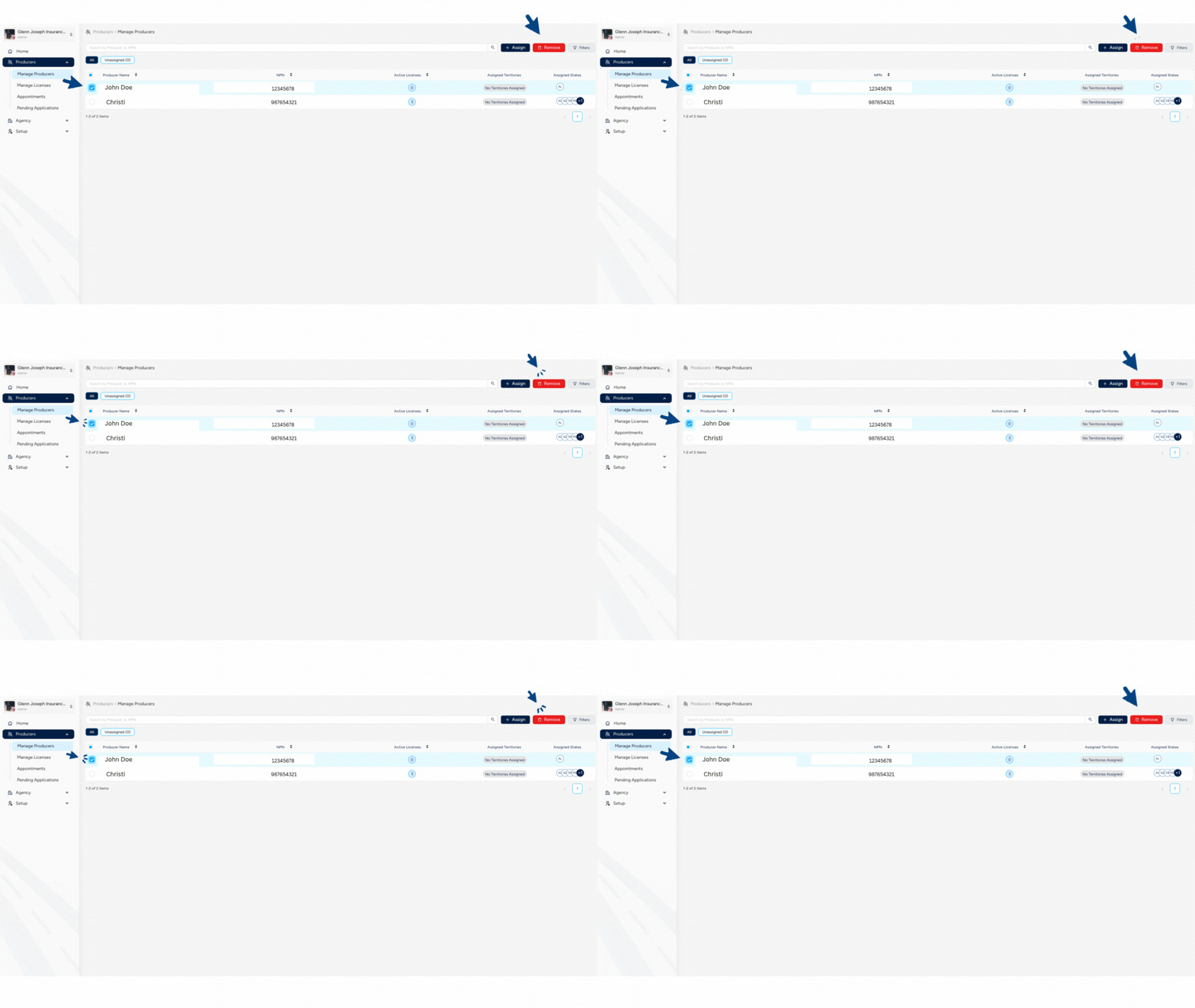
- Confirm by clicking Offboard on the pop-up.
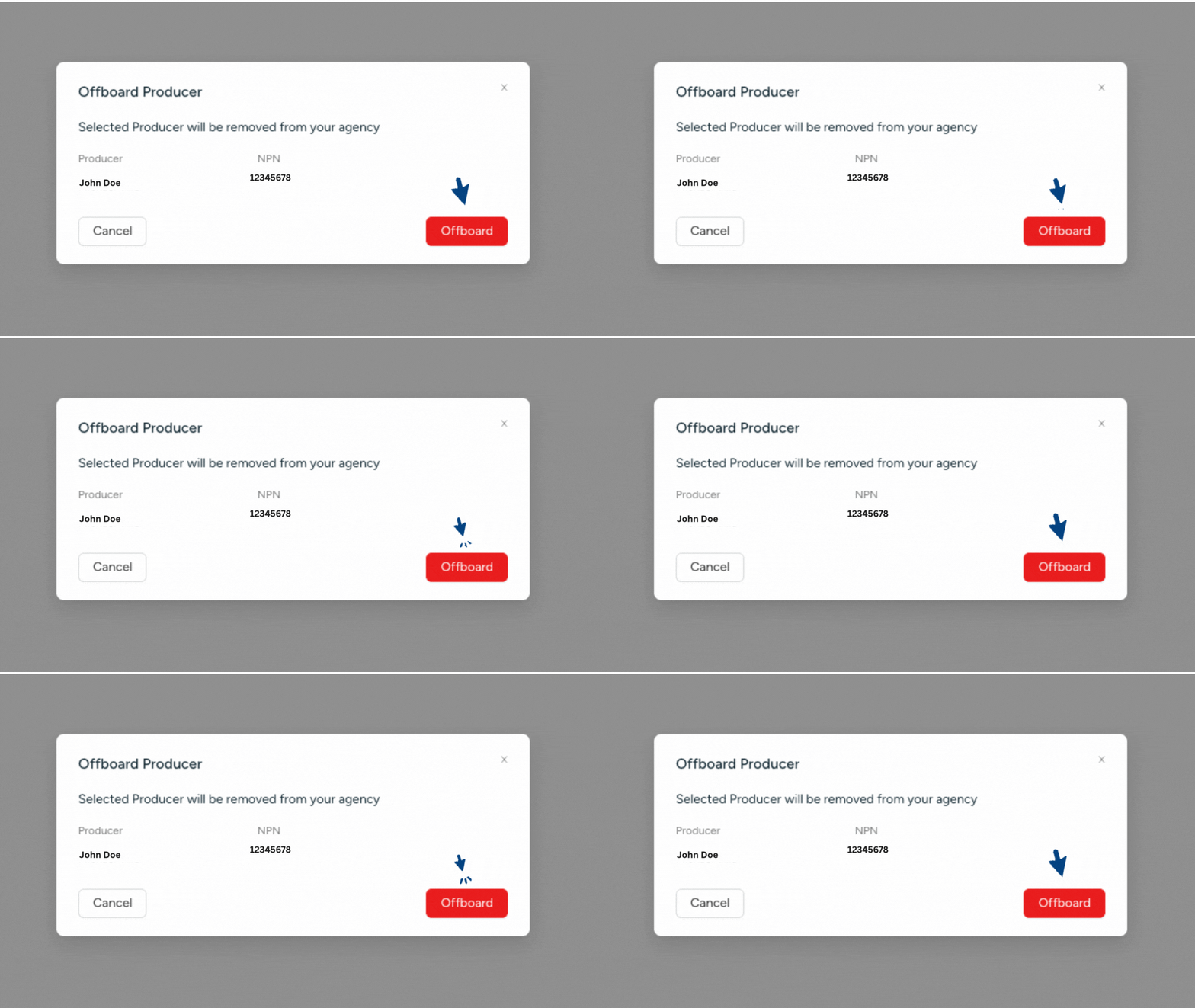
- The selected producers will be immediately removed from your agency account.
- Only Agency Admins have the permission to remove producers.
- Removed producers will no longer be able to perform any action on InsureTrek under your agency.
- If you need to re-add a producer in the future, you'll need to onboard again.
Getting Started
Welcome to InsureTrek, the platform for Health & Life Insurance licensing.
Profiles
Step-by-step instructions to manage producer profiles on InsureTrek, including personal information, contact details, background questions, employment history, licenses, appointments, and state assignments.