
Agency
Territories & Filtering
Managing territories and filtering producers by Line of Authority (LOA) on InsureTrek.
Creating Territories
As an agency admin, you will be able to create and manage territories for your agency on InsureTrek.
What are Territories?
Territories on InsureTrek are a collection of Lines of Authority along with the states where you want your producers to operate. This helps you to add a group of LOAs along with states to Producers quickly.
Steps to Create a Territory
- Log in to your InsureTrek account.
- Go to Agency > Territories.
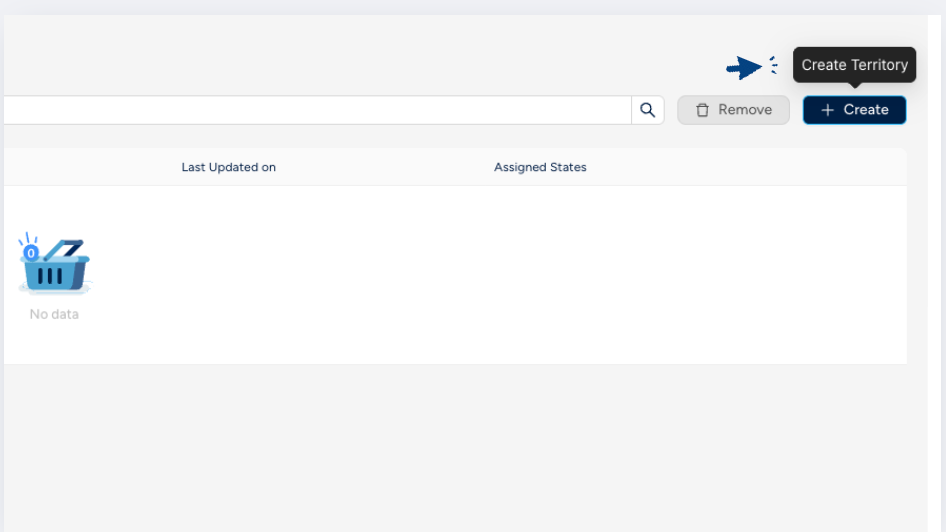
- Click on the Create button on the top right corner.
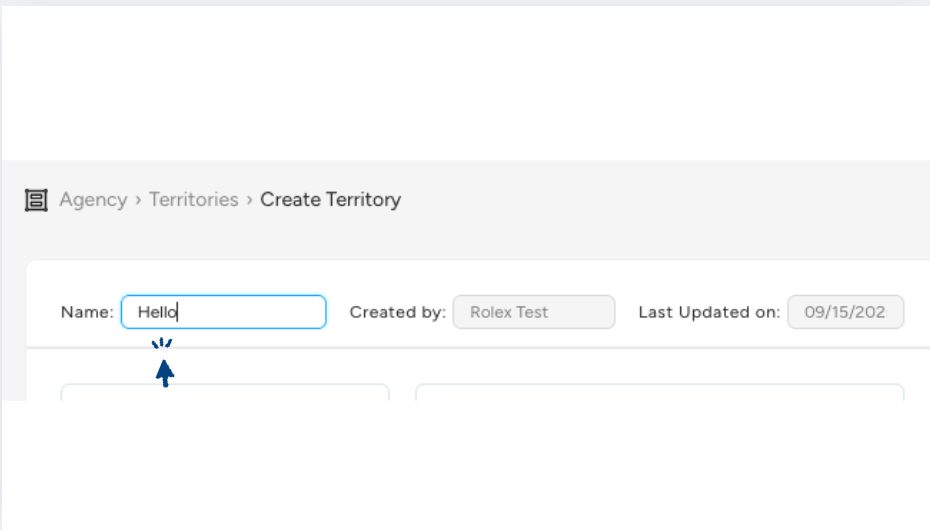
- You'll be redirected to the Create Territory wizard where you should enter a name that you want to give to your territory.
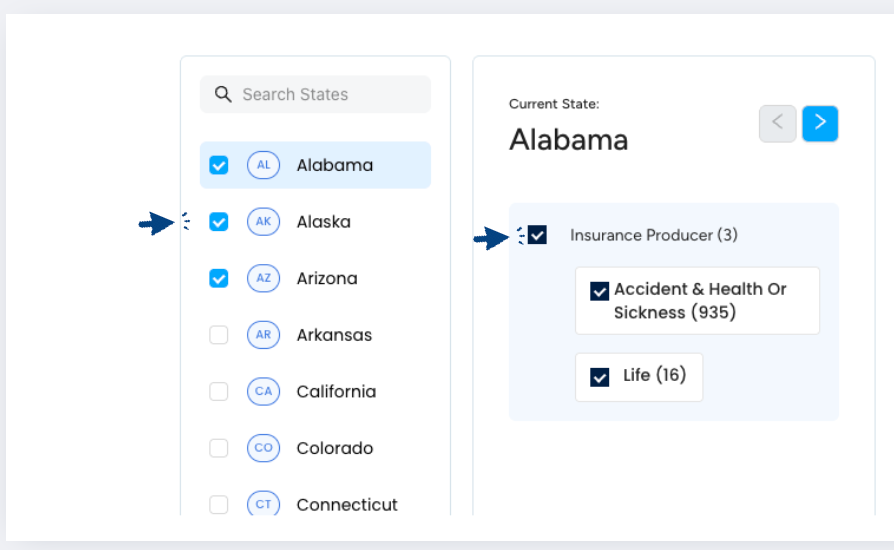
- After naming your territory, select states, license classes and lines of authority (LOAs).
- From the list of states provided, select your desired state(s) by clicking on the checkbox beside the state.
- For each state, select the corresponding License Classes and LOAs (Lines of Authority).
- If certain LOAs are not needed, simply uncheck them.
- You will be able to preview your selection on the right side. The preview will contain the list of selected states along with license class and lines of authority (LOAs) of those states.
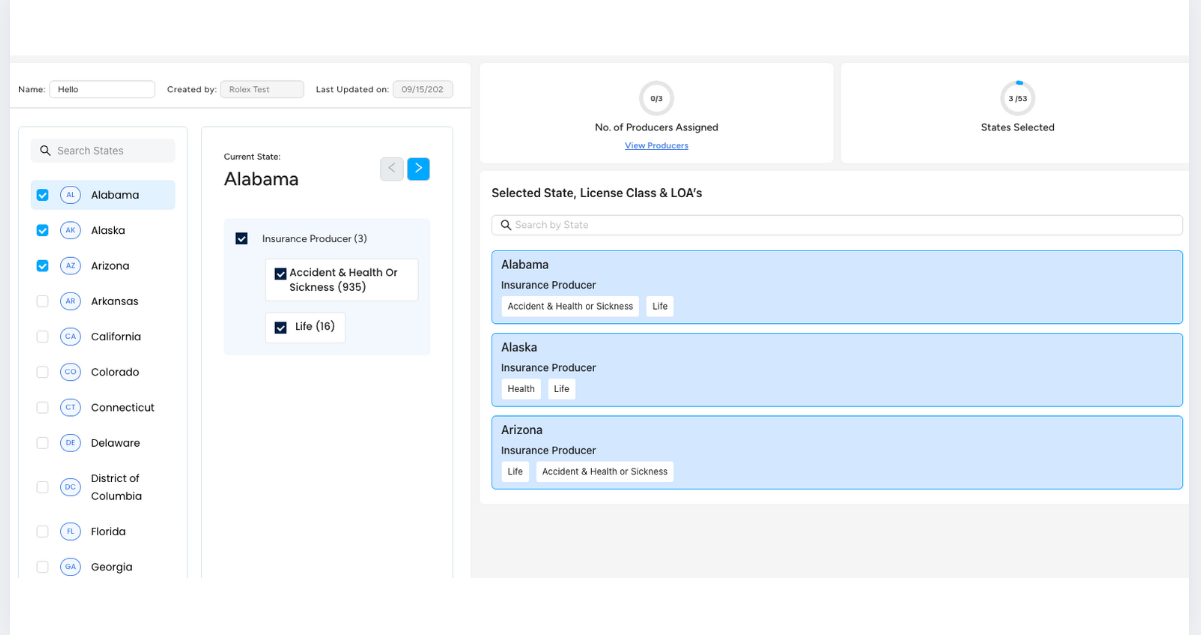
- Verify the details and click on Save Territory to create the territory.
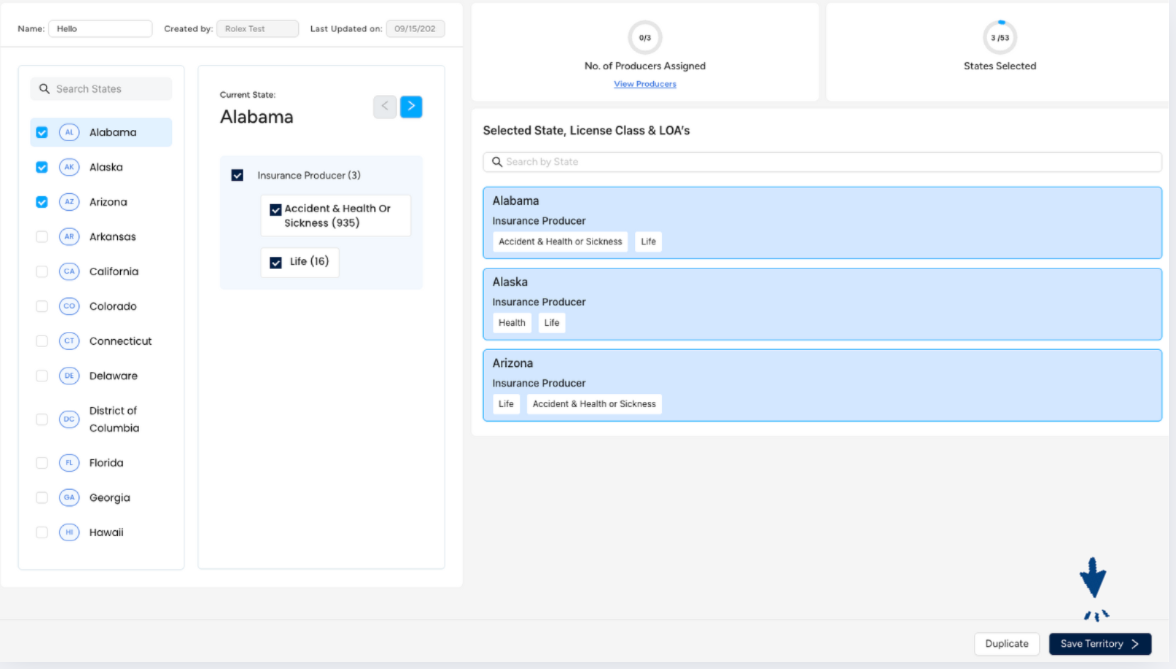
- You can also duplicate the territory by clicking on the Duplicate button at the bottom.
- Once saved, the new territory will appear on the Territories page.
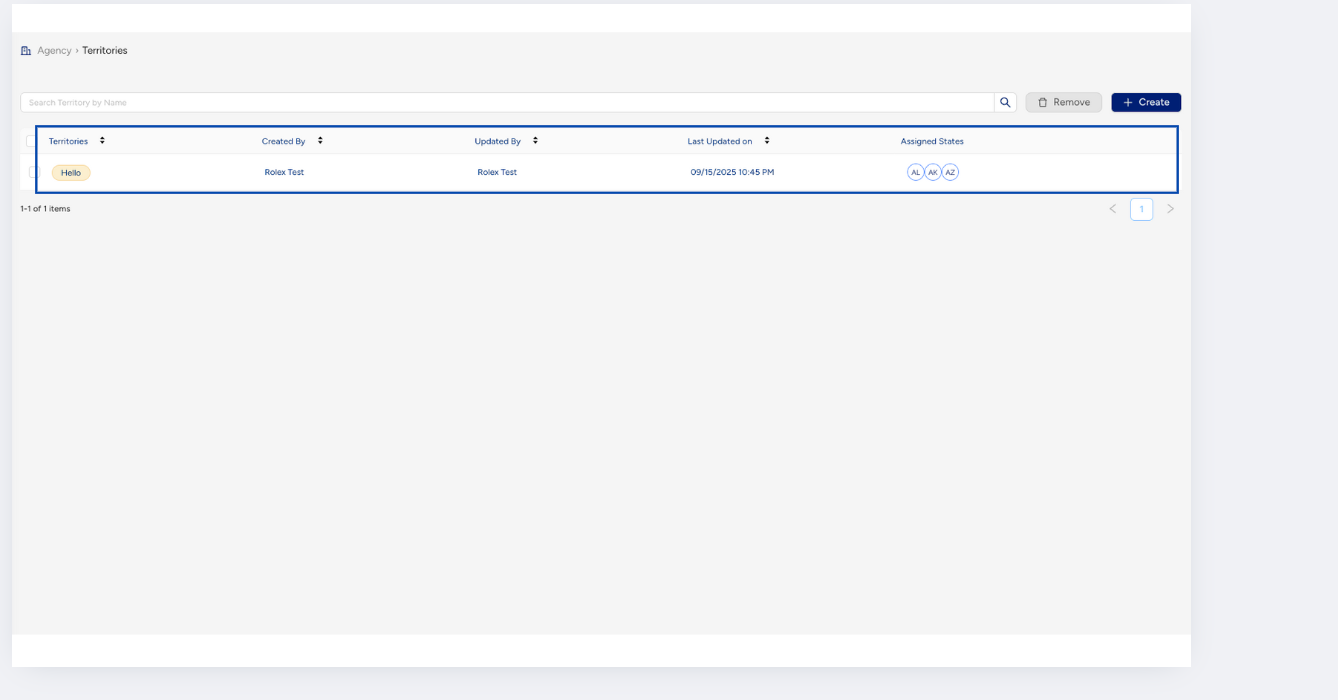
- The newly created territory can now be added to any producer who is onboarded to your agency on InsureTrek.
- Follow the State & Territory Assignments guide to add a territory to a producer.
Points to Note
- Only admins can create and manage territories on InsureTrek.
- Use descriptive territory names (e.g., South-East Region -- Life & Health) for easy identification.
Filtering by LOA
Use the LOA filter to view producers licensed in specific lines of authority, such as LIFE or HEALTH.
How to Filter Producers by LOA in State Licenses
- Navigate to State Licenses
- Go to the Producers dropdown in the main menu.
- Select State Licenses.
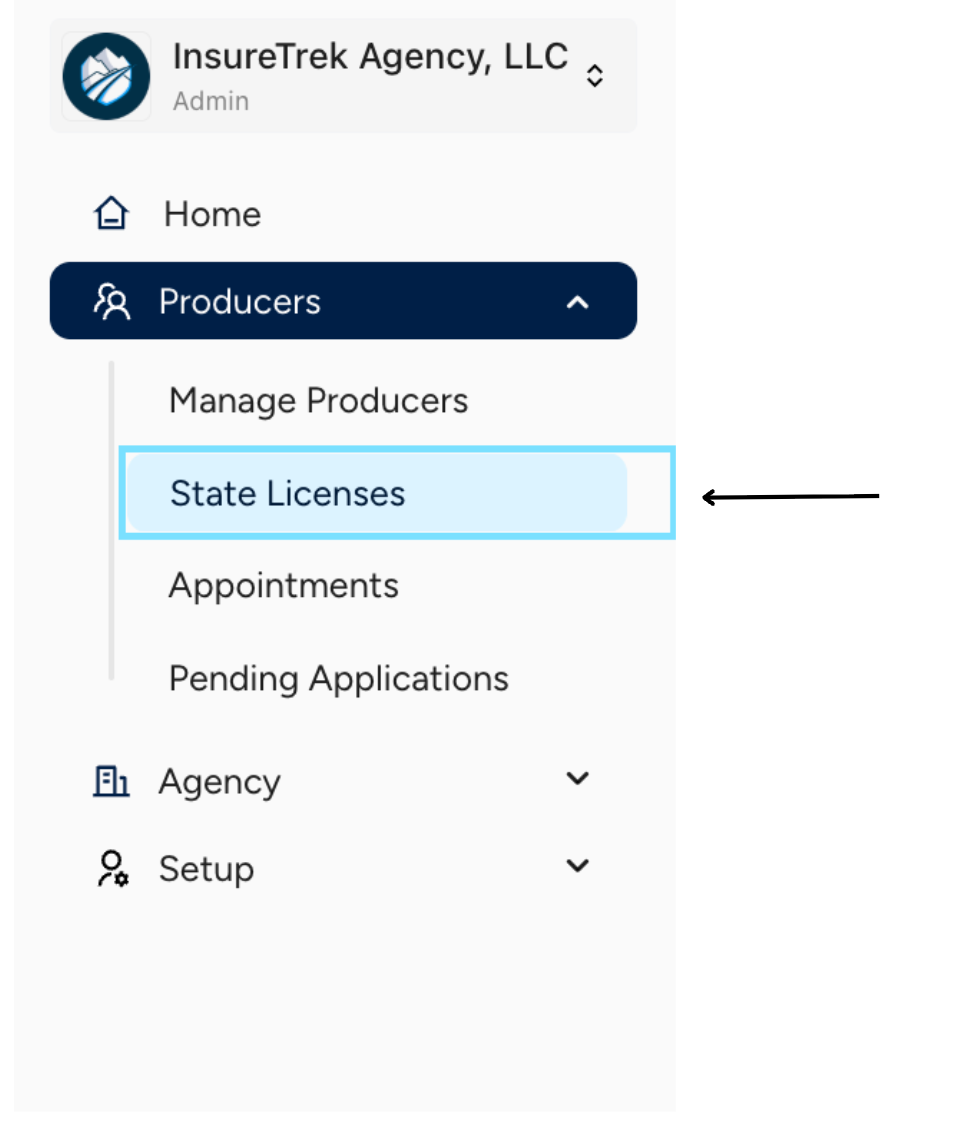
- View License Details
- Here you will see all license details across all states, producers, and their respective LOAs.
- To view only active licenses, click on the Active tab.
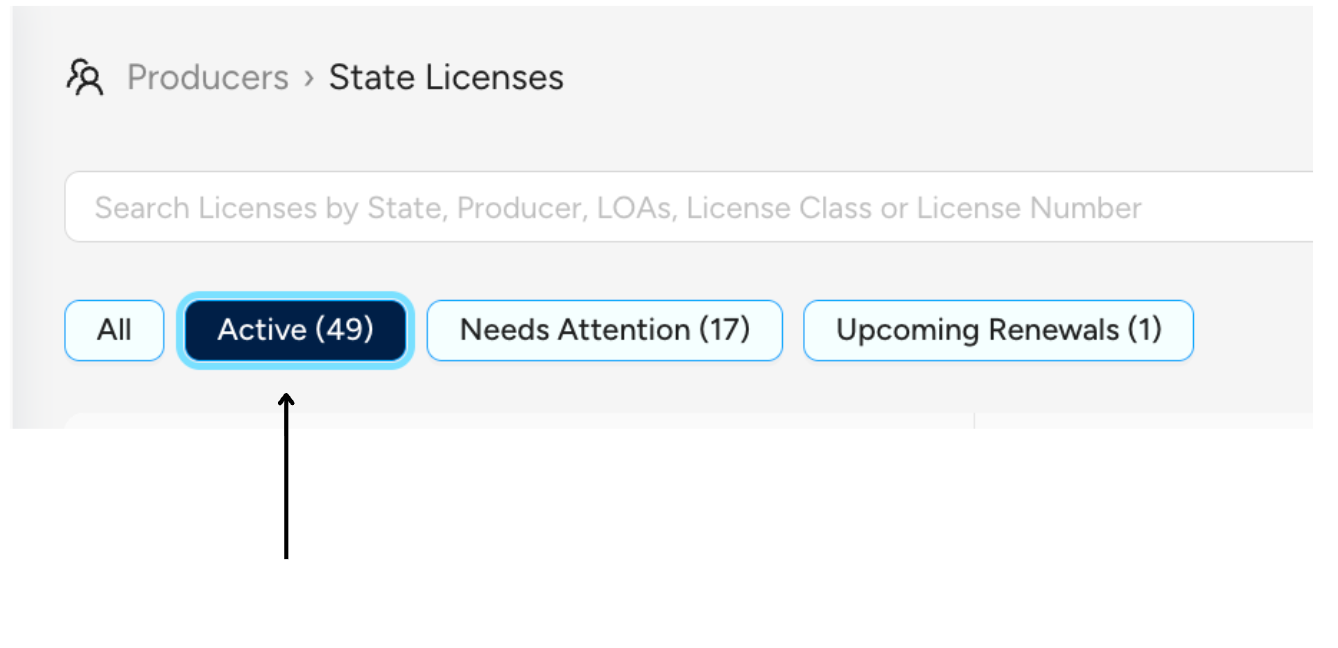
- Open Filters
- On the State Licenses page, click on Filters (top-right corner).
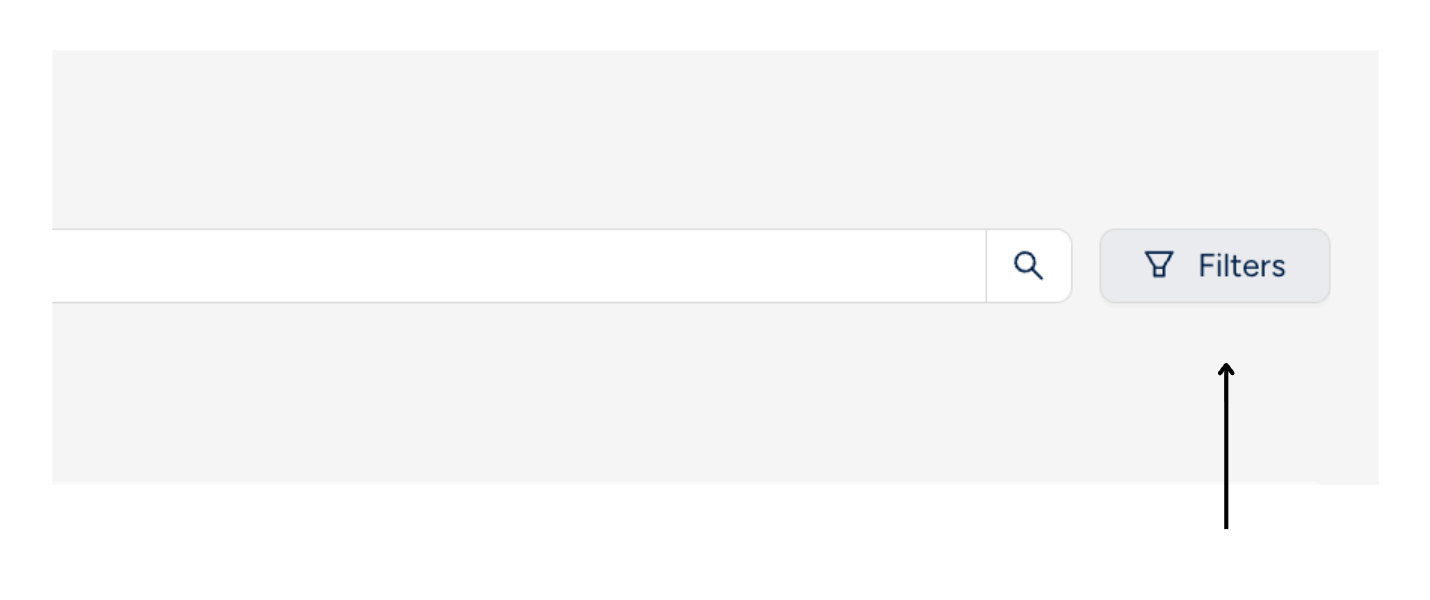
- Choose Filter Options
- You can filter by:
- Producer
- License Class
- Line of Authority (LOA)
- State
- License Status
- Assignment Status
- Select the required criteria based on your needs.
- You can filter by:
- Filter by LOA
- To view producers holding a specific LOA (e.g., Life or Life & Health):
- Open the Line of Authority filter dropdown.
- Check the box for the LOA you want (e.g., LIFE).
- Click Apply Filters.
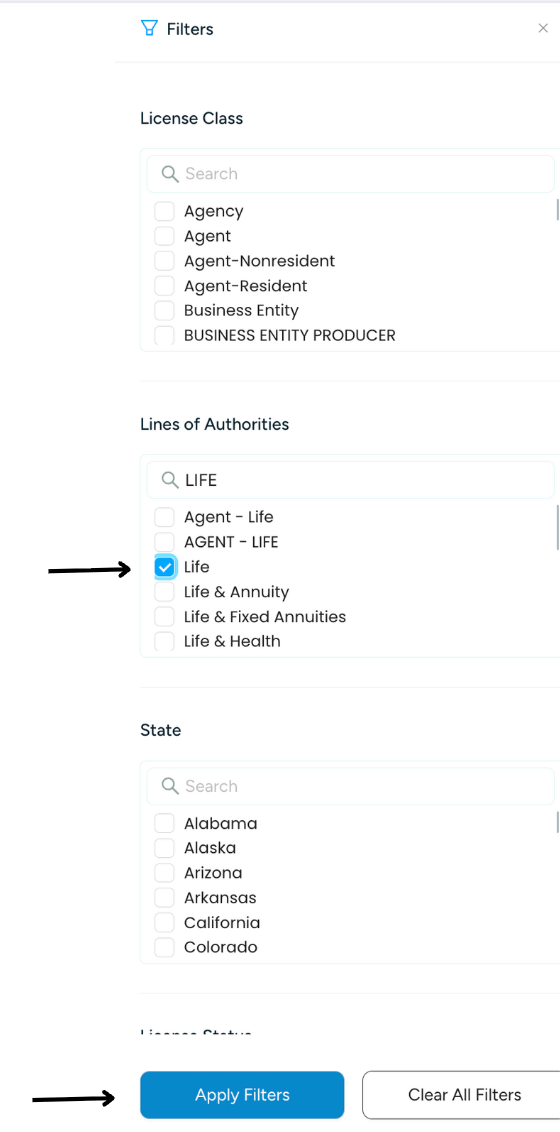
- To view producers holding a specific LOA (e.g., Life or Life & Health):
- View Results
- The results will display all agents who hold the selected LOA (LIFE).
By filtering by LOA, you can see the breakdown of how many agents are licensed in a specific LOA.