
Managing Producer Licenses
Viewing Licenses
As an agency admin, you can view licenses of a producer in your agency on InsureTrek.
Steps to View Producer Licenses
- Log in to your InsureTrek account.
- Go to Producers > State Licenses.
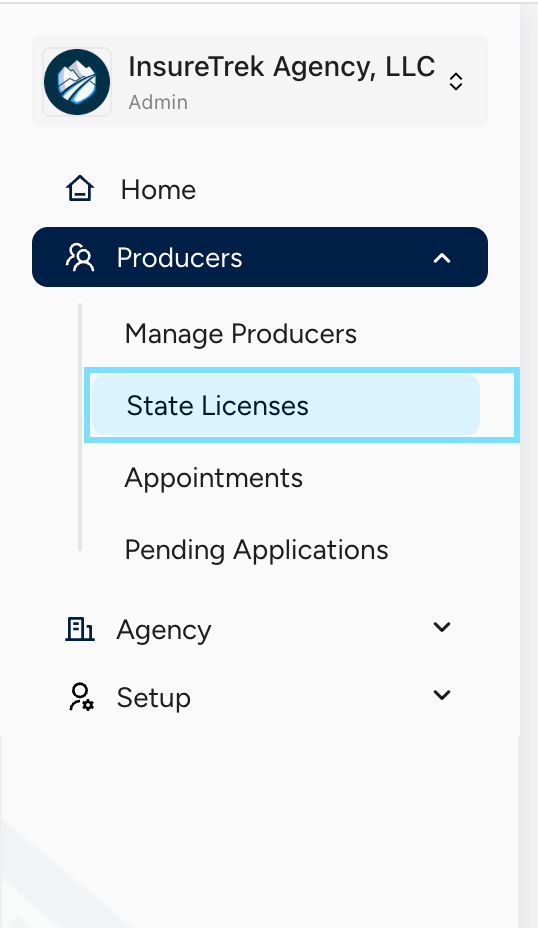
- The state licenses screen displays the list of licenses related to all the producers onboarded in your agency on InsureTrek. Licenses are grouped under the following categories:
- All
- Displays licenses that are assigned to the producers be it active, ready for renewal, applying for new license or adding another LOA.
- Active
- Displays active licenses of all the producers.
- Needs Attention
- Lists licenses that require additional actions or prerequisites to be completed before they can be submitted to NIPR.
- Upcoming Renewals
- Shows licenses that are due for renewal soon.
- Enables proactive action to ensure timely renewal and avoid license expiration.
- All
- The State licenses screen consists of the following details in all the above 4 views
- State and Status: Displays the name of the state and status of the application.
- Producer Name: Displays the name of the producer.
- License Number: Displays the license number.
- License Class and LOAs: Displays the list of license classes and LOAs associated with the state license.
- Expiration Date: Displays the expiration date of the license.
- Auto Renew: Displays whether auto-renew of licenses is enabled for a producer or not. If enabled, whether agency or producer will be paying for the renewal.
- Assignment Status: Represents whether the state is assigned to the producer or not.
- Fee: Displays the estimated fees for the license application.
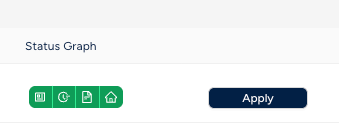
- Status Graph: The Status Graph contains 4 indicators that validate the profile readiness of a producer. Here's what each light represents:
- Profile: The producer's basic information is filled out and verified.
- Employment History: A consecutive 5-year or most recent employment history is required and is currently missing.
- Background Questions: The producer has not answered the mandatory background questions.
- Resident License: Confirms that the producer holds an active resident license.
All 4 indicators must be Green in order to proceed. Only then will the Apply, Renew or Amend button will be enabled.
- You can use the search bar at the top of the license table to quickly find specific licenses by:
- State
- Producer Name
- Line of Authority (LOA)
- License Class
- License Number
This helps in narrowing down large datasets to find exactly what you're looking for.
Best Practices
- Regularly check the "Needs Attention" section to ensure no license is blocked from submission.
- Check the "Upcoming Renewals" tab frequently to stay ahead on license renewals.
- Use available filters or search functionality to find specific licenses quickly.
Applying for New Licenses
As an agency admin, you can apply for new state licenses for producers on InsureTrek. You can apply for new state licenses for producers in two ways,
- From Producer Profile
- From Admin View
Steps to Apply New State License from Producer Profile
Step 1: Navigate to the producer's profile
- Log in to your InsureTrek account.
- Go to Producers > Manage Producers
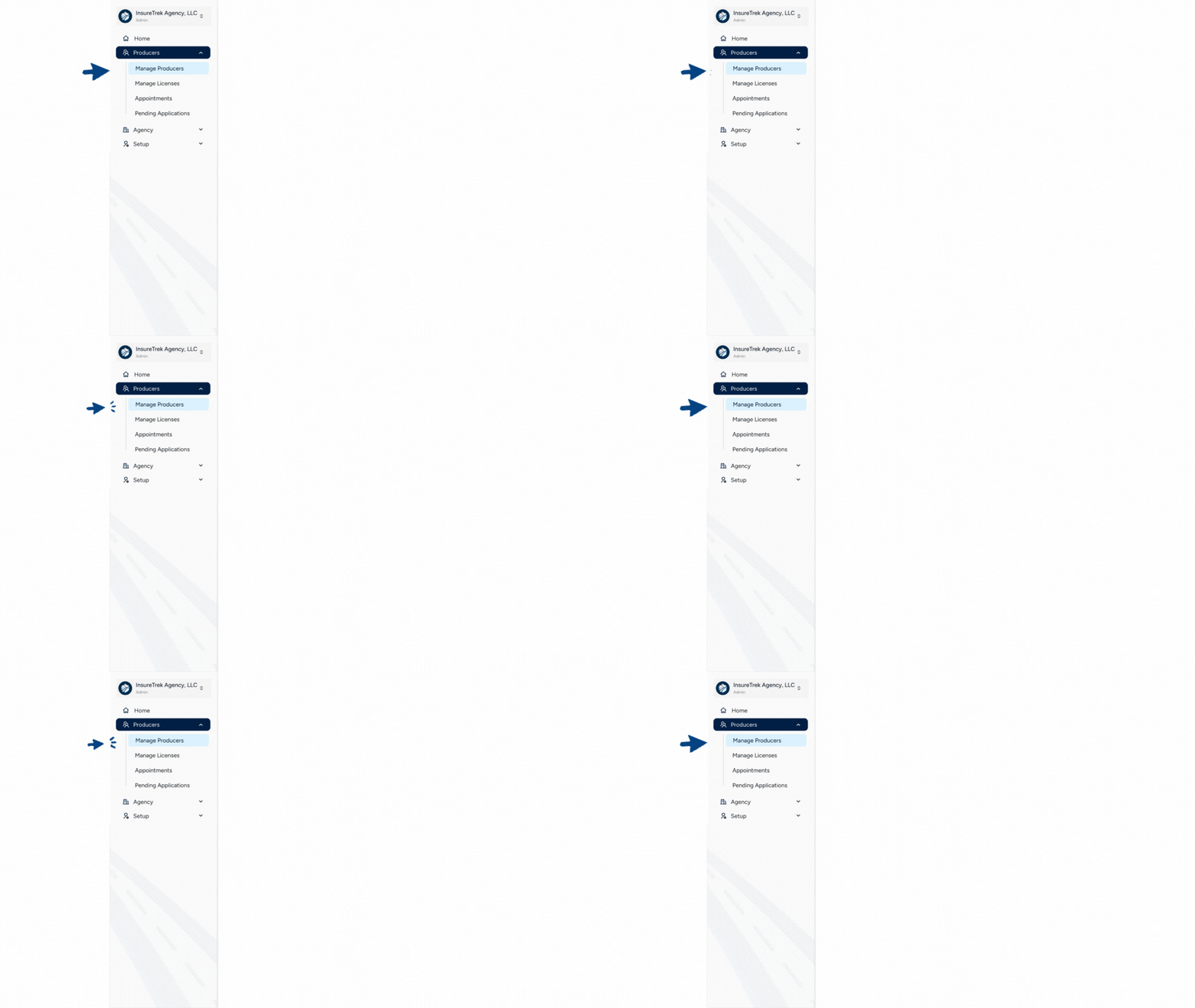
- You'll be navigated to the page listing all the licenses of producers onboarded to your agency on InsureTrek.
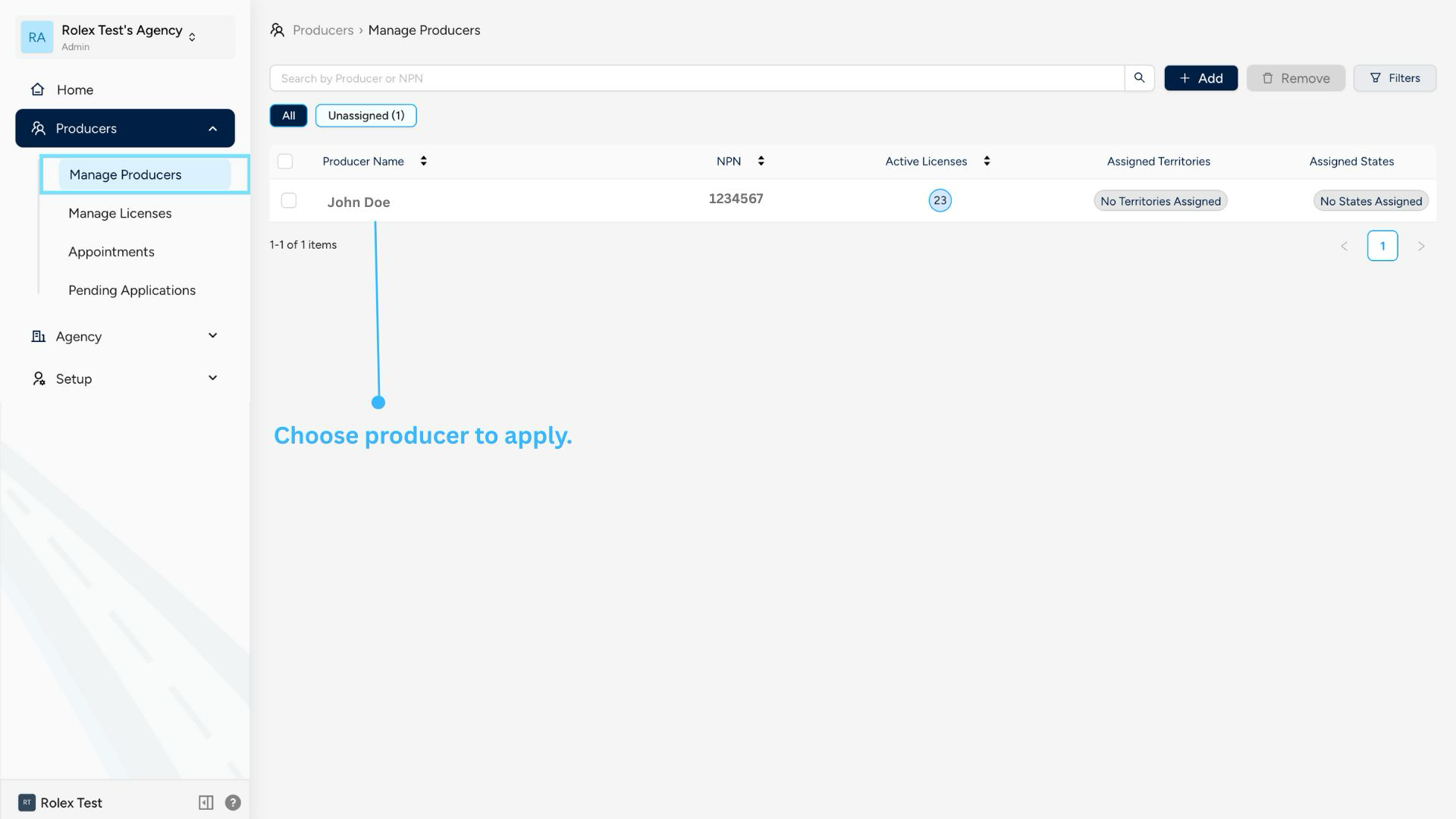
- Locate and click on the desired producer
- Use filter options or the search bar to locate the desired producer
- You can search using Producer name or NPN
- Use filter options or the search bar to locate the desired producer
- You'll be navigated to the producer's profile which displays all the details about the producer.
Step 2: Assign States & Territories
- Click on the Manage button on the Assigned States & Territories section
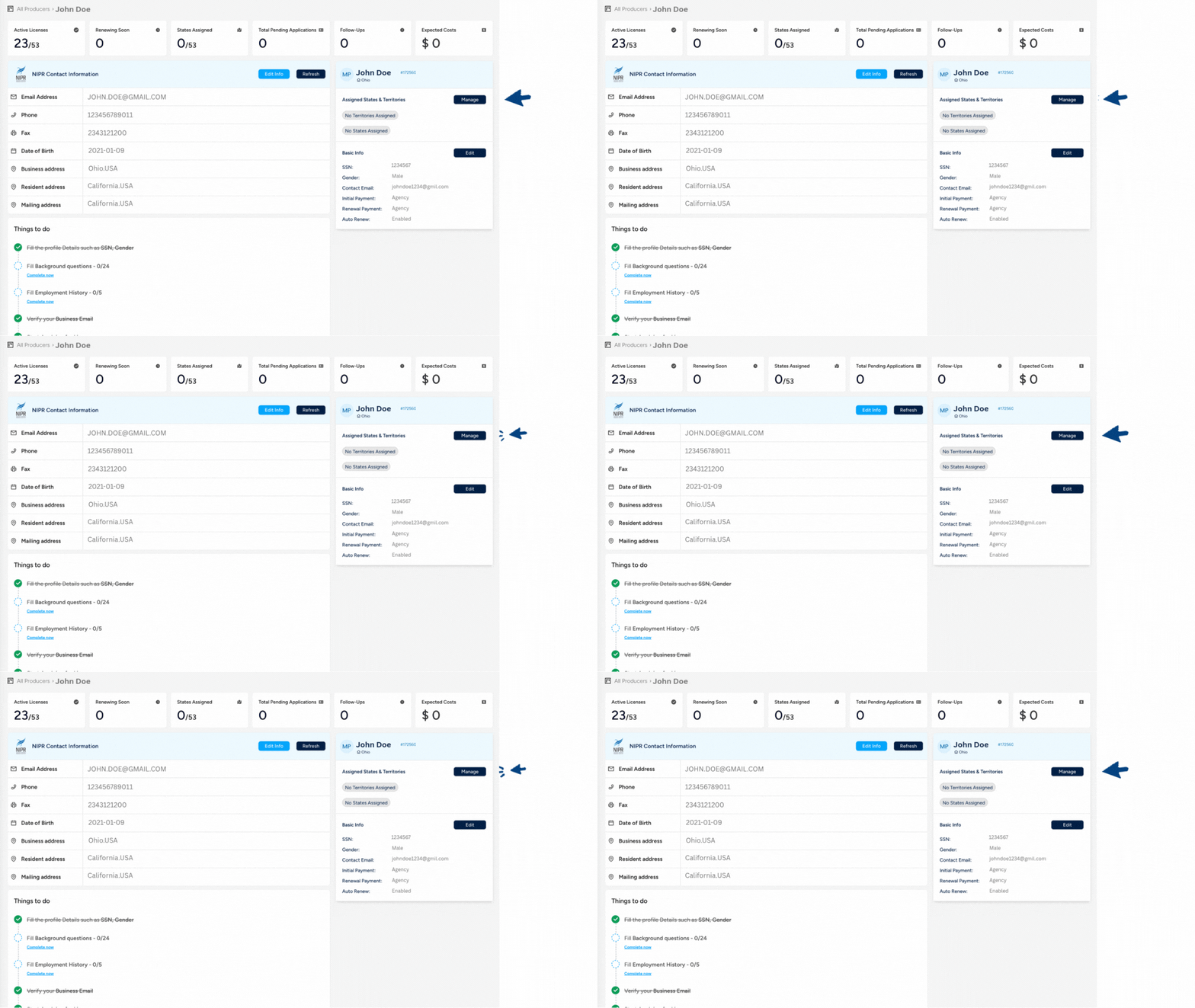
- You'll be redirected to the Manage states & territories wizard where you can
- A predefined territories (or)
- Individual states (or)
- A combination of both
- You can select one or multiple states at a time.
- For each selected state, select the relevant Lines of Authority (LOAs).
- LOAs vary by state, so review them carefully.
- For each selected state, select the relevant Lines of Authority (LOAs).
- After making your selections, click Save Changes.
- You will be redirected to the Home Page of the producer's profile, where the selected state/territory code will appear under Assigned States & Territories.
Step 3: Apply for the License
- Go to Producer > State Licenses
- Locate the state for which you want to apply a new license for the producer
- Ensure that all the following details are completed,
- Profile including gender, SSN, payment details and FINRA are updated
- Employment History for the past 5 consecutive years is updated
- All the Background Questions are answered
- Resident state license is active
- If all the points in step-3 are completed then the status graph in the state licenses screen will be in green color and the Apply button will be enabled.
- If any of the details are not completed then the status graph for that section will be in red color.
- Click on that section and you'll be navigated to the screen to complete it.
- Click the Apply button to submit the license application.
- Once the application is submitted successfully, you can view the status of the application in Pending Applications screen.
Steps to Apply New State License from Admin View
Step 1: Locate the Producer
- Log in to your InsureTrek account.
- Go to Producers > Manage Producers.
- Find and click on the producer's NPN to open a right nav bar.
- The right nav bar will display the following details,
- Name of the producer
- NPN of the producer
- Manage State & Territory button to navigate to Manage State & Territory wizard
- Initial Payment helps to select whether Agency or Producer is responsible for the payment of new license applications
- Renewal Payment helps to select whether Agency or Producer is responsible for the payment of renewal license applications
- States that were assigned to the producer along with the status of the license in that state.
Step 2: Assign States & Territories
- Click on Manage State & Territory button and you'll be redirected to the manage states & territories wizard where you can assign
- A predefined territories (or)
- Individual states (or)
- A combination of both
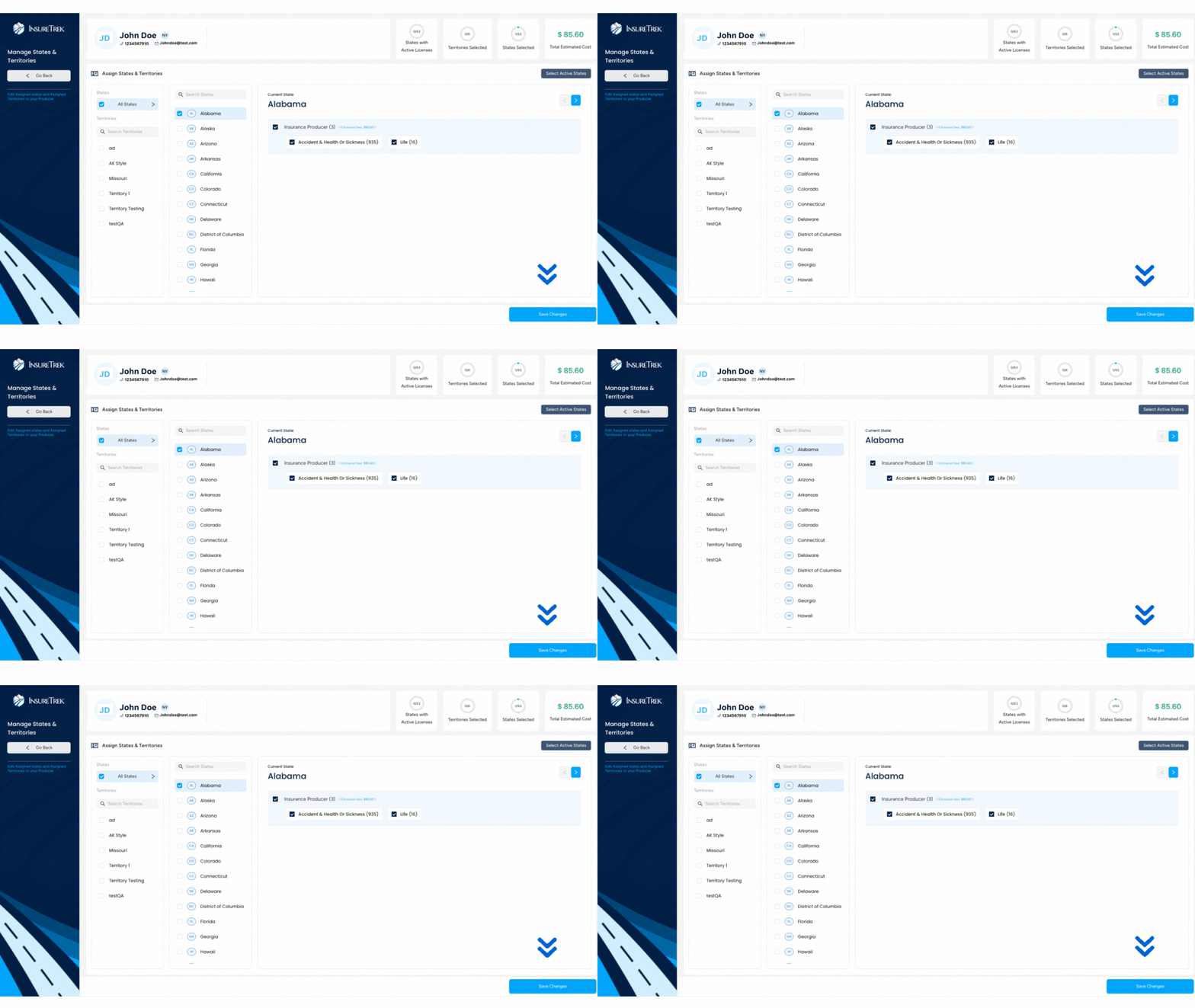
- You can select one or multiple states at a time.
- For each selected state, select the relevant Lines of Authority (LOAs).
- LOAs vary by state, so review them carefully.
- For each selected state, select the relevant Lines of Authority (LOAs).
- After making your selections, click Save Changes.
Step 3: Apply for the License
- Go to Producers > State Licenses
- Locate the producer and state for which you want to apply a new license for the producer
- Ensure that all the following details are completed,
- Profile including gender, SSN, payment details and FINRA are updated
- Employment History for the past 5 consecutive years is updated
- All the Background Questions are answered
- Resident state license is active
- If all the points in step-3 are completed then the status graph in the state licenses screen will be in green color and the Apply button will be enabled.
- If any of the details are not completed then the status graph for that section will be in red color.
- Click on that section and you'll be navigated to the screen to complete it.
- Click the Apply button to submit the license application.
- Once the application is submitted successfully, you can view the status of the application in Pending Applications screen.
Adding Lines of Authority
As an agency admin, you can add an LOA to the existing state licenses for producers on InsureTrek. You can do it in two ways,
- From Producer Profile
- From Admin View
Pre-Requisites
- Ensure that the state with relevant lines of authority (LOAs) is added to the producer.
- You can follow the Managing Assignments section below to add states & territories to producers.
- A new LOA will be added only if the producer holds an active license in the respective state.
- A new LOA will be added to the non-resident state only if the producer holds an active license for the same LOA in the resident state.
- If you don't find the required LOA on InsureTrek, reach out to us at hello@insuretrek.com and we'll add it for you.
Steps to Add LOA to Producer State License from Producer Profile
- Log in to your InsureTrek account.
- Go to Producers > Manage Producers
- You'll be navigated to the page listing all the licenses of producers onboarded to your agency on InsureTrek.
- Locate and click on the desired producer
- Use filter options or the search bar to locate the desired producer
- You can search using Producer name or NPN
- Use filter options or the search bar to locate the desired producer
- You'll be navigated to the producer's profile which displays all the details about the producer.
- Go to Producers > State Licenses in the Producer's profile
- Locate the producer and state for which you want to add an LOA.
- Ensure that all the following details are completed,
- Profile including gender, SSN, payment details and FINRA are updated
- Employment History for the past 5 consecutive years is updated
- All the Background Questions are answered
- Resident state license is active
- If all the points in step-3 are completed then the status graph in the state licenses screen will be in green color and the Amend button will be enabled.
- If any of the details are not completed then the status graph for that section will be in red color.
- Click on that section and you'll be navigated to the screen to complete it.
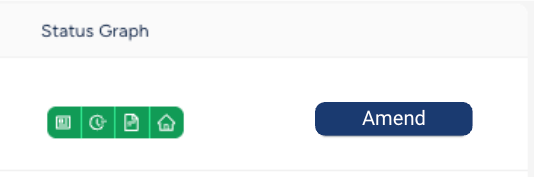
- Click the Amend button to submit the LOA addition license application.
- Once the application is submitted successfully, you can view the status of the application in Pending Applications screen.
Steps to Add LOA from Admin View
- Go to Producers > State Licenses
- Locate the producer and state for which you want to add an LOA.
- Ensure that all the following details are completed,
- Profile including gender, SSN, payment details and FINRA are updated
- Employment History for the past 5 consecutive years is updated
- All the Background Questions are answered
- Resident state license is active
- If all the points in step-3 are completed then the status graph in the state licenses screen will be in green color and the Amend button will be enabled.
- If any of the details are not completed then the status graph for that section will be in red color.
- Click on that section and you'll be navigated to the screen to complete it.
- Click the Amend button to submit the LOA addition license application.
- Once the application is submitted successfully, you can view the status of the application in Pending Applications screen.
Renewing Licenses
As an agency admin, you can renew existing state licenses for producers on InsureTrek. You can do it in two ways,
- From Producer Profile
- From Admin View
Pre-Requisites
- Ensure that the state with relevant lines of authority (LOAs) is added to the producer.
- You can follow the Managing Assignments section below to add states & territories to producers.
Steps to Renew State License from Producer Profile
- Log in to your InsureTrek account.
- Go to Producers > Manage Producers
- You'll be navigated to the page listing all the licenses of producers onboarded to your agency on InsureTrek.
- Locate and click on the desired producer
- Use filter options or the search bar to locate the desired producer
- You can search using Producer name or NPN
- Use filter options or the search bar to locate the desired producer
- You'll be navigated to the producer's profile which displays all the details about the producer.
- Go to Producers > State Licenses in the Producer's profile
- Locate the producer and state for which you want to renew license
- Ensure that all the following details are completed,
- Profile including gender, SSN, payment details and FINRA are updated
- Employment History for the past 5 consecutive years is updated
- All the Background Questions are answered
- Resident state license is active
- If all the points in step-3 are completed then the status graph in the state licenses screen will be in green color and the Renew button will be enabled.
- If any of the details are not completed then the status graph for that section will be in red color.
- Click on that section and you'll be navigated to the screen to complete it.
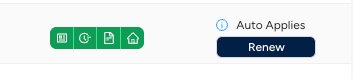
- Click the Renew button to submit the renewal license application.
- Once the application is submitted successfully, you can view the status of the application in Pending Applications screen.
Steps to Renew State License from Admin View
- Go to Producers > State Licenses
- Locate the producer and state for which you want to renew license.
- Ensure that all the following details are completed,
- Profile including gender, SSN, payment details and FINRA are updated
- Employment History for the past 5 consecutive years is updated
- All the Background Questions are answered
- Resident state license is active
- If all the points in step-3 are completed then the status graph in the state licenses screen will be in green color and the Renew button will be enabled.
- If any of the details are not completed then the status graph for that section will be in red color.
- Click on that section and you'll be navigated to the screen to complete it.
- Click the Renew button to submit the renewal license application.
- Once the application is submitted successfully, you can view the status of the application in Pending Applications screen.
Managing Assignments
As an agency admin, you will be able to manage the state assignments for your producers in InsureTrek.
What is Producer Assignments?
Producer Assignments configure essential presets like license class and lines of authority (LOA) that allow you to apply for licenses through NIPR for specific states. During this process, you select relevant states and their corresponding LOAs to ensure streamlined license applications. This helps you to focus only on the states and LOAs that matter to your business.
The producer assignment can be performed in two ways,
- From Producer Profile
- From Admin View
Prerequisites
- Producer should be onboarded to your agency on InsureTrek.
- If not, onboard using this guide - Add a Producer
Steps to Assign States & Territories from Producer Profile
- Log in to your InsureTrek account.
- Go to Producers > Manage Producers.
- Find and click on the producer's name to open their profile.
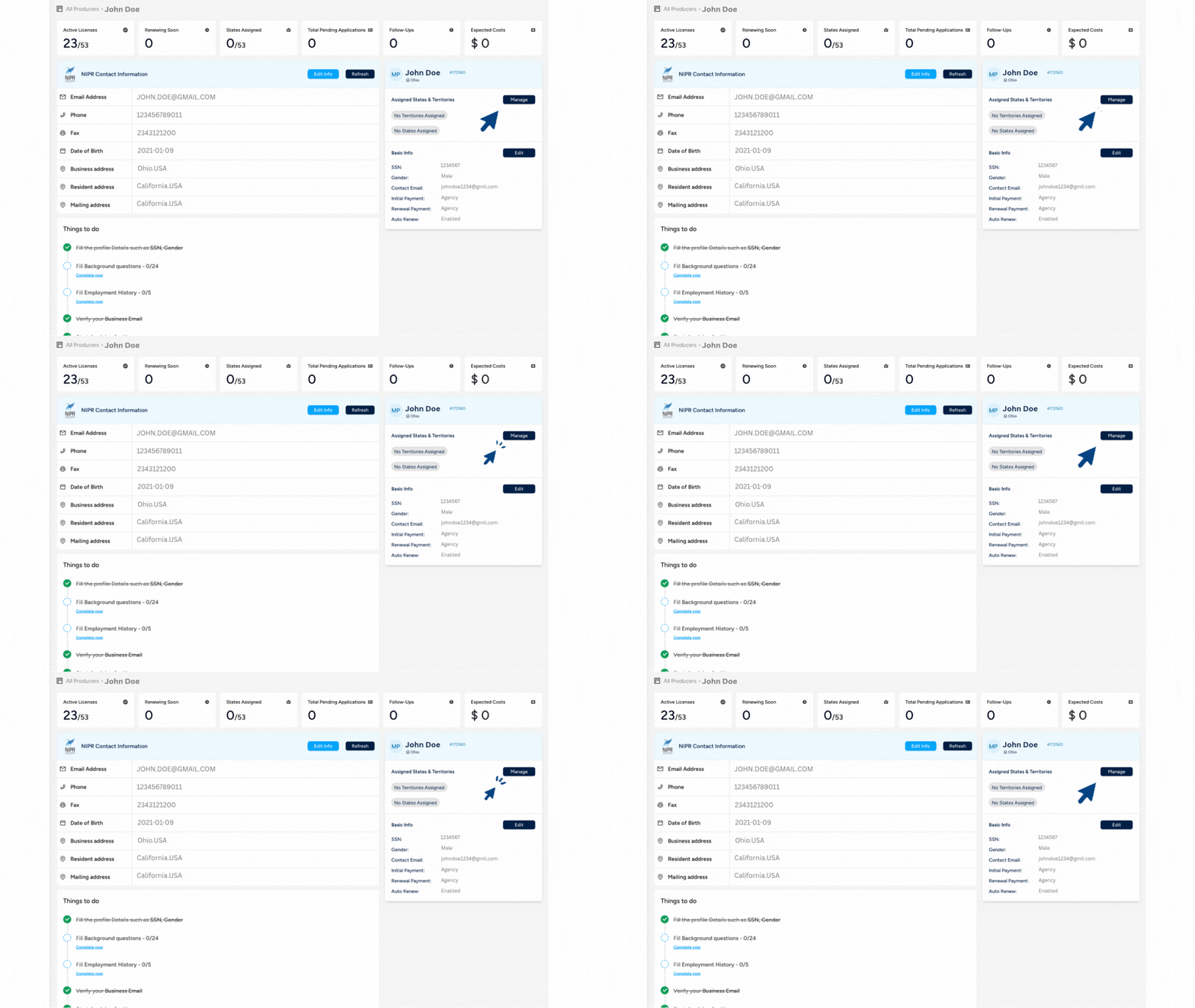
- Once on the producer's profile page, click on Manage to assign or un-assign states & territories where the producer is authorised or will be applying for licenses.
- You will be redirected to the states & territories wizard where you can assign
- A predefined territories (or)
- Individual states (or)
- A combination of both
- You can select one or multiple states at a time.
- For each selected state, select the relevant Lines of Authority (LOAs).
- LOAs vary by state, so review them carefully.
- For each selected state, select the relevant Lines of Authority (LOAs).
- After making your selections, click Save Changes.
- You will be redirected to the Home Page, where the selected state/territory code will appear under Assigned States & Territories.
Steps to Assign States from Admin View
- Log in to your InsureTrek account.
- Go to Producers > Manage Producers.
- Find and click on the producer's NPN to open a right nav bar.
- The right nav bar will display the following details,
- Name of the producer
- NPN of the producer
- Manage State & Territory button to navigate to Manage State & Territory wizard
- Initial Payment helps to select whether Agency or Producer is responsible for the payment of new license applications
- Renewal Payment helps to select whether Agency or Producer is responsible for the payment of renewal license applications
- States that were assigned to the producer along with the status of the license in that state.
- Click on Manage State & Territory button and you'll be redirected to the manage states & territories wizard where you can assign
- A predefined territories (or)
- Individual states (or)
- A combination of both
- You can select one or multiple states at a time.
- For each selected state, select the relevant Lines of Authority (LOAs).
- LOAs vary by state, so review them carefully.
- For each selected state, select the relevant Lines of Authority (LOAs).
- After making your selections, click Save Changes.